> ## Documentation Index
> Fetch the complete documentation index at: https://help.hoopai.com/llms.txt
> Use this file to discover all available pages before exploring further.

# Forms & pop-ups

> Learn how to create and embed forms and pop-up overlays to capture leads from your website and funnels in the HoopAI Platform.

export const CourseTracker = ({courseId, lessonId, videoId}) => {
  const [progress, setProgress] = useState({});
  const [expanded, setExpanded] = useState(false);
  useEffect(() => {
    setProgress(loadProgress());
    document.body.setAttribute("data-academy", "true");
    return () => document.body.removeAttribute("data-academy");
  }, []);
  const course = COURSES[courseId];
  if (!course) return null;
  const lessons = course.lessons;
  const currentIndex = lessons.findIndex(l => l.id === lessonId);
  const completedCount = lessons.filter(l => !!progress[courseId + "/" + l.id]).length;
  const percent = lessons.length > 0 ? Math.round(completedCount / lessons.length * 100) : 0;
  const isCurrentDone = !!progress[courseId + "/" + lessonId];
  const prev = currentIndex > 0 ? lessons[currentIndex - 1] : null;
  const next = currentIndex < lessons.length - 1 ? lessons[currentIndex + 1] : null;
  const totalDuration = formatTotalDuration(lessons);
  const handleToggle = () => {
    const key = courseId + "/" + lessonId;
    const updated = {
      ...progress
    };
    if (updated[key]) {
      delete updated[key];
    } else {
      updated[key] = Date.now();
    }
    setProgress(updated);
    persistProgress(updated);
  };
  const lessonPath = lesson => "/academy/" + course.dir + "/" + lesson.id;
  const videoEmbed = videoId ? <div style={{
    position: "relative",
    width: "100%",
    paddingBottom: "56.25%",
    borderRadius: "var(--ds-radius-lg)",
    overflow: "hidden",
    marginBottom: "24px",
    background: "#000"
  }}>
      <iframe src={"https://www.youtube-nocookie.com/embed/" + videoId + "?rel=0"} title="Lesson video" allow="accelerometer; autoplay; clipboard-write; encrypted-media; gyroscope; picture-in-picture" allowFullScreen style={{
    position: "absolute",
    top: 0,
    left: 0,
    width: "100%",
    height: "100%",
    border: "none"
  }} />
    </div> : null;
  const lessonList = lessons.map(lesson => {
    const isActive = lesson.id === lessonId;
    const isDone = !!progress[courseId + "/" + lesson.id];
    const itemStyle = {
      display: "flex",
      alignItems: "center",
      gap: "8px",
      padding: "10px 16px",
      borderTop: "1px solid var(--academy-border-subtle, #f3f4f6)",
      background: isActive ? "var(--academy-active-bg, #f9fafb)" : "transparent",
      textDecoration: "none",
      cursor: isActive ? "default" : "pointer",
      color: "inherit",
      transition: "background 0.15s"
    };
    const titleStyle = {
      flex: 1,
      fontSize: "13px",
      fontWeight: isActive ? 600 : 400,
      color: isActive ? "var(--academy-text, #111827)" : "var(--academy-text-secondary, #6b7280)",
      overflow: "hidden",
      textOverflow: "ellipsis",
      whiteSpace: "nowrap",
      lineHeight: "1.4"
    };
    const durationStyle = {
      fontSize: "12px",
      color: "var(--academy-text-muted, #9ca3af)",
      whiteSpace: "nowrap"
    };
    const inner = <>
        {isDone ? <CheckCircle /> : <VideoIcon />}
        <span style={titleStyle}>{lesson.title}</span>
        <span style={durationStyle}>{lesson.duration}</span>
      </>;
    if (isActive) {
      return <div key={lesson.id} style={itemStyle}>
          {inner}
        </div>;
    }
    return <a key={lesson.id} href={lessonPath(lesson)} style={itemStyle}>
        {inner}
      </a>;
  });
  return <div className="not-prose" id="academy-course-tracker">
      {videoEmbed}
      <div className="academy-tracker" style={{
    fontFamily: "Inter, -apple-system, BlinkMacSystemFont, sans-serif",
    borderRadius: "var(--ds-radius-lg)",
    border: "1px solid var(--academy-border, #e5e7eb)",
    background: "var(--academy-bg, #ffffff)",
    overflow: "hidden",
    marginBottom: "24px"
  }}>
        {}
        <div style={{
    padding: "16px 16px 0"
  }}>
          <h3 style={{
    margin: 0,
    fontSize: "16px",
    fontWeight: 600,
    lineHeight: "1.4",
    color: "var(--academy-text, #111827)"
  }}>
            {course.title}
          </h3>
          <div style={{
    display: "flex",
    gap: "12px",
    marginTop: "8px"
  }}>
            <span style={{
    display: "flex",
    alignItems: "center",
    gap: "5px",
    fontSize: "12px",
    color: "var(--academy-text-secondary, #6b7280)",
    padding: "3px 8px 3px 6px",
    borderRadius: "var(--ds-radius-sm)",
    border: "1px solid var(--academy-border, #e5e7eb)"
  }}>
              <BookIcon /> {lessons.length} lessons
            </span>
            <span style={{
    display: "flex",
    alignItems: "center",
    gap: "5px",
    fontSize: "12px",
    color: "var(--academy-text-secondary, #6b7280)",
    padding: "3px 8px 3px 6px",
    borderRadius: "var(--ds-radius-sm)",
    border: "1px solid var(--academy-border, #e5e7eb)"
  }}>
              <ClockIcon /> Approx. {totalDuration}
            </span>
          </div>
        </div>

        {}
        <div style={{
    padding: "14px 16px 16px"
  }}>
          <div style={{
    display: "flex",
    justifyContent: "space-between",
    fontSize: "12px",
    color: "var(--academy-text-secondary, #6b7280)"
  }}>
            <span>Your progress</span>
            <span style={{
    fontWeight: 500,
    color: "var(--academy-text, #111827)"
  }}>
              {percent}%
            </span>
          </div>
          <div style={{
    height: "6px",
    borderRadius: "var(--ds-radius-full)",
    background: "var(--academy-track, #f3f4f6)",
    marginTop: "8px",
    overflow: "hidden"
  }}>
            <div style={{
    height: "100%",
    borderRadius: "var(--ds-radius-full)",
    background: "var(--academy-progress, #3b82f6)",
    transition: "width 0.5s cubic-bezier(0.4, 0, 0.2, 1)",
    width: percent + "%"
  }} />
          </div>
        </div>

        {}
        <div className="academy-lessons-desktop">{lessonList}</div>

        {}
        <div className="academy-lessons-mobile">
          <button onClick={() => setExpanded(!expanded)} aria-expanded={expanded} style={{
    display: "flex",
    alignItems: "center",
    justifyContent: "space-between",
    padding: "12px 16px",
    cursor: "pointer",
    borderTop: "1px solid var(--academy-border-subtle, #f3f4f6)",
    background: "transparent",
    border: "none",
    borderTopStyle: "solid",
    borderTopWidth: "1px",
    borderTopColor: "var(--academy-border-subtle, #f3f4f6)",
    width: "100%",
    textAlign: "left",
    color: "var(--academy-text-secondary, #6b7280)",
    fontSize: "13px",
    fontWeight: 500,
    fontFamily: "inherit"
  }}>
            <span>
              {expanded ? "Hide lessons" : "Show all " + lessons.length + " lessons"}
            </span>
            <ChevronDown open={expanded} />
          </button>
          {expanded && lessonList}
        </div>

        {}
        <div style={{
    display: "flex",
    alignItems: "center",
    justifyContent: "space-between",
    borderTop: "1px solid var(--academy-border, #e5e7eb)",
    padding: "10px 16px"
  }}>
          {prev ? <a href={lessonPath(prev)} style={{
    fontSize: "13px",
    color: "var(--academy-text-secondary, #6b7280)",
    textDecoration: "none",
    display: "flex",
    alignItems: "center",
    gap: "4px"
  }}>
              ‹ Previous
            </a> : <div />}
          <button onClick={handleToggle} style={{
    fontSize: "13px",
    fontWeight: 500,
    cursor: "pointer",
    padding: "6px 14px",
    borderRadius: "var(--ds-radius-md)",
    border: isCurrentDone ? "1px solid var(--academy-border, #e5e7eb)" : "none",
    background: isCurrentDone ? "var(--academy-bg, #ffffff)" : "var(--academy-btn-bg, #111827)",
    color: isCurrentDone ? "var(--academy-complete, #10b981)" : "var(--academy-btn-text, #ffffff)",
    display: "flex",
    alignItems: "center",
    gap: "6px",
    transition: "all 0.2s",
    lineHeight: "1.4",
    fontFamily: "inherit"
  }}>
            {isCurrentDone ? <>
                <CheckCircle /> Completed
              </> : "Mark as completed"}
          </button>
          {next ? <a href={lessonPath(next)} style={{
    fontSize: "13px",
    color: "var(--academy-text-secondary, #6b7280)",
    textDecoration: "none",
    display: "flex",
    alignItems: "center",
    gap: "4px"
  }}>
              Next ›
            </a> : <div />}
        </div>
      </div>
    </div>;
};

<CourseTracker courseId="quick-start" lessonId="forms-pop-ups" />

Forms and pop-up overlays are one of the fastest ways to start generating leads from your website traffic. By embedding a form on your site — or triggering a pop-up with a compelling offer — you capture contact information that flows automatically into your HoopAI Platform account and can instantly trigger a follow-up workflow.

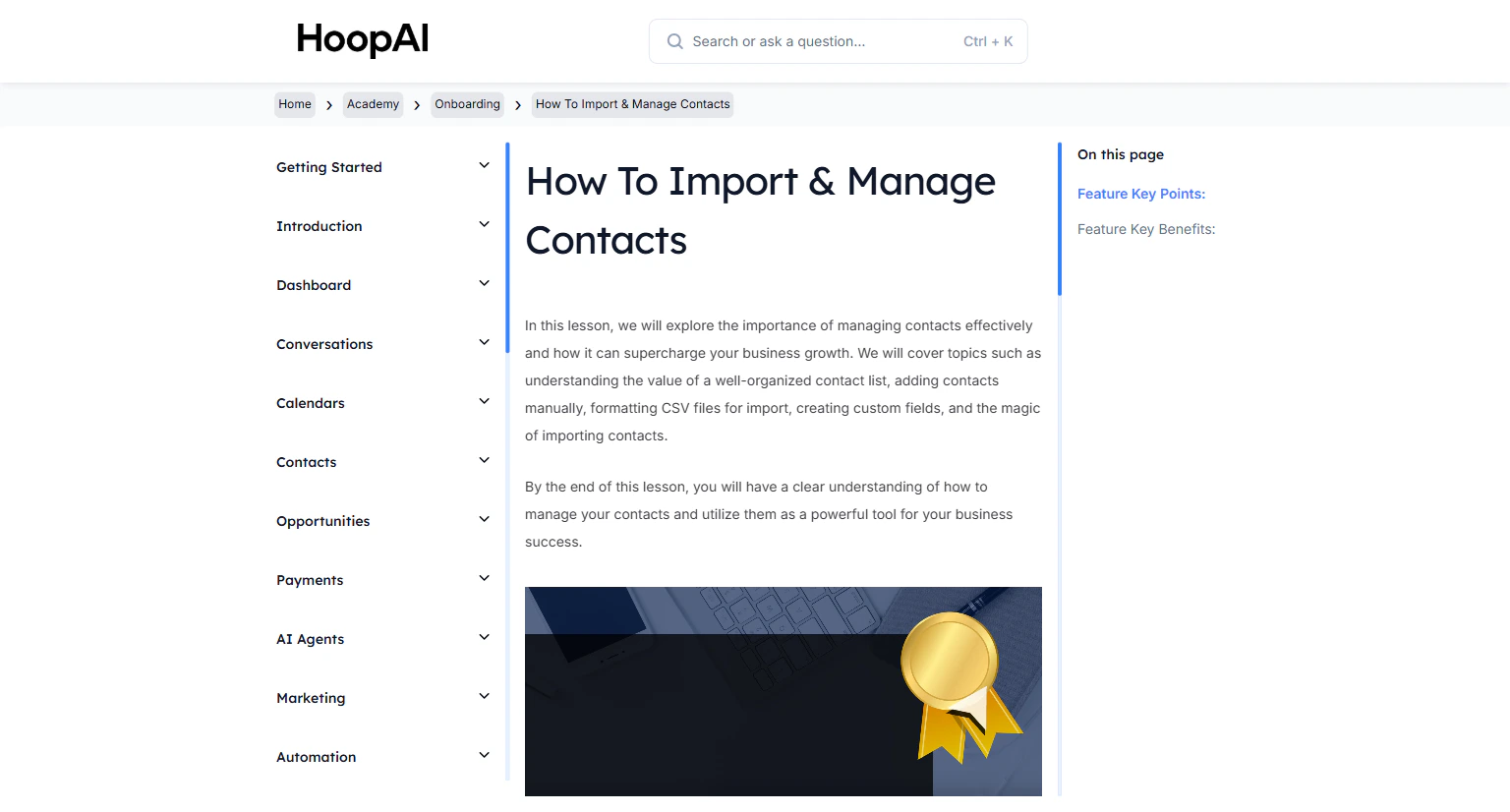
<Frame caption="The Forms and Pop-Ups lesson in the HoopAI Academy Quick Start">
  <img src="https://mintcdn.com/hoopai-84ec0cdc/gyU98wGhFXcTdqFf/images/academy-onboarding-webchat-widget.png?fit=max&auto=format&n=gyU98wGhFXcTdqFf&q=85&s=66e9548553a7c885294aae986c271a46" alt="Forms and pop-ups article" width="1536" height="826" data-path="images/academy-onboarding-webchat-widget.png" />
</Frame>

## Why this matters

Every visitor who leaves your website without giving you their contact information is a missed opportunity. A well-placed form or exit-intent pop-up captures those contacts and starts the follow-up process automatically — no manual effort required. The difference between a 1% and a 5% conversion rate on your website traffic compounds into hundreds of additional leads per month.

## How to create and embed a form or pop-up

<Steps>
  <Step title="Navigate to Forms">
    Go to **Sites** > **Forms** in the left sidebar. You will see your library of existing forms and surveys. Click **New Form** to create a new one.

    <Frame caption="The Forms section under Sites in the HoopAI Platform">
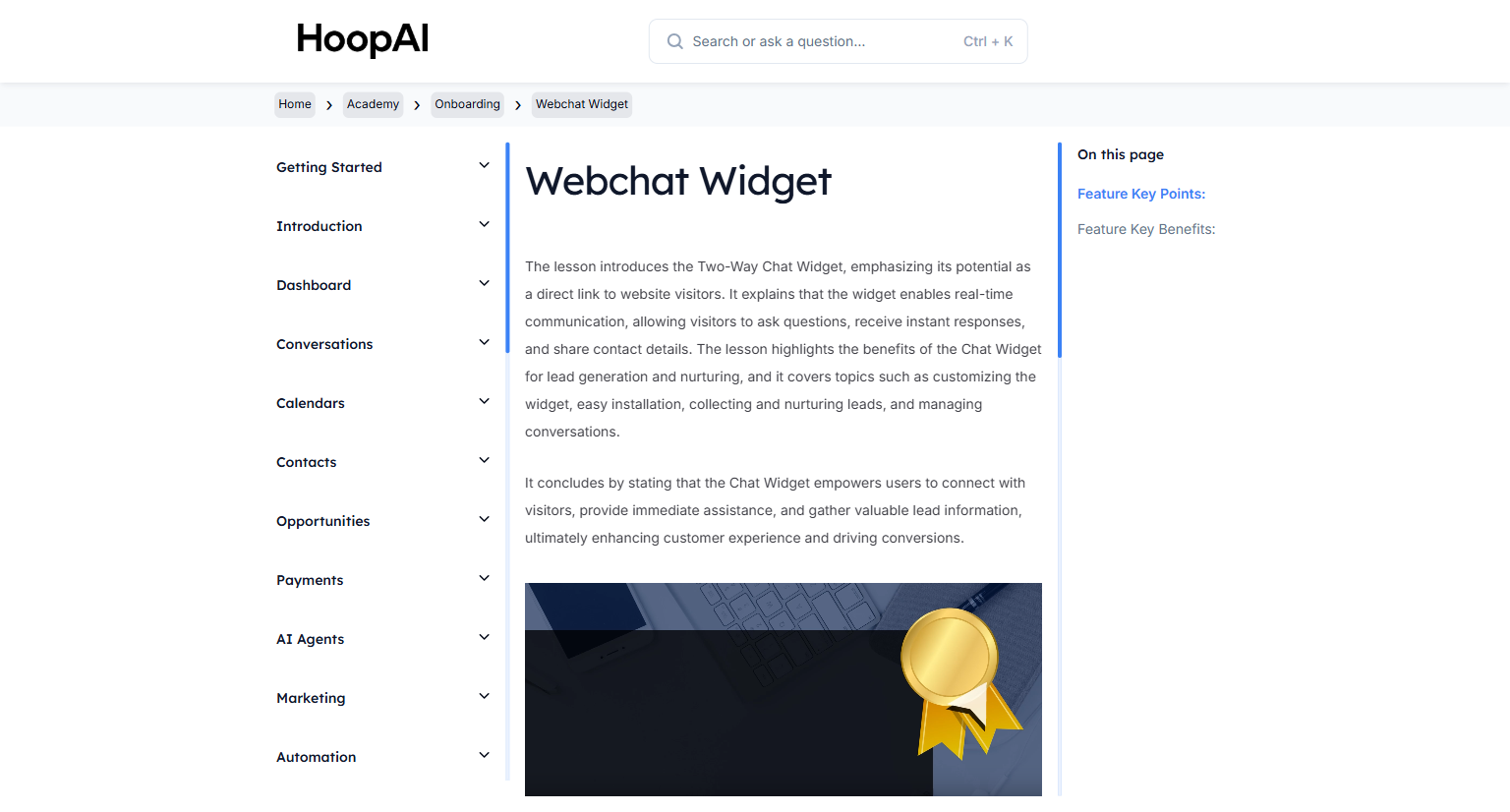
      <img src="https://mintcdn.com/hoopai-84ec0cdc/gyU98wGhFXcTdqFf/images/academy-onboarding-webchat-widget.png?fit=max&auto=format&n=gyU98wGhFXcTdqFf&q=85&s=66e9548553a7c885294aae986c271a46" alt="Forms library navigation" width="1536" height="826" data-path="images/academy-onboarding-webchat-widget.png" />
    </Frame>
  </Step>

  <Step title="Choose form type">
    Select between two form types:

    * **Form:** Captures information on a single page — best for lead capture, contact forms, and opt-ins
    * **Survey:** Multi-step format using slides with logic branching — best for detailed intake forms or lead qualification

    <Tip>
      For most lead generation use cases, start with a simple form. Ask only for name, email, and phone. Each additional field you add reduces your completion rate.
    </Tip>
  </Step>

  <Step title="Add fields to your form">
    Use the drag-and-drop builder to add the fields you need:

    * **Standard fields:** First name, last name, email, phone number, address
    * **Custom fields:** Any custom field you have created in your account

    <Frame caption="Building a form with the drag-and-drop form builder">
      <img src="https://mintcdn.com/hoopai-84ec0cdc/gyU98wGhFXcTdqFf/images/academy-onboarding-import-contacts.png?fit=max&auto=format&n=gyU98wGhFXcTdqFf&q=85&s=02abfd10adb996867d3c6e9fb874b771" alt="Form builder drag-and-drop interface" width="1536" height="826" data-path="images/academy-onboarding-import-contacts.png" />
    </Frame>
  </Step>

  <Step title="Configure on-submit behavior">
    Choose what happens when someone submits the form:

    * **Show a success message:** Display a thank-you message on the same page
    * **Redirect to a URL:** Send the contact to a booking page or thank-you page
    * **Trigger a workflow:** Automatically enroll the contact in a follow-up sequence

    You can also enable the **Sticky Contact** feature, which auto-fills form fields for returning visitors based on their previous submissions.
  </Step>

  <Step title="Configure pop-up trigger (optional)">
    If you want the form to appear as a pop-up overlay, configure the display trigger:

    * **On page load** — immediate or with a time delay
    * **On scroll** — after the visitor scrolls a percentage of the page
    * **On exit intent** — when the visitor moves their cursor toward the browser close button

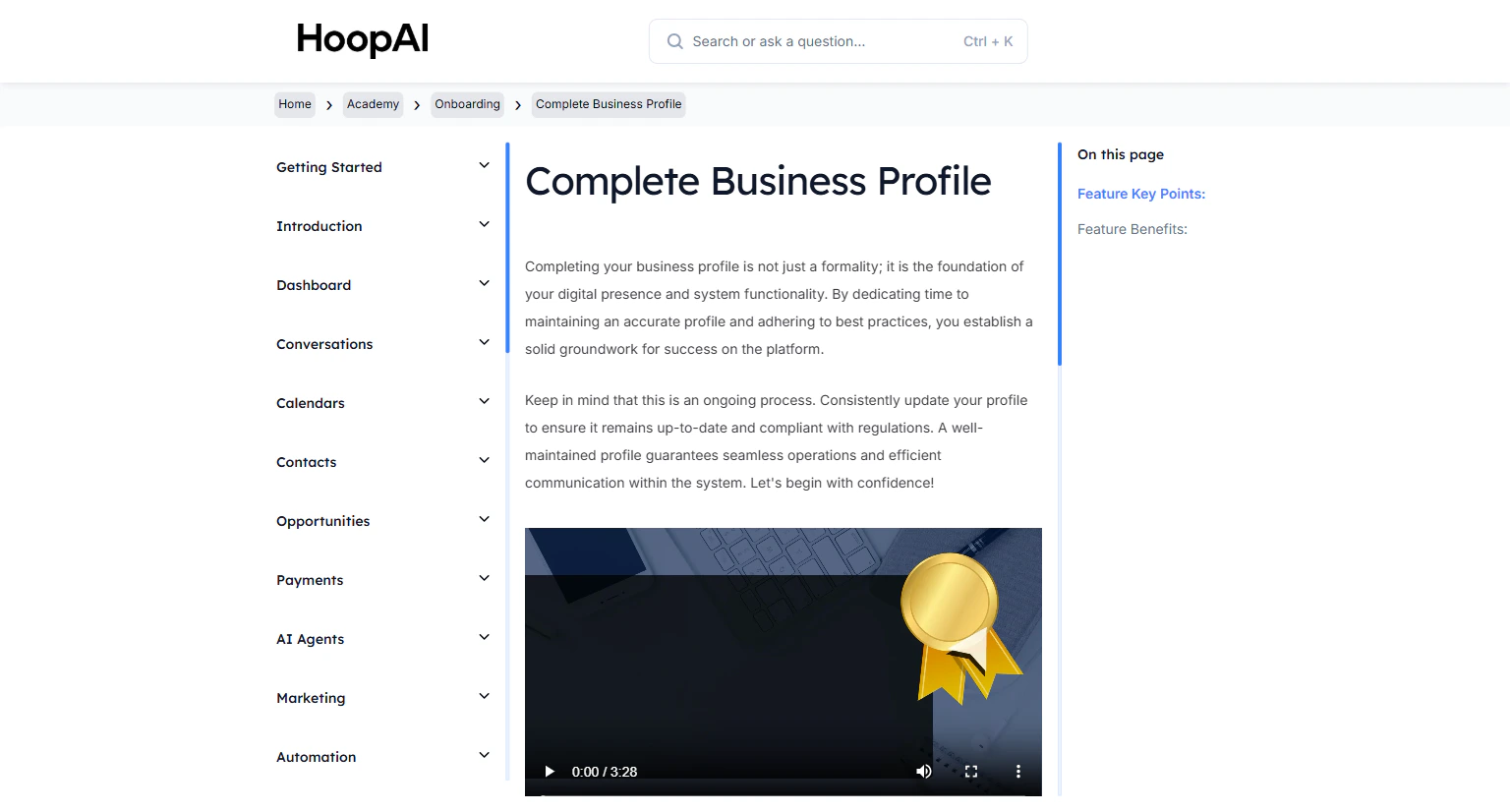
    <Frame caption="Pop-up trigger configuration — timing, scroll percentage, or exit intent">
      <img src="https://mintcdn.com/hoopai-84ec0cdc/gyU98wGhFXcTdqFf/images/academy-onboarding-business-profile.png?fit=max&auto=format&n=gyU98wGhFXcTdqFf&q=85&s=16ee3d4747e0c5b5fdffec7483279cae" alt="Pop-up trigger settings" width="1536" height="826" data-path="images/academy-onboarding-business-profile.png" />
    </Frame>
  </Step>

  <Step title="Get the embed code">
    Click **Integrate** or **Embed** to retrieve your embed code. Two options:

    * **Inline embed:** Embed the form directly inside your page content
    * **Pop-up embed:** Add a script that triggers the form as a pop-up overlay

    Copy the code and paste it into the `<body>` section of your website's HTML. For pages built inside the HoopAI Platform, embed forms directly through the page builder without any code.
  </Step>
</Steps>

## Key points

<AccordionGroup>
  <Accordion title="Forms vs. surveys">
    Use forms for straightforward lead capture — name, email, phone. Use surveys for multi-step qualification — for example, asking what services a prospect wants before routing them to the right team member or workflow.
  </Accordion>

  <Accordion title="Embedding on external websites">
    The embed code works on any website regardless of whether it was built inside the HoopAI Platform. You can add it to WordPress, Squarespace, Wix, Webflow, or any other website builder.
  </Accordion>

  <Accordion title="Sticky contact feature">
    Sticky Contact remembers returning visitors and pre-fills form fields with data from their previous submissions. This reduces friction and increases completion rates for repeat visitors.
  </Accordion>

  <Accordion title="Automating form submissions">
    Every form submission can trigger a workflow automatically. Use this to immediately send a confirmation email or SMS, add the contact to a pipeline, assign a tag, or enroll them in a nurture sequence — all with zero manual effort.
  </Accordion>
</AccordionGroup>

## Key benefits

<AccordionGroup>
  <Accordion title="Automatic lead generation">
    Capture contact information from website visitors 24/7 without manual effort.
  </Accordion>

  <Accordion title="Universal embedding">
    Works on any website inside or outside the HoopAI Platform.
  </Accordion>

  <Accordion title="Flexible format">
    Choose between simple forms and multi-step surveys based on your needs.
  </Accordion>

  <Accordion title="Instant automation">
    Trigger workflows the moment a form is submitted for immediate follow-up.
  </Accordion>

  <Accordion title="Day-one results">
    Start collecting contacts and building your list from the first day your form is live.
  </Accordion>
</AccordionGroup>