> ## Documentation Index
> Fetch the complete documentation index at: https://help.hoopai.com/llms.txt
> Use this file to discover all available pages before exploring further.

# Webchat widget

> Learn how to set up the Two-Way Chat Widget to collect leads and communicate with website visitors in real time.

export const CourseTracker = ({courseId, lessonId, videoId}) => {
  const [progress, setProgress] = useState({});
  const [expanded, setExpanded] = useState(false);
  useEffect(() => {
    setProgress(loadProgress());
    document.body.setAttribute("data-academy", "true");
    return () => document.body.removeAttribute("data-academy");
  }, []);
  const course = COURSES[courseId];
  if (!course) return null;
  const lessons = course.lessons;
  const currentIndex = lessons.findIndex(l => l.id === lessonId);
  const completedCount = lessons.filter(l => !!progress[courseId + "/" + l.id]).length;
  const percent = lessons.length > 0 ? Math.round(completedCount / lessons.length * 100) : 0;
  const isCurrentDone = !!progress[courseId + "/" + lessonId];
  const prev = currentIndex > 0 ? lessons[currentIndex - 1] : null;
  const next = currentIndex < lessons.length - 1 ? lessons[currentIndex + 1] : null;
  const totalDuration = formatTotalDuration(lessons);
  const handleToggle = () => {
    const key = courseId + "/" + lessonId;
    const updated = {
      ...progress
    };
    if (updated[key]) {
      delete updated[key];
    } else {
      updated[key] = Date.now();
    }
    setProgress(updated);
    persistProgress(updated);
  };
  const lessonPath = lesson => "/academy/" + course.dir + "/" + lesson.id;
  const videoEmbed = videoId ? <div style={{
    position: "relative",
    width: "100%",
    paddingBottom: "56.25%",
    borderRadius: "var(--ds-radius-lg)",
    overflow: "hidden",
    marginBottom: "24px",
    background: "#000"
  }}>
      <iframe src={"https://www.youtube-nocookie.com/embed/" + videoId + "?rel=0"} title="Lesson video" allow="accelerometer; autoplay; clipboard-write; encrypted-media; gyroscope; picture-in-picture" allowFullScreen style={{
    position: "absolute",
    top: 0,
    left: 0,
    width: "100%",
    height: "100%",
    border: "none"
  }} />
    </div> : null;
  const lessonList = lessons.map(lesson => {
    const isActive = lesson.id === lessonId;
    const isDone = !!progress[courseId + "/" + lesson.id];
    const itemStyle = {
      display: "flex",
      alignItems: "center",
      gap: "8px",
      padding: "10px 16px",
      borderTop: "1px solid var(--academy-border-subtle, #f3f4f6)",
      background: isActive ? "var(--academy-active-bg, #f9fafb)" : "transparent",
      textDecoration: "none",
      cursor: isActive ? "default" : "pointer",
      color: "inherit",
      transition: "background 0.15s"
    };
    const titleStyle = {
      flex: 1,
      fontSize: "13px",
      fontWeight: isActive ? 600 : 400,
      color: isActive ? "var(--academy-text, #111827)" : "var(--academy-text-secondary, #6b7280)",
      overflow: "hidden",
      textOverflow: "ellipsis",
      whiteSpace: "nowrap",
      lineHeight: "1.4"
    };
    const durationStyle = {
      fontSize: "12px",
      color: "var(--academy-text-muted, #9ca3af)",
      whiteSpace: "nowrap"
    };
    const inner = <>
        {isDone ? <CheckCircle /> : <VideoIcon />}
        <span style={titleStyle}>{lesson.title}</span>
        <span style={durationStyle}>{lesson.duration}</span>
      </>;
    if (isActive) {
      return <div key={lesson.id} style={itemStyle}>
          {inner}
        </div>;
    }
    return <a key={lesson.id} href={lessonPath(lesson)} style={itemStyle}>
        {inner}
      </a>;
  });
  return <div className="not-prose" id="academy-course-tracker">
      {videoEmbed}
      <div className="academy-tracker" style={{
    fontFamily: "Inter, -apple-system, BlinkMacSystemFont, sans-serif",
    borderRadius: "var(--ds-radius-lg)",
    border: "1px solid var(--academy-border, #e5e7eb)",
    background: "var(--academy-bg, #ffffff)",
    overflow: "hidden",
    marginBottom: "24px"
  }}>
        {}
        <div style={{
    padding: "16px 16px 0"
  }}>
          <h3 style={{
    margin: 0,
    fontSize: "16px",
    fontWeight: 600,
    lineHeight: "1.4",
    color: "var(--academy-text, #111827)"
  }}>
            {course.title}
          </h3>
          <div style={{
    display: "flex",
    gap: "12px",
    marginTop: "8px"
  }}>
            <span style={{
    display: "flex",
    alignItems: "center",
    gap: "5px",
    fontSize: "12px",
    color: "var(--academy-text-secondary, #6b7280)",
    padding: "3px 8px 3px 6px",
    borderRadius: "var(--ds-radius-sm)",
    border: "1px solid var(--academy-border, #e5e7eb)"
  }}>
              <BookIcon /> {lessons.length} lessons
            </span>
            <span style={{
    display: "flex",
    alignItems: "center",
    gap: "5px",
    fontSize: "12px",
    color: "var(--academy-text-secondary, #6b7280)",
    padding: "3px 8px 3px 6px",
    borderRadius: "var(--ds-radius-sm)",
    border: "1px solid var(--academy-border, #e5e7eb)"
  }}>
              <ClockIcon /> Approx. {totalDuration}
            </span>
          </div>
        </div>

        {}
        <div style={{
    padding: "14px 16px 16px"
  }}>
          <div style={{
    display: "flex",
    justifyContent: "space-between",
    fontSize: "12px",
    color: "var(--academy-text-secondary, #6b7280)"
  }}>
            <span>Your progress</span>
            <span style={{
    fontWeight: 500,
    color: "var(--academy-text, #111827)"
  }}>
              {percent}%
            </span>
          </div>
          <div style={{
    height: "6px",
    borderRadius: "var(--ds-radius-full)",
    background: "var(--academy-track, #f3f4f6)",
    marginTop: "8px",
    overflow: "hidden"
  }}>
            <div style={{
    height: "100%",
    borderRadius: "var(--ds-radius-full)",
    background: "var(--academy-progress, #3b82f6)",
    transition: "width 0.5s cubic-bezier(0.4, 0, 0.2, 1)",
    width: percent + "%"
  }} />
          </div>
        </div>

        {}
        <div className="academy-lessons-desktop">{lessonList}</div>

        {}
        <div className="academy-lessons-mobile">
          <button onClick={() => setExpanded(!expanded)} aria-expanded={expanded} style={{
    display: "flex",
    alignItems: "center",
    justifyContent: "space-between",
    padding: "12px 16px",
    cursor: "pointer",
    borderTop: "1px solid var(--academy-border-subtle, #f3f4f6)",
    background: "transparent",
    border: "none",
    borderTopStyle: "solid",
    borderTopWidth: "1px",
    borderTopColor: "var(--academy-border-subtle, #f3f4f6)",
    width: "100%",
    textAlign: "left",
    color: "var(--academy-text-secondary, #6b7280)",
    fontSize: "13px",
    fontWeight: 500,
    fontFamily: "inherit"
  }}>
            <span>
              {expanded ? "Hide lessons" : "Show all " + lessons.length + " lessons"}
            </span>
            <ChevronDown open={expanded} />
          </button>
          {expanded && lessonList}
        </div>

        {}
        <div style={{
    display: "flex",
    alignItems: "center",
    justifyContent: "space-between",
    borderTop: "1px solid var(--academy-border, #e5e7eb)",
    padding: "10px 16px"
  }}>
          {prev ? <a href={lessonPath(prev)} style={{
    fontSize: "13px",
    color: "var(--academy-text-secondary, #6b7280)",
    textDecoration: "none",
    display: "flex",
    alignItems: "center",
    gap: "4px"
  }}>
              ‹ Previous
            </a> : <div />}
          <button onClick={handleToggle} style={{
    fontSize: "13px",
    fontWeight: 500,
    cursor: "pointer",
    padding: "6px 14px",
    borderRadius: "var(--ds-radius-md)",
    border: isCurrentDone ? "1px solid var(--academy-border, #e5e7eb)" : "none",
    background: isCurrentDone ? "var(--academy-bg, #ffffff)" : "var(--academy-btn-bg, #111827)",
    color: isCurrentDone ? "var(--academy-complete, #10b981)" : "var(--academy-btn-text, #ffffff)",
    display: "flex",
    alignItems: "center",
    gap: "6px",
    transition: "all 0.2s",
    lineHeight: "1.4",
    fontFamily: "inherit"
  }}>
            {isCurrentDone ? <>
                <CheckCircle /> Completed
              </> : "Mark as completed"}
          </button>
          {next ? <a href={lessonPath(next)} style={{
    fontSize: "13px",
    color: "var(--academy-text-secondary, #6b7280)",
    textDecoration: "none",
    display: "flex",
    alignItems: "center",
    gap: "4px"
  }}>
              Next ›
            </a> : <div />}
        </div>
      </div>
    </div>;
};

<CourseTracker courseId="onboarding" lessonId="webchat-widget" />

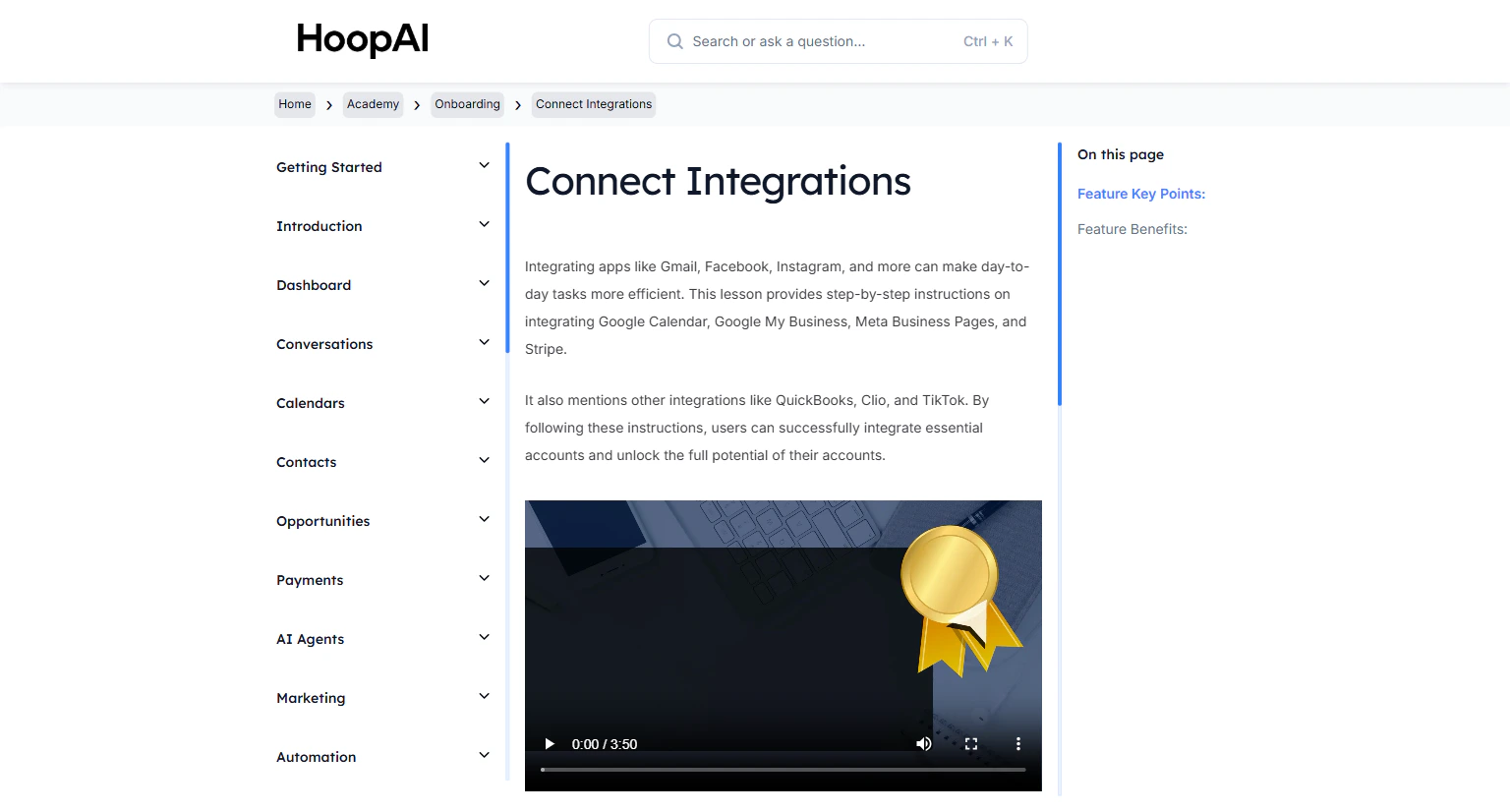
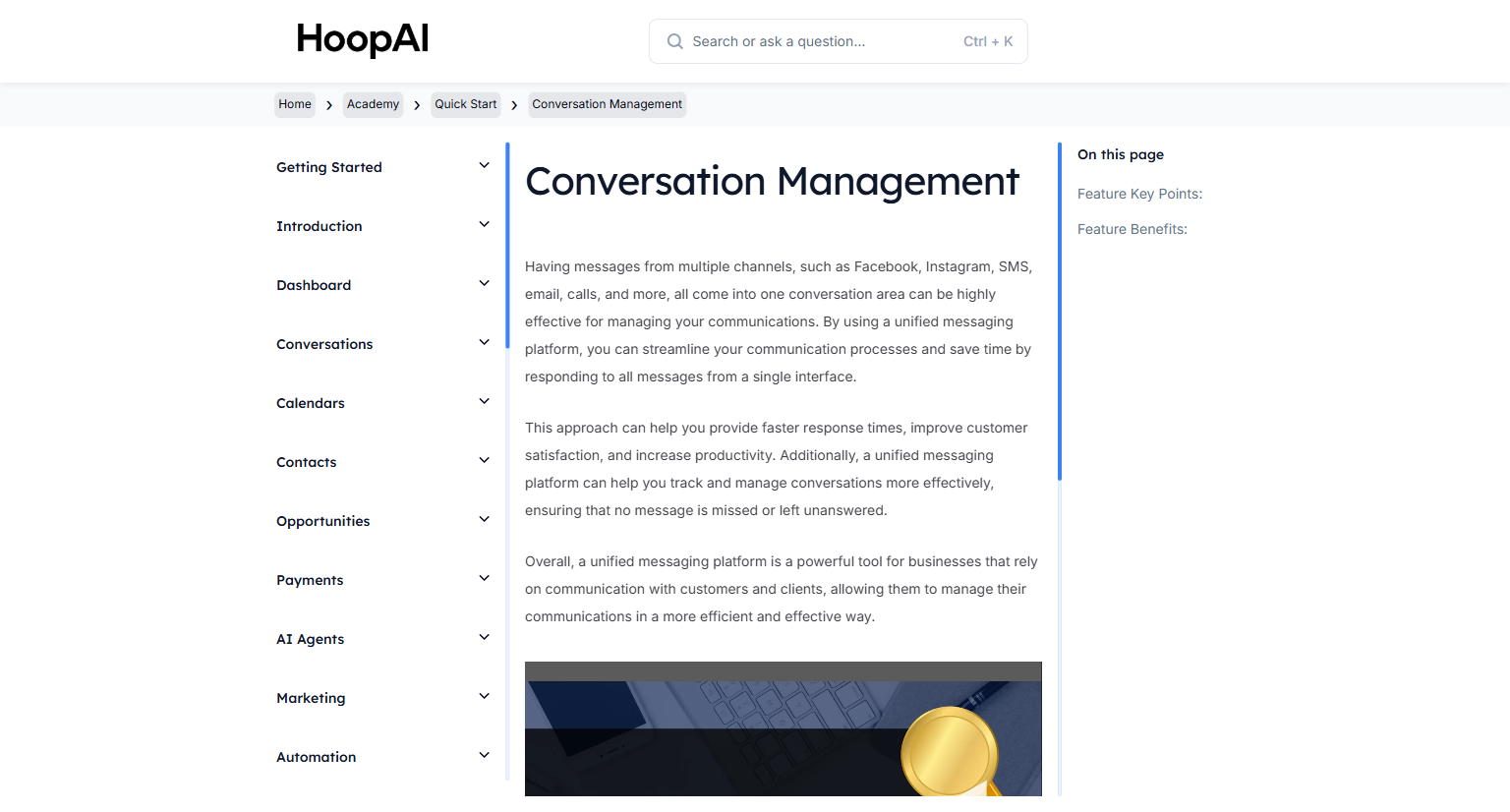
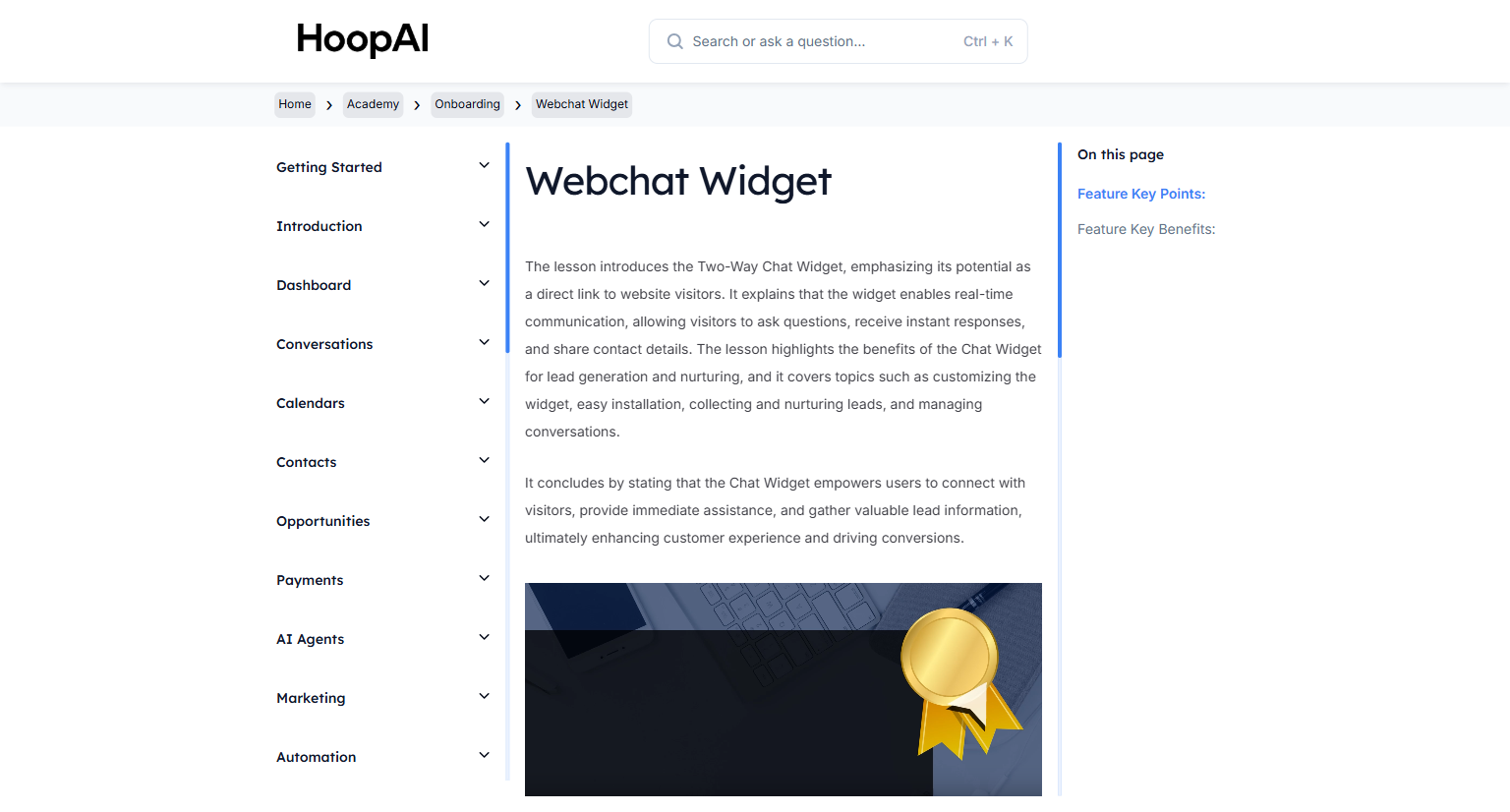
The Two-Way Chat Widget is a direct link between your website and your visitors. It enables real-time communication, allowing visitors to ask questions, receive instant responses, and share their contact details — all flowing directly into your Conversations area.

<Frame caption="The Webchat Widget lesson in the HoopAI Academy">
  <img src="https://mintcdn.com/hoopai-84ec0cdc/gyU98wGhFXcTdqFf/images/academy-onboarding-webchat-widget.png?fit=max&auto=format&n=gyU98wGhFXcTdqFf&q=85&s=66e9548553a7c885294aae986c271a46" alt="Webchat widget article" width="1536" height="826" data-path="images/academy-onboarding-webchat-widget.png" />
</Frame>

## Why this matters

Most businesses miss leads because they make visitors fill out a form and wait for a callback. The chat widget lets visitors start a conversation instantly — and their contact details and messages land directly in your inbox.

<Tip>
  Text messages have a 98% open rate compared to email's 20%, and 75% of people prefer texting over calling. The chat widget captures leads through the channel they prefer most.
</Tip>

## How to set up the Webchat Widget

<Steps>
  <Step title="Navigate to the Chat Widget settings">
    In the HoopAI Platform, go to **Settings** in the left sidebar, then select **Chat Widget**. You can also find it under **Sites** > **Chat Widget**.

    <Frame caption="Finding the Chat Widget settings in HoopAI">
      <img src="https://mintcdn.com/hoopai-84ec0cdc/gyU98wGhFXcTdqFf/images/academy-onboarding-webchat-widget.png?fit=max&auto=format&n=gyU98wGhFXcTdqFf&q=85&s=66e9548553a7c885294aae986c271a46" alt="Chat widget navigation" width="1536" height="826" data-path="images/academy-onboarding-webchat-widget.png" />
    </Frame>
  </Step>

  <Step title="Customize the widget appearance">
    Configure the widget's colors, greeting message, and display name to match your brand. Set the widget header text, placeholder text, and offline message.

    <Frame caption="Customizing your chat widget colors and messaging">
      <img src="https://mintcdn.com/hoopai-84ec0cdc/gyU98wGhFXcTdqFf/images/academy-onboarding-connect-integrations.png?fit=max&auto=format&n=gyU98wGhFXcTdqFf&q=85&s=438d94999ada2e8819af2eb0ee159b50" alt="Chat widget customization" width="1536" height="826" data-path="images/academy-onboarding-connect-integrations.png" />
    </Frame>
  </Step>

  <Step title="Add the widget to your website">
    Copy the generated embed code and paste it into the `<head>` or `<body>` section of your website's HTML. If you use a funnel or website built inside the HoopAI Platform, enable the widget directly from the page settings — no code required.

    <Tip>
      The widget can be embedded on any website, not just sites built inside the HoopAI Platform. It works on WordPress, Squarespace, Wix, and any custom site.
    </Tip>
  </Step>

  <Step title="Test the widget">
    Visit your website and send a test message through the widget. Confirm that the message appears in your **Conversations** inbox in the HoopAI Platform.

    <Frame caption="Messages from the widget arrive in the unified Conversations area">
      <img src="https://mintcdn.com/hoopai-84ec0cdc/gyU98wGhFXcTdqFf/images/academy-quick-start-conversations.png?fit=max&auto=format&n=gyU98wGhFXcTdqFf&q=85&s=b35ece2a2ead2ac8c92820a62c044b70" alt="Conversations inbox" width="1536" height="826" data-path="images/academy-quick-start-conversations.png" />
    </Frame>
  </Step>

  <Step title="Set up automation (optional)">
    Use **Workflows** to trigger automated responses when a visitor sends their first message. Collect a phone number or email automatically and add the contact to a nurture sequence — all without manual intervention.
  </Step>
</Steps>

## Key points

<AccordionGroup>
  <Accordion title="How visitor messages are received">
    All messages sent through the chat widget flow directly into the Conversations area in the HoopAI Platform. You can respond via SMS or the platform's messaging interface, and the conversation continues seamlessly.
  </Accordion>

  <Accordion title="Lead capture through the widget">
    The widget can be configured to request a visitor's phone number or email before or during a conversation, capturing lead information without a separate form.
  </Accordion>

  <Accordion title="Customization options">
    Control the widget's color scheme, header text, placeholder text, offline message, and display timing — immediate on load, delayed, or triggered by user scroll.
  </Accordion>

  <Accordion title="Using workflows with the chat widget">
    Once a contact submits their information through the widget, trigger automated workflows to send follow-up SMS messages, add tags, or move the contact into a pipeline stage automatically.
  </Accordion>
</AccordionGroup>

## Key benefits

<AccordionGroup>
  <Accordion title="Enhanced customer experience">
    Provide immediate assistance to website visitors and improve their overall experience on your site.
  </Accordion>

  <Accordion title="Increased lead generation">
    Seamlessly collect lead information — phone numbers and emails — directly from engaged visitors.
  </Accordion>

  <Accordion title="Targeted messaging">
    Send targeted follow-up messages to collected leads, nurturing them toward conversion.
  </Accordion>

  <Accordion title="Centralized conversations">
    All messages flow directly into the Conversations area for easy reading, review, and response.
  </Accordion>

  <Accordion title="Higher conversion rates">
    By connecting with visitors at the right moment and gathering lead information, you turn more website traffic into paying clients.
  </Accordion>
</AccordionGroup>