> ## Documentation Index
> Fetch the complete documentation index at: https://help.hoopai.com/llms.txt
> Use this file to discover all available pages before exploring further.

# My profile

> Set up your personal user profile in the HoopAI Platform — including your email signature, meeting location, calendar availability, and email sync.

export const CourseTracker = ({courseId, lessonId, videoId}) => {
  const [progress, setProgress] = useState({});
  const [expanded, setExpanded] = useState(false);
  useEffect(() => {
    setProgress(loadProgress());
    document.body.setAttribute("data-academy", "true");
    return () => document.body.removeAttribute("data-academy");
  }, []);
  const course = COURSES[courseId];
  if (!course) return null;
  const lessons = course.lessons;
  const currentIndex = lessons.findIndex(l => l.id === lessonId);
  const completedCount = lessons.filter(l => !!progress[courseId + "/" + l.id]).length;
  const percent = lessons.length > 0 ? Math.round(completedCount / lessons.length * 100) : 0;
  const isCurrentDone = !!progress[courseId + "/" + lessonId];
  const prev = currentIndex > 0 ? lessons[currentIndex - 1] : null;
  const next = currentIndex < lessons.length - 1 ? lessons[currentIndex + 1] : null;
  const totalDuration = formatTotalDuration(lessons);
  const handleToggle = () => {
    const key = courseId + "/" + lessonId;
    const updated = {
      ...progress
    };
    if (updated[key]) {
      delete updated[key];
    } else {
      updated[key] = Date.now();
    }
    setProgress(updated);
    persistProgress(updated);
  };
  const lessonPath = lesson => "/academy/" + course.dir + "/" + lesson.id;
  const videoEmbed = videoId ? <div style={{
    position: "relative",
    width: "100%",
    paddingBottom: "56.25%",
    borderRadius: "var(--ds-radius-lg)",
    overflow: "hidden",
    marginBottom: "24px",
    background: "#000"
  }}>
      <iframe src={"https://www.youtube-nocookie.com/embed/" + videoId + "?rel=0"} title="Lesson video" allow="accelerometer; autoplay; clipboard-write; encrypted-media; gyroscope; picture-in-picture" allowFullScreen style={{
    position: "absolute",
    top: 0,
    left: 0,
    width: "100%",
    height: "100%",
    border: "none"
  }} />
    </div> : null;
  const lessonList = lessons.map(lesson => {
    const isActive = lesson.id === lessonId;
    const isDone = !!progress[courseId + "/" + lesson.id];
    const itemStyle = {
      display: "flex",
      alignItems: "center",
      gap: "8px",
      padding: "10px 16px",
      borderTop: "1px solid var(--academy-border-subtle, #f3f4f6)",
      background: isActive ? "var(--academy-active-bg, #f9fafb)" : "transparent",
      textDecoration: "none",
      cursor: isActive ? "default" : "pointer",
      color: "inherit",
      transition: "background 0.15s"
    };
    const titleStyle = {
      flex: 1,
      fontSize: "13px",
      fontWeight: isActive ? 600 : 400,
      color: isActive ? "var(--academy-text, #111827)" : "var(--academy-text-secondary, #6b7280)",
      overflow: "hidden",
      textOverflow: "ellipsis",
      whiteSpace: "nowrap",
      lineHeight: "1.4"
    };
    const durationStyle = {
      fontSize: "12px",
      color: "var(--academy-text-muted, #9ca3af)",
      whiteSpace: "nowrap"
    };
    const inner = <>
        {isDone ? <CheckCircle /> : <VideoIcon />}
        <span style={titleStyle}>{lesson.title}</span>
        <span style={durationStyle}>{lesson.duration}</span>
      </>;
    if (isActive) {
      return <div key={lesson.id} style={itemStyle}>
          {inner}
        </div>;
    }
    return <a key={lesson.id} href={lessonPath(lesson)} style={itemStyle}>
        {inner}
      </a>;
  });
  return <div className="not-prose" id="academy-course-tracker">
      {videoEmbed}
      <div className="academy-tracker" style={{
    fontFamily: "Inter, -apple-system, BlinkMacSystemFont, sans-serif",
    borderRadius: "var(--ds-radius-lg)",
    border: "1px solid var(--academy-border, #e5e7eb)",
    background: "var(--academy-bg, #ffffff)",
    overflow: "hidden",
    marginBottom: "24px"
  }}>
        {}
        <div style={{
    padding: "16px 16px 0"
  }}>
          <h3 style={{
    margin: 0,
    fontSize: "16px",
    fontWeight: 600,
    lineHeight: "1.4",
    color: "var(--academy-text, #111827)"
  }}>
            {course.title}
          </h3>
          <div style={{
    display: "flex",
    gap: "12px",
    marginTop: "8px"
  }}>
            <span style={{
    display: "flex",
    alignItems: "center",
    gap: "5px",
    fontSize: "12px",
    color: "var(--academy-text-secondary, #6b7280)",
    padding: "3px 8px 3px 6px",
    borderRadius: "var(--ds-radius-sm)",
    border: "1px solid var(--academy-border, #e5e7eb)"
  }}>
              <BookIcon /> {lessons.length} lessons
            </span>
            <span style={{
    display: "flex",
    alignItems: "center",
    gap: "5px",
    fontSize: "12px",
    color: "var(--academy-text-secondary, #6b7280)",
    padding: "3px 8px 3px 6px",
    borderRadius: "var(--ds-radius-sm)",
    border: "1px solid var(--academy-border, #e5e7eb)"
  }}>
              <ClockIcon /> Approx. {totalDuration}
            </span>
          </div>
        </div>

        {}
        <div style={{
    padding: "14px 16px 16px"
  }}>
          <div style={{
    display: "flex",
    justifyContent: "space-between",
    fontSize: "12px",
    color: "var(--academy-text-secondary, #6b7280)"
  }}>
            <span>Your progress</span>
            <span style={{
    fontWeight: 500,
    color: "var(--academy-text, #111827)"
  }}>
              {percent}%
            </span>
          </div>
          <div style={{
    height: "6px",
    borderRadius: "var(--ds-radius-full)",
    background: "var(--academy-track, #f3f4f6)",
    marginTop: "8px",
    overflow: "hidden"
  }}>
            <div style={{
    height: "100%",
    borderRadius: "var(--ds-radius-full)",
    background: "var(--academy-progress, #3b82f6)",
    transition: "width 0.5s cubic-bezier(0.4, 0, 0.2, 1)",
    width: percent + "%"
  }} />
          </div>
        </div>

        {}
        <div className="academy-lessons-desktop">{lessonList}</div>

        {}
        <div className="academy-lessons-mobile">
          <button onClick={() => setExpanded(!expanded)} aria-expanded={expanded} style={{
    display: "flex",
    alignItems: "center",
    justifyContent: "space-between",
    padding: "12px 16px",
    cursor: "pointer",
    borderTop: "1px solid var(--academy-border-subtle, #f3f4f6)",
    background: "transparent",
    border: "none",
    borderTopStyle: "solid",
    borderTopWidth: "1px",
    borderTopColor: "var(--academy-border-subtle, #f3f4f6)",
    width: "100%",
    textAlign: "left",
    color: "var(--academy-text-secondary, #6b7280)",
    fontSize: "13px",
    fontWeight: 500,
    fontFamily: "inherit"
  }}>
            <span>
              {expanded ? "Hide lessons" : "Show all " + lessons.length + " lessons"}
            </span>
            <ChevronDown open={expanded} />
          </button>
          {expanded && lessonList}
        </div>

        {}
        <div style={{
    display: "flex",
    alignItems: "center",
    justifyContent: "space-between",
    borderTop: "1px solid var(--academy-border, #e5e7eb)",
    padding: "10px 16px"
  }}>
          {prev ? <a href={lessonPath(prev)} style={{
    fontSize: "13px",
    color: "var(--academy-text-secondary, #6b7280)",
    textDecoration: "none",
    display: "flex",
    alignItems: "center",
    gap: "4px"
  }}>
              ‹ Previous
            </a> : <div />}
          <button onClick={handleToggle} style={{
    fontSize: "13px",
    fontWeight: 500,
    cursor: "pointer",
    padding: "6px 14px",
    borderRadius: "var(--ds-radius-md)",
    border: isCurrentDone ? "1px solid var(--academy-border, #e5e7eb)" : "none",
    background: isCurrentDone ? "var(--academy-bg, #ffffff)" : "var(--academy-btn-bg, #111827)",
    color: isCurrentDone ? "var(--academy-complete, #10b981)" : "var(--academy-btn-text, #ffffff)",
    display: "flex",
    alignItems: "center",
    gap: "6px",
    transition: "all 0.2s",
    lineHeight: "1.4",
    fontFamily: "inherit"
  }}>
            {isCurrentDone ? <>
                <CheckCircle /> Completed
              </> : "Mark as completed"}
          </button>
          {next ? <a href={lessonPath(next)} style={{
    fontSize: "13px",
    color: "var(--academy-text-secondary, #6b7280)",
    textDecoration: "none",
    display: "flex",
    alignItems: "center",
    gap: "4px"
  }}>
              Next ›
            </a> : <div />}
        </div>
      </div>
    </div>;
};

<CourseTracker courseId="onboarding" lessonId="my-profile" />

Your user profile controls how you communicate, schedule appointments, and appear to contacts. This lesson walks through verifying your personal details, creating an email signature, setting your meeting location, configuring availability, and syncing your email account.

<Frame caption="The My Profile lesson in the HoopAI Academy">
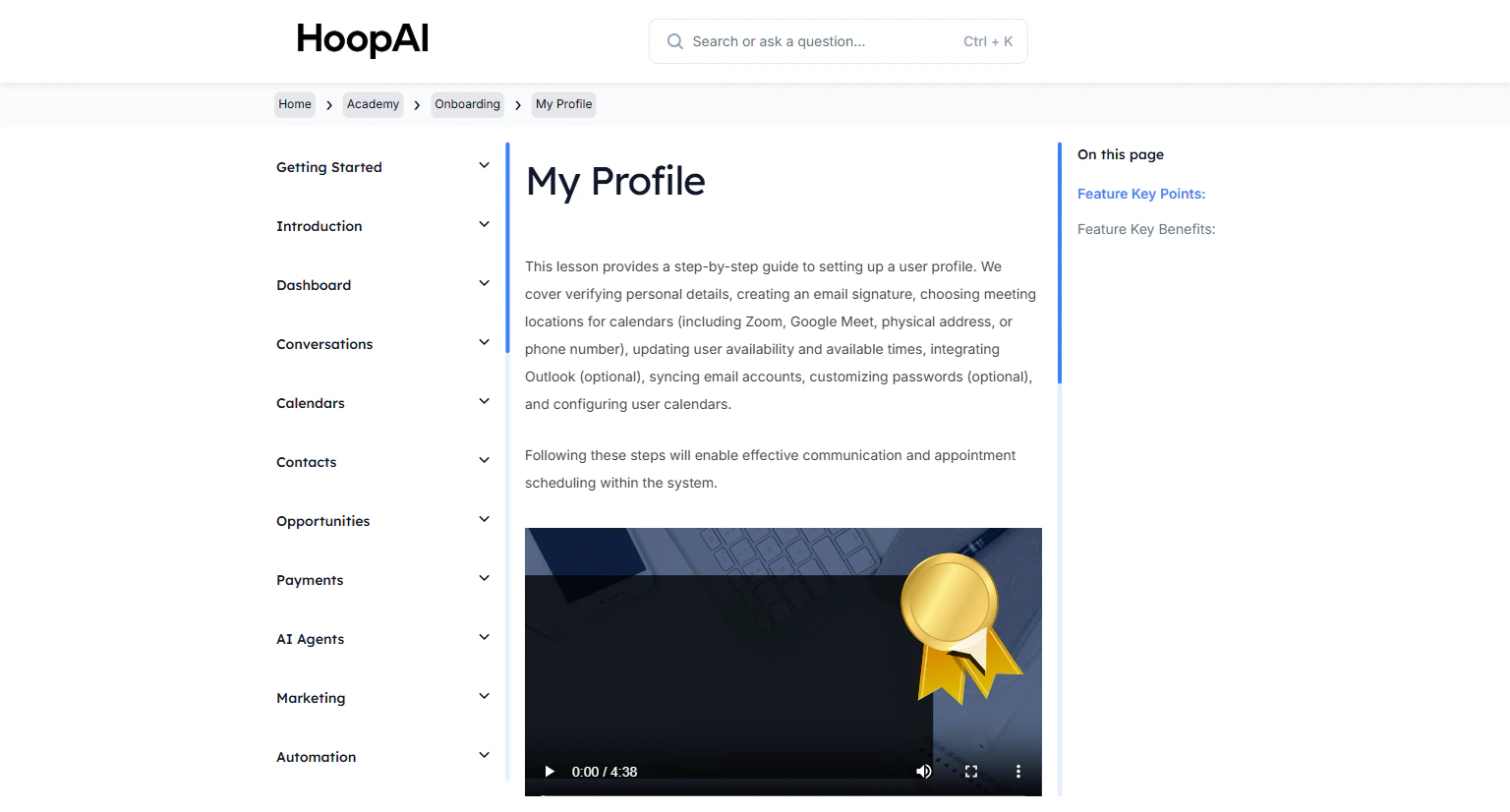
  <img src="https://mintcdn.com/hoopai-84ec0cdc/gyU98wGhFXcTdqFf/images/academy-onboarding-my-profile.png?fit=max&auto=format&n=gyU98wGhFXcTdqFf&q=85&s=81cf8284a976b0205bb0369da0c3005d" alt="My profile article" width="1536" height="826" data-path="images/academy-onboarding-my-profile.png" />
</Frame>

## Why this matters

Your profile is what contacts see in every email, every appointment, and every calendar invite. A complete, accurate profile builds trust and ensures your scheduling and communication work correctly from day one.

## How to set up your user profile

<Steps>
  <Step title="Navigate to My Profile">
    Click your profile icon or name in the top right corner and select **My Profile**. Alternatively, go to **Settings** > **My Profile**.

    <Frame caption="Accessing My Profile settings in the HoopAI Platform">
      <img src="https://mintcdn.com/hoopai-84ec0cdc/gyU98wGhFXcTdqFf/images/academy-onboarding-my-profile.png?fit=max&auto=format&n=gyU98wGhFXcTdqFf&q=85&s=81cf8284a976b0205bb0369da0c3005d" alt="My profile navigation" width="1536" height="826" data-path="images/academy-onboarding-my-profile.png" />
    </Frame>
  </Step>

  <Step title="Verify personal details">
    Confirm your:

    * First and last name
    * Email address
    * Phone number

    These details appear in outgoing communications and calendar invites. Make sure they are accurate and professional.
  </Step>

  <Step title="Create an email signature">
    Scroll to the **Email Signature** section. Build your signature using the editor — include your name, title, company name, phone number, and any relevant links.

    Your signature is automatically appended to emails you send from Conversations.

    <Tip>
      Keep your signature concise. Include your name, title, phone number, and a link to your booking page. Avoid large images — they can trigger spam filters.
    </Tip>
  </Step>

  <Step title="Set your meeting location">
    Under **Calendar Settings**, choose your default meeting location:

    * **Zoom** — connect your Zoom account for auto-generated unique links per appointment
    * **Google Meet** — connect your Google account for Meet links
    * **Physical address** — enter a street address for in-person meetings
    * **Phone number** — use a phone number for call-based appointments

    <Frame caption="Choosing your meeting location for calendar appointments">
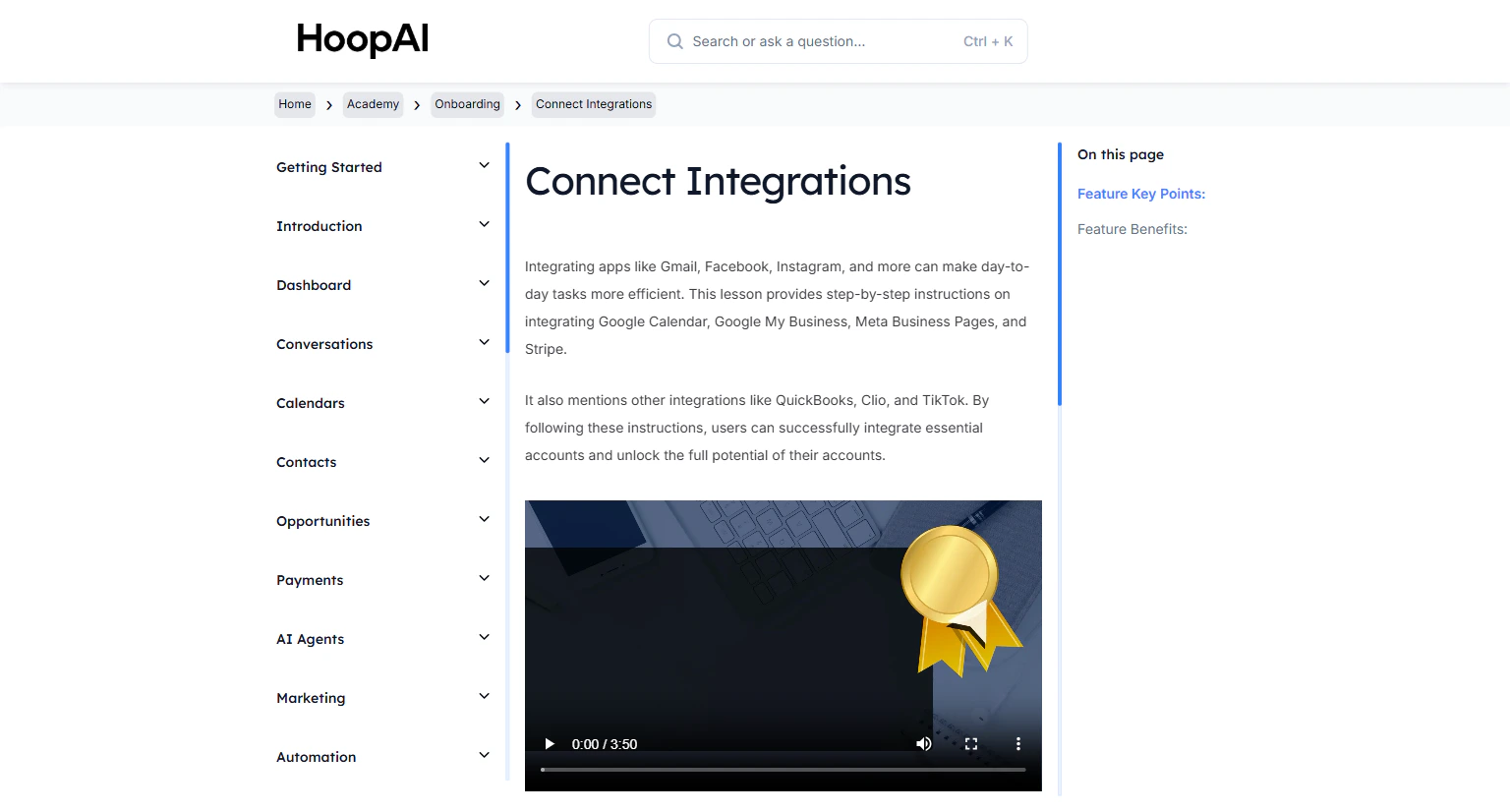
      <img src="https://mintcdn.com/hoopai-84ec0cdc/gyU98wGhFXcTdqFf/images/academy-onboarding-connect-integrations.png?fit=max&auto=format&n=gyU98wGhFXcTdqFf&q=85&s=438d94999ada2e8819af2eb0ee159b50" alt="Meeting location settings" width="1536" height="826" data-path="images/academy-onboarding-connect-integrations.png" />
    </Frame>
  </Step>

  <Step title="Update your availability">
    Set the days and hours you are available for appointments. Adjust your available times so the system only offers booking slots when you are genuinely free.

    <Warning>
      If your availability is not set accurately, clients may book appointments during times when you are unavailable. Connect an external conflict calendar to automatically block off busy periods.
    </Warning>
  </Step>

  <Step title="Connect Outlook (optional)">
    If you use Microsoft Outlook, sync it with the platform by clicking **Connect Outlook** and following the authorization flow. This keeps your Outlook calendar in sync for conflict checking.
  </Step>

  <Step title="Sync your email account">
    Under **Email Sync**, connect your Gmail or Outlook account. Once synced, incoming and outgoing emails from your connected account appear in the Conversations area — giving you a complete communication history for each contact.

    <Frame caption="Email sync brings all messages into the unified Conversations view">
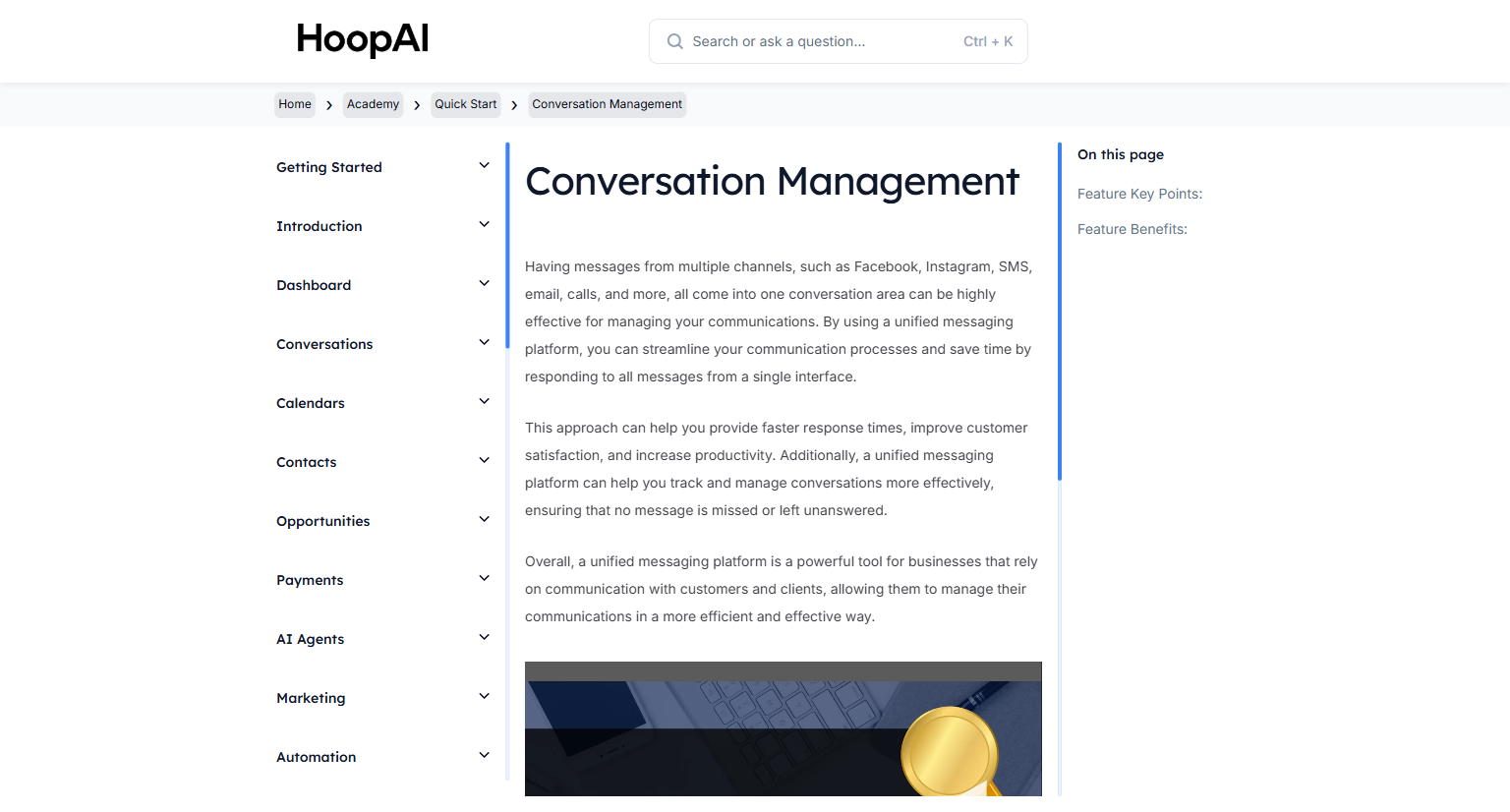
      <img src="https://mintcdn.com/hoopai-84ec0cdc/gyU98wGhFXcTdqFf/images/academy-quick-start-conversations.png?fit=max&auto=format&n=gyU98wGhFXcTdqFf&q=85&s=b35ece2a2ead2ac8c92820a62c044b70" alt="Email sync settings" width="1536" height="826" data-path="images/academy-quick-start-conversations.png" />
    </Frame>
  </Step>

  <Step title="Save your settings">
    Click **Save** to apply all changes. Review your profile one more time to make sure everything is accurate.
  </Step>
</Steps>

## Key points

<AccordionGroup>
  <Accordion title="Email signature best practices">
    Keep your signature concise and professional. Include your name, title, phone number, and a link to your website or booking page. Avoid large images, as they can trigger spam filters in some email clients.
  </Accordion>

  <Accordion title="Meeting location and Zoom integration">
    When you connect Zoom, the platform automatically generates a unique Zoom link for every new appointment. This link is inserted into confirmation emails and calendar invites using a custom value automatically.
  </Accordion>

  <Accordion title="Setting accurate availability">
    Accurate availability prevents double bookings and ensures clients can only select times when you are genuinely free. If you have blocked times on an external calendar, connect it as a conflict calendar.
  </Accordion>

  <Accordion title="Email sync vs. email campaigns">
    Email sync connects your personal email account (Gmail or Outlook) for one-on-one conversations. This is separate from the dedicated email domain used for bulk email campaigns and automation.
  </Accordion>
</AccordionGroup>

## Key benefits

<AccordionGroup>
  <Accordion title="Personalization">
    A complete user profile customizes your experience and how you appear to every contact.
  </Accordion>

  <Accordion title="Professional communication">
    An email signature adds a polished, branded touch to every email you send.
  </Accordion>

  <Accordion title="Efficient scheduling">
    Configuring meeting locations and availability streamlines appointment booking for you and your clients.
  </Accordion>

  <Accordion title="Outlook integration">
    Connecting Outlook keeps your calendar events in sync and prevents scheduling conflicts.
  </Accordion>

  <Accordion title="Email synchronization">
    Syncing your email account unifies all incoming and outgoing messages in one Conversations view.
  </Accordion>
</AccordionGroup>