> ## Documentation Index
> Fetch the complete documentation index at: https://help.hoopai.com/llms.txt
> Use this file to discover all available pages before exploring further.

# Connect integrations

> Learn how to connect Google Calendar, Google My Business, Facebook, Instagram, Stripe, and other essential integrations to the HoopAI Platform.

export const CourseTracker = ({courseId, lessonId, videoId}) => {
  const [progress, setProgress] = useState({});
  const [expanded, setExpanded] = useState(false);
  useEffect(() => {
    setProgress(loadProgress());
    document.body.setAttribute("data-academy", "true");
    return () => document.body.removeAttribute("data-academy");
  }, []);
  const course = COURSES[courseId];
  if (!course) return null;
  const lessons = course.lessons;
  const currentIndex = lessons.findIndex(l => l.id === lessonId);
  const completedCount = lessons.filter(l => !!progress[courseId + "/" + l.id]).length;
  const percent = lessons.length > 0 ? Math.round(completedCount / lessons.length * 100) : 0;
  const isCurrentDone = !!progress[courseId + "/" + lessonId];
  const prev = currentIndex > 0 ? lessons[currentIndex - 1] : null;
  const next = currentIndex < lessons.length - 1 ? lessons[currentIndex + 1] : null;
  const totalDuration = formatTotalDuration(lessons);
  const handleToggle = () => {
    const key = courseId + "/" + lessonId;
    const updated = {
      ...progress
    };
    if (updated[key]) {
      delete updated[key];
    } else {
      updated[key] = Date.now();
    }
    setProgress(updated);
    persistProgress(updated);
  };
  const lessonPath = lesson => "/academy/" + course.dir + "/" + lesson.id;
  const videoEmbed = videoId ? <div style={{
    position: "relative",
    width: "100%",
    paddingBottom: "56.25%",
    borderRadius: "var(--ds-radius-lg)",
    overflow: "hidden",
    marginBottom: "24px",
    background: "#000"
  }}>
      <iframe src={"https://www.youtube-nocookie.com/embed/" + videoId + "?rel=0"} title="Lesson video" allow="accelerometer; autoplay; clipboard-write; encrypted-media; gyroscope; picture-in-picture" allowFullScreen style={{
    position: "absolute",
    top: 0,
    left: 0,
    width: "100%",
    height: "100%",
    border: "none"
  }} />
    </div> : null;
  const lessonList = lessons.map(lesson => {
    const isActive = lesson.id === lessonId;
    const isDone = !!progress[courseId + "/" + lesson.id];
    const itemStyle = {
      display: "flex",
      alignItems: "center",
      gap: "8px",
      padding: "10px 16px",
      borderTop: "1px solid var(--academy-border-subtle, #f3f4f6)",
      background: isActive ? "var(--academy-active-bg, #f9fafb)" : "transparent",
      textDecoration: "none",
      cursor: isActive ? "default" : "pointer",
      color: "inherit",
      transition: "background 0.15s"
    };
    const titleStyle = {
      flex: 1,
      fontSize: "13px",
      fontWeight: isActive ? 600 : 400,
      color: isActive ? "var(--academy-text, #111827)" : "var(--academy-text-secondary, #6b7280)",
      overflow: "hidden",
      textOverflow: "ellipsis",
      whiteSpace: "nowrap",
      lineHeight: "1.4"
    };
    const durationStyle = {
      fontSize: "12px",
      color: "var(--academy-text-muted, #9ca3af)",
      whiteSpace: "nowrap"
    };
    const inner = <>
        {isDone ? <CheckCircle /> : <VideoIcon />}
        <span style={titleStyle}>{lesson.title}</span>
        <span style={durationStyle}>{lesson.duration}</span>
      </>;
    if (isActive) {
      return <div key={lesson.id} style={itemStyle}>
          {inner}
        </div>;
    }
    return <a key={lesson.id} href={lessonPath(lesson)} style={itemStyle}>
        {inner}
      </a>;
  });
  return <div className="not-prose" id="academy-course-tracker">
      {videoEmbed}
      <div className="academy-tracker" style={{
    fontFamily: "Inter, -apple-system, BlinkMacSystemFont, sans-serif",
    borderRadius: "var(--ds-radius-lg)",
    border: "1px solid var(--academy-border, #e5e7eb)",
    background: "var(--academy-bg, #ffffff)",
    overflow: "hidden",
    marginBottom: "24px"
  }}>
        {}
        <div style={{
    padding: "16px 16px 0"
  }}>
          <h3 style={{
    margin: 0,
    fontSize: "16px",
    fontWeight: 600,
    lineHeight: "1.4",
    color: "var(--academy-text, #111827)"
  }}>
            {course.title}
          </h3>
          <div style={{
    display: "flex",
    gap: "12px",
    marginTop: "8px"
  }}>
            <span style={{
    display: "flex",
    alignItems: "center",
    gap: "5px",
    fontSize: "12px",
    color: "var(--academy-text-secondary, #6b7280)",
    padding: "3px 8px 3px 6px",
    borderRadius: "var(--ds-radius-sm)",
    border: "1px solid var(--academy-border, #e5e7eb)"
  }}>
              <BookIcon /> {lessons.length} lessons
            </span>
            <span style={{
    display: "flex",
    alignItems: "center",
    gap: "5px",
    fontSize: "12px",
    color: "var(--academy-text-secondary, #6b7280)",
    padding: "3px 8px 3px 6px",
    borderRadius: "var(--ds-radius-sm)",
    border: "1px solid var(--academy-border, #e5e7eb)"
  }}>
              <ClockIcon /> Approx. {totalDuration}
            </span>
          </div>
        </div>

        {}
        <div style={{
    padding: "14px 16px 16px"
  }}>
          <div style={{
    display: "flex",
    justifyContent: "space-between",
    fontSize: "12px",
    color: "var(--academy-text-secondary, #6b7280)"
  }}>
            <span>Your progress</span>
            <span style={{
    fontWeight: 500,
    color: "var(--academy-text, #111827)"
  }}>
              {percent}%
            </span>
          </div>
          <div style={{
    height: "6px",
    borderRadius: "var(--ds-radius-full)",
    background: "var(--academy-track, #f3f4f6)",
    marginTop: "8px",
    overflow: "hidden"
  }}>
            <div style={{
    height: "100%",
    borderRadius: "var(--ds-radius-full)",
    background: "var(--academy-progress, #3b82f6)",
    transition: "width 0.5s cubic-bezier(0.4, 0, 0.2, 1)",
    width: percent + "%"
  }} />
          </div>
        </div>

        {}
        <div className="academy-lessons-desktop">{lessonList}</div>

        {}
        <div className="academy-lessons-mobile">
          <button onClick={() => setExpanded(!expanded)} aria-expanded={expanded} style={{
    display: "flex",
    alignItems: "center",
    justifyContent: "space-between",
    padding: "12px 16px",
    cursor: "pointer",
    borderTop: "1px solid var(--academy-border-subtle, #f3f4f6)",
    background: "transparent",
    border: "none",
    borderTopStyle: "solid",
    borderTopWidth: "1px",
    borderTopColor: "var(--academy-border-subtle, #f3f4f6)",
    width: "100%",
    textAlign: "left",
    color: "var(--academy-text-secondary, #6b7280)",
    fontSize: "13px",
    fontWeight: 500,
    fontFamily: "inherit"
  }}>
            <span>
              {expanded ? "Hide lessons" : "Show all " + lessons.length + " lessons"}
            </span>
            <ChevronDown open={expanded} />
          </button>
          {expanded && lessonList}
        </div>

        {}
        <div style={{
    display: "flex",
    alignItems: "center",
    justifyContent: "space-between",
    borderTop: "1px solid var(--academy-border, #e5e7eb)",
    padding: "10px 16px"
  }}>
          {prev ? <a href={lessonPath(prev)} style={{
    fontSize: "13px",
    color: "var(--academy-text-secondary, #6b7280)",
    textDecoration: "none",
    display: "flex",
    alignItems: "center",
    gap: "4px"
  }}>
              ‹ Previous
            </a> : <div />}
          <button onClick={handleToggle} style={{
    fontSize: "13px",
    fontWeight: 500,
    cursor: "pointer",
    padding: "6px 14px",
    borderRadius: "var(--ds-radius-md)",
    border: isCurrentDone ? "1px solid var(--academy-border, #e5e7eb)" : "none",
    background: isCurrentDone ? "var(--academy-bg, #ffffff)" : "var(--academy-btn-bg, #111827)",
    color: isCurrentDone ? "var(--academy-complete, #10b981)" : "var(--academy-btn-text, #ffffff)",
    display: "flex",
    alignItems: "center",
    gap: "6px",
    transition: "all 0.2s",
    lineHeight: "1.4",
    fontFamily: "inherit"
  }}>
            {isCurrentDone ? <>
                <CheckCircle /> Completed
              </> : "Mark as completed"}
          </button>
          {next ? <a href={lessonPath(next)} style={{
    fontSize: "13px",
    color: "var(--academy-text-secondary, #6b7280)",
    textDecoration: "none",
    display: "flex",
    alignItems: "center",
    gap: "4px"
  }}>
              Next ›
            </a> : <div />}
        </div>
      </div>
    </div>;
};

<CourseTracker courseId="onboarding" lessonId="connect-integrations" />

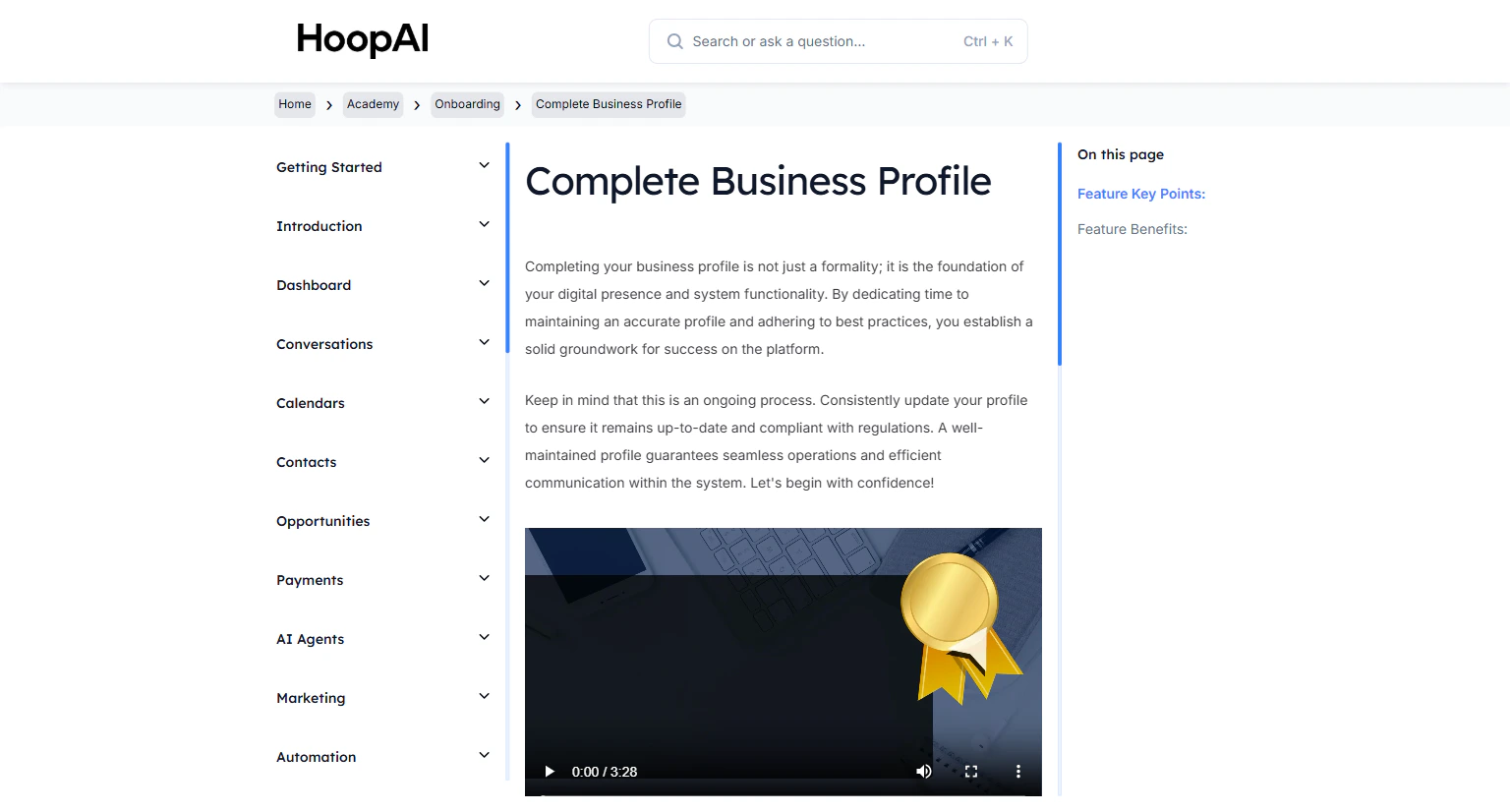
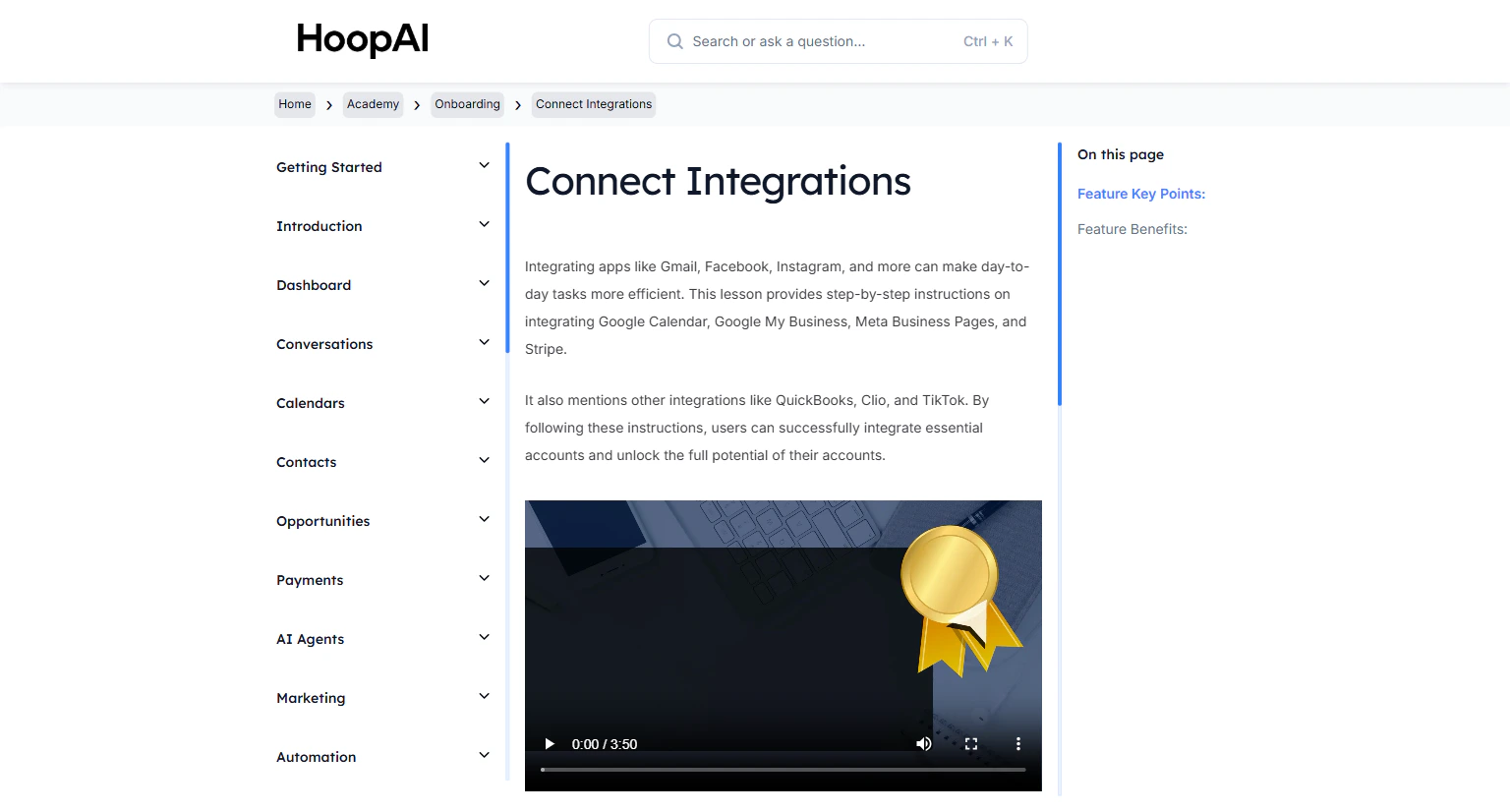
Integrating your key apps with the HoopAI Platform centralizes your workflow and eliminates the need to bounce between multiple tools. This lesson walks through the most important integrations: Google Calendar, Google My Business, Meta Business Pages, and Stripe.

<Frame caption="The Connect Integrations lesson in the HoopAI Academy">
  <img src="https://mintcdn.com/hoopai-84ec0cdc/gyU98wGhFXcTdqFf/images/academy-onboarding-connect-integrations.png?fit=max&auto=format&n=gyU98wGhFXcTdqFf&q=85&s=438d94999ada2e8819af2eb0ee159b50" alt="Connect integrations article" width="1536" height="826" data-path="images/academy-onboarding-connect-integrations.png" />
</Frame>

## Why this matters

Every integration you connect brings more of your business into one place. Google Calendar prevents double bookings. Google My Business pulls in reviews and chats. Facebook and Instagram messages land in your unified inbox. Stripe handles payments. The HoopAI Platform becomes your single source of truth.

## How to connect integrations

<Steps>
  <Step title="Navigate to Integrations">
    Go to **Settings** in the left sidebar and click on **Integrations**. Here you will see all available third-party connections.

    <Frame caption="The Integrations page in HoopAI Settings">
      <img src="https://mintcdn.com/hoopai-84ec0cdc/gyU98wGhFXcTdqFf/images/academy-onboarding-connect-integrations.png?fit=max&auto=format&n=gyU98wGhFXcTdqFf&q=85&s=438d94999ada2e8819af2eb0ee159b50" alt="Integrations settings page" width="1536" height="826" data-path="images/academy-onboarding-connect-integrations.png" />
    </Frame>
  </Step>

  <Step title="Connect Google Calendar">
    Click **Connect** next to Google Calendar. You will be redirected to sign in with your Google account and grant the necessary permissions.

    Once connected, your Google Calendar syncs with the platform's scheduling features, preventing double bookings and keeping your availability accurate.

    <Frame caption="Connecting Google Calendar for automatic sync">
      <img src="https://mintcdn.com/hoopai-84ec0cdc/gyU98wGhFXcTdqFf/images/academy-onboarding-business-profile.png?fit=max&auto=format&n=gyU98wGhFXcTdqFf&q=85&s=16ee3d4747e0c5b5fdffec7483279cae" alt="Google Calendar connection" width="1536" height="826" data-path="images/academy-onboarding-business-profile.png" />
    </Frame>
  </Step>

  <Step title="Connect Google My Business (GMB)">
    Click **Connect** next to Google. When prompted, connect your GMB page.

    This integration pulls in Google reviews, enables GMB chat to flow into your Conversations inbox, and allows you to post to your GMB listing from the Social Planner.
  </Step>

  <Step title="Connect Facebook and Instagram">
    Click **Connect** next to Facebook. Log in to Facebook and authorize access to your Business Page and connected Instagram account.

    Once connected, Facebook and Instagram direct messages, comments, and lead form submissions all appear in your Conversations area.

    <Frame caption="Facebook and Instagram messages flow into the unified Conversations inbox">
      <img src="https://mintcdn.com/hoopai-84ec0cdc/gyU98wGhFXcTdqFf/images/academy-quick-start-conversations.png?fit=max&auto=format&n=gyU98wGhFXcTdqFf&q=85&s=b35ece2a2ead2ac8c92820a62c044b70" alt="Facebook integration" width="1536" height="826" data-path="images/academy-quick-start-conversations.png" />
    </Frame>
  </Step>

  <Step title="Connect Stripe for payments">
    Click **Connect** next to Stripe. You will be redirected to Stripe to authorize the connection.

    This enables payment processing for invoices, subscriptions, and checkout pages directly within the platform.
  </Step>

  <Step title="Explore additional integrations">
    The HoopAI Platform also supports QuickBooks, TikTok, Clio, Zoom, and more. Browse the Integrations page for the full list and connect any that are relevant to your workflow.

    <Tip>
      Connect Zoom here so that new Zoom meeting links are automatically generated and included in appointment confirmation messages.
    </Tip>
  </Step>
</Steps>

## Key points

<AccordionGroup>
  <Accordion title="Google Calendar sync">
    After connecting Google Calendar, designate it as your main booking calendar or as a conflict calendar (to check availability without creating appointments there). This prevents double bookings across your work and personal schedules.
  </Accordion>

  <Accordion title="Google My Business chat">
    Once your GMB page is connected, any message sent through your Google Business profile appears in the Conversations area, allowing you to respond from one unified inbox.
  </Accordion>

  <Accordion title="Facebook and Instagram messaging">
    Meta integration brings DMs from Facebook Messenger and Instagram into Conversations. You can also trigger workflows based on incoming Facebook messages using the Customer Replied trigger.
  </Accordion>

  <Accordion title="Stripe payments">
    The Stripe integration allows you to send payment links, set up recurring subscriptions, and process one-time payments through invoices or order forms — all without leaving the platform.
  </Accordion>
</AccordionGroup>

## Key benefits

<AccordionGroup>
  <Accordion title="Streamlined workflow">
    Manage multiple platforms from one central place, increasing efficiency across your business.
  </Accordion>

  <Accordion title="Appointment sync">
    Google Calendar integration ensures your availability is always accurate and up to date.
  </Accordion>

  <Accordion title="Online reputation">
    Google My Business integration enhances your local search presence and brings reviews into the platform.
  </Accordion>

  <Accordion title="Expanded reach">
    Facebook and Instagram integrations bring social media conversations into your unified inbox.
  </Accordion>

  <Accordion title="Seamless payments">
    Stripe integration enables payment collection, subscriptions, and invoicing without additional tools.
  </Accordion>
</AccordionGroup>