> ## Documentation Index
> Fetch the complete documentation index at: https://help.hoopai.com/llms.txt
> Use this file to discover all available pages before exploring further.

# Creating a website

> Build a full multi-page website with navigation, blog, contact forms, and SEO settings — hosted on your own domain inside the HoopAI Platform.

export const CourseTracker = ({courseId, lessonId, videoId}) => {
  const [progress, setProgress] = useState({});
  const [expanded, setExpanded] = useState(false);
  useEffect(() => {
    setProgress(loadProgress());
    document.body.setAttribute("data-academy", "true");
    return () => document.body.removeAttribute("data-academy");
  }, []);
  const course = COURSES[courseId];
  if (!course) return null;
  const lessons = course.lessons;
  const currentIndex = lessons.findIndex(l => l.id === lessonId);
  const completedCount = lessons.filter(l => !!progress[courseId + "/" + l.id]).length;
  const percent = lessons.length > 0 ? Math.round(completedCount / lessons.length * 100) : 0;
  const isCurrentDone = !!progress[courseId + "/" + lessonId];
  const prev = currentIndex > 0 ? lessons[currentIndex - 1] : null;
  const next = currentIndex < lessons.length - 1 ? lessons[currentIndex + 1] : null;
  const totalDuration = formatTotalDuration(lessons);
  const handleToggle = () => {
    const key = courseId + "/" + lessonId;
    const updated = {
      ...progress
    };
    if (updated[key]) {
      delete updated[key];
    } else {
      updated[key] = Date.now();
    }
    setProgress(updated);
    persistProgress(updated);
  };
  const lessonPath = lesson => "/academy/" + course.dir + "/" + lesson.id;
  const videoEmbed = videoId ? <div style={{
    position: "relative",
    width: "100%",
    paddingBottom: "56.25%",
    borderRadius: "var(--ds-radius-lg)",
    overflow: "hidden",
    marginBottom: "24px",
    background: "#000"
  }}>
      <iframe src={"https://www.youtube-nocookie.com/embed/" + videoId + "?rel=0"} title="Lesson video" allow="accelerometer; autoplay; clipboard-write; encrypted-media; gyroscope; picture-in-picture" allowFullScreen style={{
    position: "absolute",
    top: 0,
    left: 0,
    width: "100%",
    height: "100%",
    border: "none"
  }} />
    </div> : null;
  const lessonList = lessons.map(lesson => {
    const isActive = lesson.id === lessonId;
    const isDone = !!progress[courseId + "/" + lesson.id];
    const itemStyle = {
      display: "flex",
      alignItems: "center",
      gap: "8px",
      padding: "10px 16px",
      borderTop: "1px solid var(--academy-border-subtle, #f3f4f6)",
      background: isActive ? "var(--academy-active-bg, #f9fafb)" : "transparent",
      textDecoration: "none",
      cursor: isActive ? "default" : "pointer",
      color: "inherit",
      transition: "background 0.15s"
    };
    const titleStyle = {
      flex: 1,
      fontSize: "13px",
      fontWeight: isActive ? 600 : 400,
      color: isActive ? "var(--academy-text, #111827)" : "var(--academy-text-secondary, #6b7280)",
      overflow: "hidden",
      textOverflow: "ellipsis",
      whiteSpace: "nowrap",
      lineHeight: "1.4"
    };
    const durationStyle = {
      fontSize: "12px",
      color: "var(--academy-text-muted, #9ca3af)",
      whiteSpace: "nowrap"
    };
    const inner = <>
        {isDone ? <CheckCircle /> : <VideoIcon />}
        <span style={titleStyle}>{lesson.title}</span>
        <span style={durationStyle}>{lesson.duration}</span>
      </>;
    if (isActive) {
      return <div key={lesson.id} style={itemStyle}>
          {inner}
        </div>;
    }
    return <a key={lesson.id} href={lessonPath(lesson)} style={itemStyle}>
        {inner}
      </a>;
  });
  return <div className="not-prose" id="academy-course-tracker">
      {videoEmbed}
      <div className="academy-tracker" style={{
    fontFamily: "Inter, -apple-system, BlinkMacSystemFont, sans-serif",
    borderRadius: "var(--ds-radius-lg)",
    border: "1px solid var(--academy-border, #e5e7eb)",
    background: "var(--academy-bg, #ffffff)",
    overflow: "hidden",
    marginBottom: "24px"
  }}>
        {}
        <div style={{
    padding: "16px 16px 0"
  }}>
          <h3 style={{
    margin: 0,
    fontSize: "16px",
    fontWeight: 600,
    lineHeight: "1.4",
    color: "var(--academy-text, #111827)"
  }}>
            {course.title}
          </h3>
          <div style={{
    display: "flex",
    gap: "12px",
    marginTop: "8px"
  }}>
            <span style={{
    display: "flex",
    alignItems: "center",
    gap: "5px",
    fontSize: "12px",
    color: "var(--academy-text-secondary, #6b7280)",
    padding: "3px 8px 3px 6px",
    borderRadius: "var(--ds-radius-sm)",
    border: "1px solid var(--academy-border, #e5e7eb)"
  }}>
              <BookIcon /> {lessons.length} lessons
            </span>
            <span style={{
    display: "flex",
    alignItems: "center",
    gap: "5px",
    fontSize: "12px",
    color: "var(--academy-text-secondary, #6b7280)",
    padding: "3px 8px 3px 6px",
    borderRadius: "var(--ds-radius-sm)",
    border: "1px solid var(--academy-border, #e5e7eb)"
  }}>
              <ClockIcon /> Approx. {totalDuration}
            </span>
          </div>
        </div>

        {}
        <div style={{
    padding: "14px 16px 16px"
  }}>
          <div style={{
    display: "flex",
    justifyContent: "space-between",
    fontSize: "12px",
    color: "var(--academy-text-secondary, #6b7280)"
  }}>
            <span>Your progress</span>
            <span style={{
    fontWeight: 500,
    color: "var(--academy-text, #111827)"
  }}>
              {percent}%
            </span>
          </div>
          <div style={{
    height: "6px",
    borderRadius: "var(--ds-radius-full)",
    background: "var(--academy-track, #f3f4f6)",
    marginTop: "8px",
    overflow: "hidden"
  }}>
            <div style={{
    height: "100%",
    borderRadius: "var(--ds-radius-full)",
    background: "var(--academy-progress, #3b82f6)",
    transition: "width 0.5s cubic-bezier(0.4, 0, 0.2, 1)",
    width: percent + "%"
  }} />
          </div>
        </div>

        {}
        <div className="academy-lessons-desktop">{lessonList}</div>

        {}
        <div className="academy-lessons-mobile">
          <button onClick={() => setExpanded(!expanded)} aria-expanded={expanded} style={{
    display: "flex",
    alignItems: "center",
    justifyContent: "space-between",
    padding: "12px 16px",
    cursor: "pointer",
    borderTop: "1px solid var(--academy-border-subtle, #f3f4f6)",
    background: "transparent",
    border: "none",
    borderTopStyle: "solid",
    borderTopWidth: "1px",
    borderTopColor: "var(--academy-border-subtle, #f3f4f6)",
    width: "100%",
    textAlign: "left",
    color: "var(--academy-text-secondary, #6b7280)",
    fontSize: "13px",
    fontWeight: 500,
    fontFamily: "inherit"
  }}>
            <span>
              {expanded ? "Hide lessons" : "Show all " + lessons.length + " lessons"}
            </span>
            <ChevronDown open={expanded} />
          </button>
          {expanded && lessonList}
        </div>

        {}
        <div style={{
    display: "flex",
    alignItems: "center",
    justifyContent: "space-between",
    borderTop: "1px solid var(--academy-border, #e5e7eb)",
    padding: "10px 16px"
  }}>
          {prev ? <a href={lessonPath(prev)} style={{
    fontSize: "13px",
    color: "var(--academy-text-secondary, #6b7280)",
    textDecoration: "none",
    display: "flex",
    alignItems: "center",
    gap: "4px"
  }}>
              ‹ Previous
            </a> : <div />}
          <button onClick={handleToggle} style={{
    fontSize: "13px",
    fontWeight: 500,
    cursor: "pointer",
    padding: "6px 14px",
    borderRadius: "var(--ds-radius-md)",
    border: isCurrentDone ? "1px solid var(--academy-border, #e5e7eb)" : "none",
    background: isCurrentDone ? "var(--academy-bg, #ffffff)" : "var(--academy-btn-bg, #111827)",
    color: isCurrentDone ? "var(--academy-complete, #10b981)" : "var(--academy-btn-text, #ffffff)",
    display: "flex",
    alignItems: "center",
    gap: "6px",
    transition: "all 0.2s",
    lineHeight: "1.4",
    fontFamily: "inherit"
  }}>
            {isCurrentDone ? <>
                <CheckCircle /> Completed
              </> : "Mark as completed"}
          </button>
          {next ? <a href={lessonPath(next)} style={{
    fontSize: "13px",
    color: "var(--academy-text-secondary, #6b7280)",
    textDecoration: "none",
    display: "flex",
    alignItems: "center",
    gap: "4px"
  }}>
              Next ›
            </a> : <div />}
        </div>
      </div>
    </div>;
};

<CourseTracker courseId="funnels-websites" lessonId="creating-a-website" />

The website builder lets you create a complete online presence — multiple pages, navigation menus, a blog, service listings, contact forms, and more — all hosted on your own domain. Unlike a funnel (which guides visitors through a single linear path), a website gives visitors the freedom to explore and navigate your content on their own terms.

<Frame caption="The Creating a Website lesson in the HoopAI Academy Funnels and Websites section">
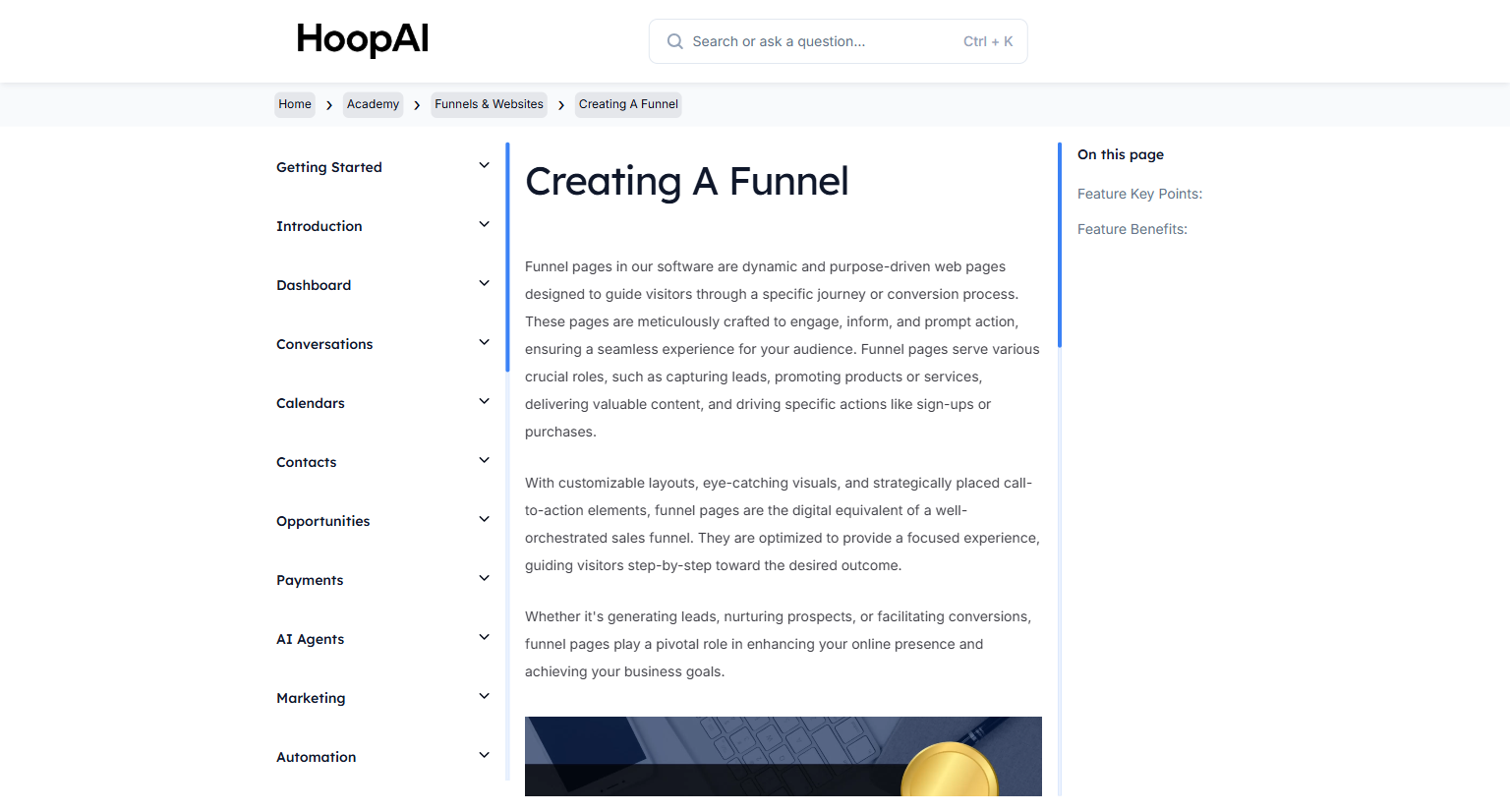
  <img src="https://mintcdn.com/hoopai-84ec0cdc/gyU98wGhFXcTdqFf/images/academy-funnels-creating.png?fit=max&auto=format&n=gyU98wGhFXcTdqFf&q=85&s=28d21ce2a08059b0dc7abc6e718f221f" alt="Creating a website article" width="1536" height="826" data-path="images/academy-funnels-creating.png" />
</Frame>

## Why this matters

Every business needs a home base on the web — somewhere potential clients can go to learn about you, read your work, and get in touch. Building your website inside the HoopAI Platform means your contact forms connect directly to your CRM, your blog drives organic search traffic, and every lead flows automatically into your pipeline — no separate tools or integrations required.

## How to create a website

<Steps>
  <Step title="Navigate to Websites">
    Go to **Sites** > **Websites** and click **New Website**.

    <Frame caption="The Websites section under Sites in the HoopAI Platform">
      <img src="https://mintcdn.com/hoopai-84ec0cdc/gyU98wGhFXcTdqFf/images/academy-funnels-creating.png?fit=max&auto=format&n=gyU98wGhFXcTdqFf&q=85&s=28d21ce2a08059b0dc7abc6e718f221f" alt="Websites section navigation" width="1536" height="826" data-path="images/academy-funnels-creating.png" />
    </Frame>
  </Step>

  <Step title="Start from a template or blank page">
    Choose a pre-built template that matches your industry, or start from a blank canvas. Templates include pre-built sections for headers, hero areas, service listings, testimonials, and contact forms — saving significant design time.

    <Frame caption="Choosing a website template or starting from a blank canvas">
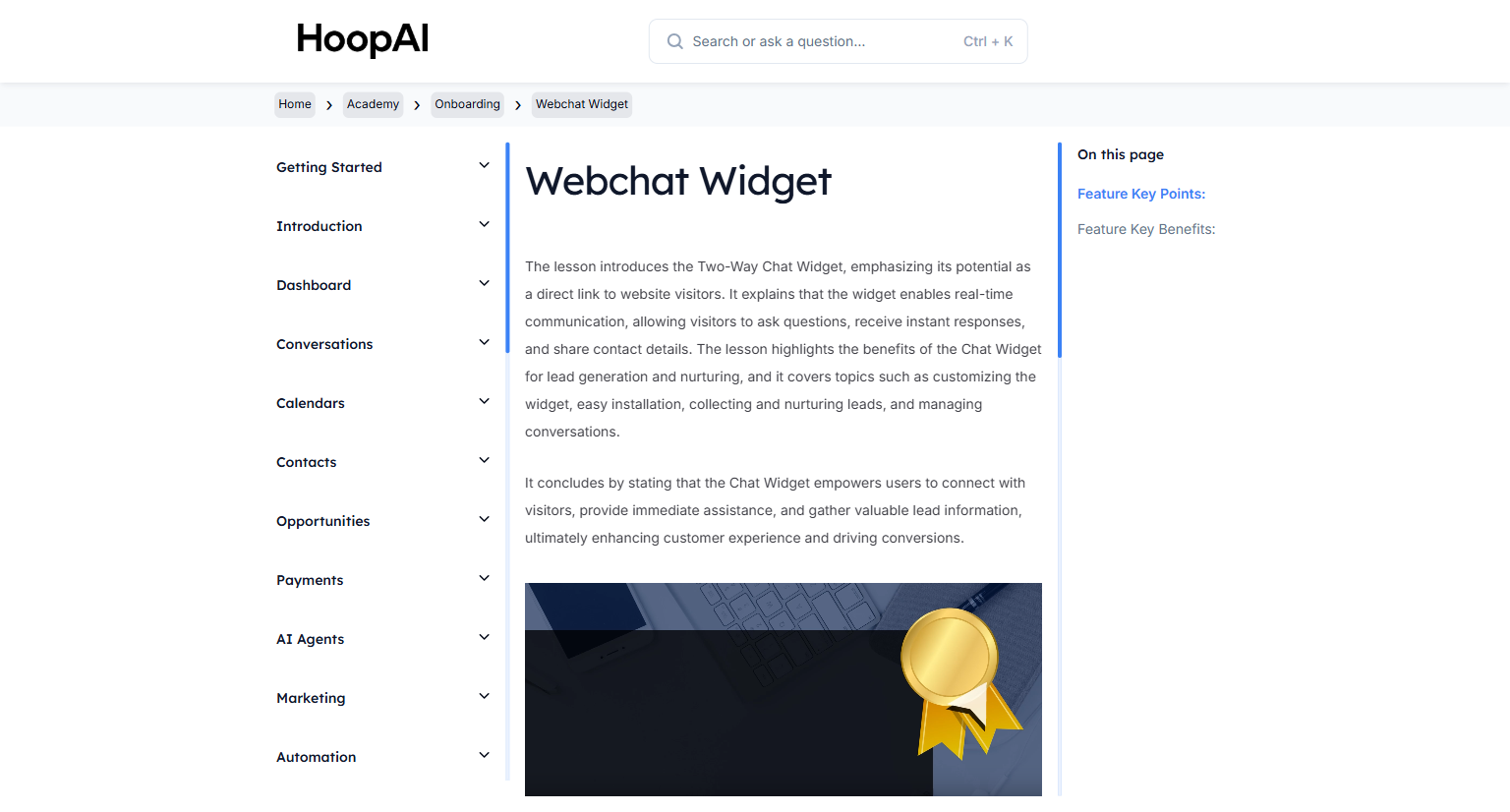
      <img src="https://mintcdn.com/hoopai-84ec0cdc/gyU98wGhFXcTdqFf/images/academy-onboarding-webchat-widget.png?fit=max&auto=format&n=gyU98wGhFXcTdqFf&q=85&s=66e9548553a7c885294aae986c271a46" alt="Website template selection" width="1536" height="826" data-path="images/academy-onboarding-webchat-widget.png" />
    </Frame>
  </Step>

  <Step title="Set up your pages">
    Your website can include multiple pages. Common pages to create:

    * **Home** — your main landing page
    * **About** — your story and team
    * **Services** — what you offer
    * **Blog** — articles and content for organic search traffic
    * **Contact** — form and location information

    Add pages by clicking **Add Page** in the site structure panel.
  </Step>

  <Step title="Build each page">
    Click any page to open the drag-and-drop builder. Add and arrange elements:

    * **Sections and columns** — your page layout
    * **Text, headings, and images** — your content
    * **Forms** — contact or lead capture forms connected to your CRM
    * **Buttons and links** — navigation actions
    * **Videos** — embedded from your media library or YouTube/Vimeo

    <Tip>
      For your home page, follow this structure: Hero (clear value proposition + CTA), Social Proof (reviews or logos), Services/Benefits, About section, and a final CTA at the bottom. This is the structure that converts the highest percentage of visitors.
    </Tip>
  </Step>

  <Step title="Set up navigation">
    In the website settings, configure your navigation menu. Add links to your key pages so visitors can find what they need. You can nest pages into dropdowns for a clean, organized header menu.
  </Step>

  <Step title="Configure SEO settings">
    For each page, set the SEO title, meta description, and URL slug. These settings control how your pages appear in Google search results. Use clear, keyword-relevant descriptions that accurately describe the page content.

    <Frame caption="Configuring SEO title and meta description settings for a website page">
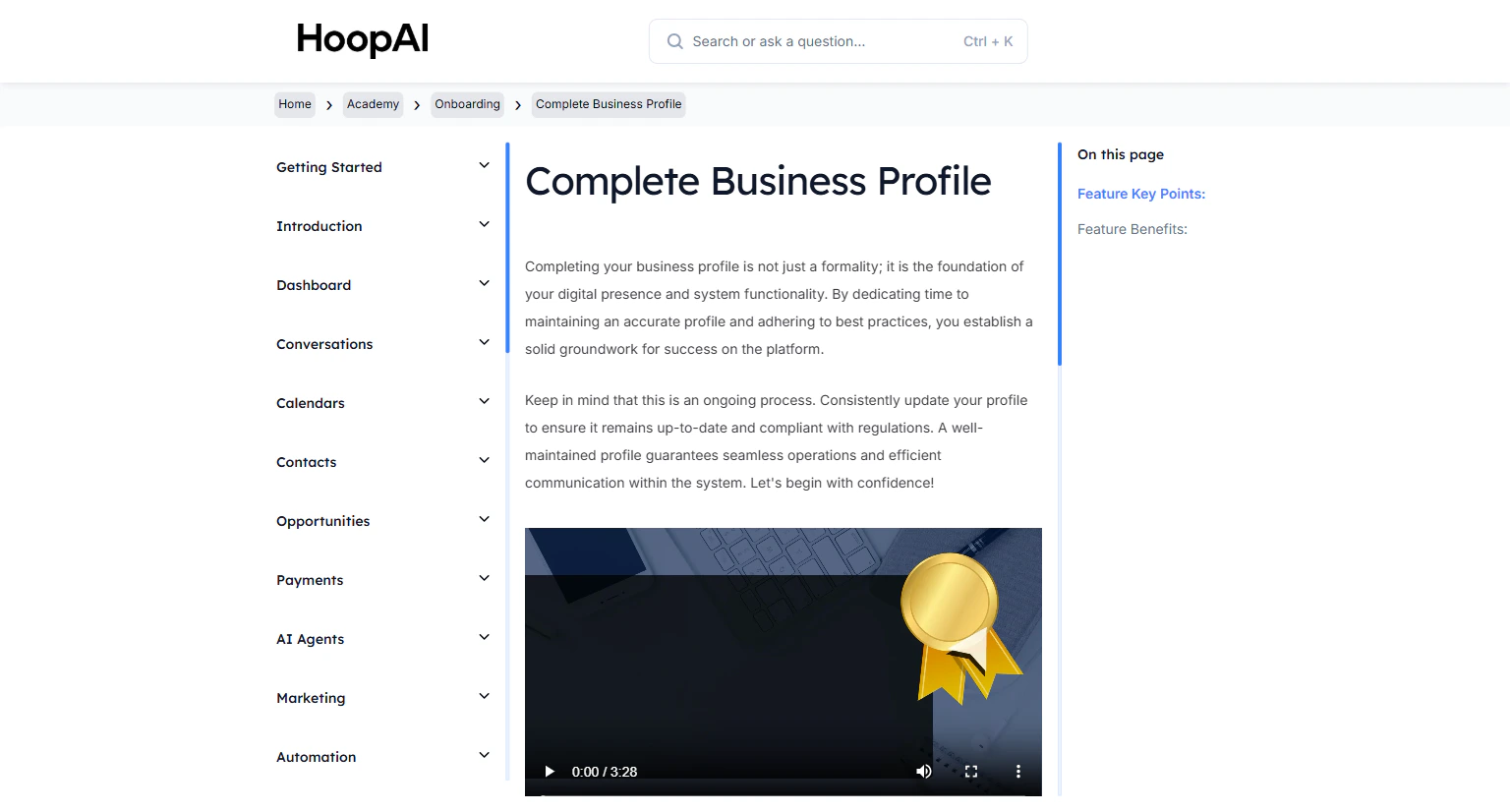
      <img src="https://mintcdn.com/hoopai-84ec0cdc/gyU98wGhFXcTdqFf/images/academy-onboarding-business-profile.png?fit=max&auto=format&n=gyU98wGhFXcTdqFf&q=85&s=16ee3d4747e0c5b5fdffec7483279cae" alt="Website SEO settings" width="1536" height="826" data-path="images/academy-onboarding-business-profile.png" />
    </Frame>
  </Step>

  <Step title="Connect your domain">
    Under **Settings**, assign your website to your domain — for example, `www.yourdomain.com`. See [Add a Domain or Subdomain](/academy/onboarding/add-a-domain-or-subdomain) if your domain is not yet connected.
  </Step>

  <Step title="Publish your website">
    Toggle the website to **Published**. Your site will be live at your domain immediately. You can continue editing and republishing at any time without taking the site offline.
  </Step>
</Steps>

## Key points

<AccordionGroup>
  <Accordion title="Website vs. funnel — which should I use?">
    Use a website when you want visitors to navigate freely across multiple pages — a full business presence with home, about, services, and contact sections. Use a funnel when you want to guide visitors through a specific sequence toward a single action like opting in or purchasing.
  </Accordion>

  <Accordion title="Using templates">
    Templates provide a fully designed starting point. After selecting a template, replace all content with your own — text, images, logos, and colors — while keeping the layout structure. This is much faster than starting from a blank page.
  </Accordion>

  <Accordion title="Blog functionality">
    The website builder includes a built-in blog. Create blog posts with categories, featured images, SEO settings, and author attribution. Blog posts drive organic search traffic and can be shared directly on social media.
  </Accordion>

  <Accordion title="Mobile responsiveness">
    All website pages are mobile-responsive by default. Toggle the mobile view in the builder to preview and adjust how each page looks on phones and tablets.
  </Accordion>

  <Accordion title="Forms and lead capture">
    Drop a form element onto any page to capture visitor information. Form submissions trigger workflow automations — adding a tag, sending a confirmation email, notifying a team member — just like funnel forms.
  </Accordion>
</AccordionGroup>

## Key benefits

<AccordionGroup>
  <Accordion title="Complete online presence">
    Everything your business needs — home, about, services, blog, contact — in one connected website.
  </Accordion>

  <Accordion title="No coding required">
    Drag-and-drop builder makes professional design accessible to anyone.
  </Accordion>

  <Accordion title="SEO-ready">
    Built-in SEO settings for every page help your site rank in search results.
  </Accordion>

  <Accordion title="Lead capture built in">
    Forms on any page connect directly to your CRM and automation workflows.
  </Accordion>

  <Accordion title="Your own domain">
    Publish on your domain for a professional, branded web address.
  </Accordion>
</AccordionGroup>