> ## Documentation Index
> Fetch the complete documentation index at: https://help.hoopai.com/llms.txt
> Use this file to discover all available pages before exploring further.

# Creating a funnel

> Build focused, multi-step conversion funnels — opt-in pages, sales pages, order forms, and thank-you pages — using the HoopAI drag-and-drop builder.

export const CourseTracker = ({courseId, lessonId, videoId}) => {
  const [progress, setProgress] = useState({});
  const [expanded, setExpanded] = useState(false);
  useEffect(() => {
    setProgress(loadProgress());
    document.body.setAttribute("data-academy", "true");
    return () => document.body.removeAttribute("data-academy");
  }, []);
  const course = COURSES[courseId];
  if (!course) return null;
  const lessons = course.lessons;
  const currentIndex = lessons.findIndex(l => l.id === lessonId);
  const completedCount = lessons.filter(l => !!progress[courseId + "/" + l.id]).length;
  const percent = lessons.length > 0 ? Math.round(completedCount / lessons.length * 100) : 0;
  const isCurrentDone = !!progress[courseId + "/" + lessonId];
  const prev = currentIndex > 0 ? lessons[currentIndex - 1] : null;
  const next = currentIndex < lessons.length - 1 ? lessons[currentIndex + 1] : null;
  const totalDuration = formatTotalDuration(lessons);
  const handleToggle = () => {
    const key = courseId + "/" + lessonId;
    const updated = {
      ...progress
    };
    if (updated[key]) {
      delete updated[key];
    } else {
      updated[key] = Date.now();
    }
    setProgress(updated);
    persistProgress(updated);
  };
  const lessonPath = lesson => "/academy/" + course.dir + "/" + lesson.id;
  const videoEmbed = videoId ? <div style={{
    position: "relative",
    width: "100%",
    paddingBottom: "56.25%",
    borderRadius: "var(--ds-radius-lg)",
    overflow: "hidden",
    marginBottom: "24px",
    background: "#000"
  }}>
      <iframe src={"https://www.youtube-nocookie.com/embed/" + videoId + "?rel=0"} title="Lesson video" allow="accelerometer; autoplay; clipboard-write; encrypted-media; gyroscope; picture-in-picture" allowFullScreen style={{
    position: "absolute",
    top: 0,
    left: 0,
    width: "100%",
    height: "100%",
    border: "none"
  }} />
    </div> : null;
  const lessonList = lessons.map(lesson => {
    const isActive = lesson.id === lessonId;
    const isDone = !!progress[courseId + "/" + lesson.id];
    const itemStyle = {
      display: "flex",
      alignItems: "center",
      gap: "8px",
      padding: "10px 16px",
      borderTop: "1px solid var(--academy-border-subtle, #f3f4f6)",
      background: isActive ? "var(--academy-active-bg, #f9fafb)" : "transparent",
      textDecoration: "none",
      cursor: isActive ? "default" : "pointer",
      color: "inherit",
      transition: "background 0.15s"
    };
    const titleStyle = {
      flex: 1,
      fontSize: "13px",
      fontWeight: isActive ? 600 : 400,
      color: isActive ? "var(--academy-text, #111827)" : "var(--academy-text-secondary, #6b7280)",
      overflow: "hidden",
      textOverflow: "ellipsis",
      whiteSpace: "nowrap",
      lineHeight: "1.4"
    };
    const durationStyle = {
      fontSize: "12px",
      color: "var(--academy-text-muted, #9ca3af)",
      whiteSpace: "nowrap"
    };
    const inner = <>
        {isDone ? <CheckCircle /> : <VideoIcon />}
        <span style={titleStyle}>{lesson.title}</span>
        <span style={durationStyle}>{lesson.duration}</span>
      </>;
    if (isActive) {
      return <div key={lesson.id} style={itemStyle}>
          {inner}
        </div>;
    }
    return <a key={lesson.id} href={lessonPath(lesson)} style={itemStyle}>
        {inner}
      </a>;
  });
  return <div className="not-prose" id="academy-course-tracker">
      {videoEmbed}
      <div className="academy-tracker" style={{
    fontFamily: "Inter, -apple-system, BlinkMacSystemFont, sans-serif",
    borderRadius: "var(--ds-radius-lg)",
    border: "1px solid var(--academy-border, #e5e7eb)",
    background: "var(--academy-bg, #ffffff)",
    overflow: "hidden",
    marginBottom: "24px"
  }}>
        {}
        <div style={{
    padding: "16px 16px 0"
  }}>
          <h3 style={{
    margin: 0,
    fontSize: "16px",
    fontWeight: 600,
    lineHeight: "1.4",
    color: "var(--academy-text, #111827)"
  }}>
            {course.title}
          </h3>
          <div style={{
    display: "flex",
    gap: "12px",
    marginTop: "8px"
  }}>
            <span style={{
    display: "flex",
    alignItems: "center",
    gap: "5px",
    fontSize: "12px",
    color: "var(--academy-text-secondary, #6b7280)",
    padding: "3px 8px 3px 6px",
    borderRadius: "var(--ds-radius-sm)",
    border: "1px solid var(--academy-border, #e5e7eb)"
  }}>
              <BookIcon /> {lessons.length} lessons
            </span>
            <span style={{
    display: "flex",
    alignItems: "center",
    gap: "5px",
    fontSize: "12px",
    color: "var(--academy-text-secondary, #6b7280)",
    padding: "3px 8px 3px 6px",
    borderRadius: "var(--ds-radius-sm)",
    border: "1px solid var(--academy-border, #e5e7eb)"
  }}>
              <ClockIcon /> Approx. {totalDuration}
            </span>
          </div>
        </div>

        {}
        <div style={{
    padding: "14px 16px 16px"
  }}>
          <div style={{
    display: "flex",
    justifyContent: "space-between",
    fontSize: "12px",
    color: "var(--academy-text-secondary, #6b7280)"
  }}>
            <span>Your progress</span>
            <span style={{
    fontWeight: 500,
    color: "var(--academy-text, #111827)"
  }}>
              {percent}%
            </span>
          </div>
          <div style={{
    height: "6px",
    borderRadius: "var(--ds-radius-full)",
    background: "var(--academy-track, #f3f4f6)",
    marginTop: "8px",
    overflow: "hidden"
  }}>
            <div style={{
    height: "100%",
    borderRadius: "var(--ds-radius-full)",
    background: "var(--academy-progress, #3b82f6)",
    transition: "width 0.5s cubic-bezier(0.4, 0, 0.2, 1)",
    width: percent + "%"
  }} />
          </div>
        </div>

        {}
        <div className="academy-lessons-desktop">{lessonList}</div>

        {}
        <div className="academy-lessons-mobile">
          <button onClick={() => setExpanded(!expanded)} aria-expanded={expanded} style={{
    display: "flex",
    alignItems: "center",
    justifyContent: "space-between",
    padding: "12px 16px",
    cursor: "pointer",
    borderTop: "1px solid var(--academy-border-subtle, #f3f4f6)",
    background: "transparent",
    border: "none",
    borderTopStyle: "solid",
    borderTopWidth: "1px",
    borderTopColor: "var(--academy-border-subtle, #f3f4f6)",
    width: "100%",
    textAlign: "left",
    color: "var(--academy-text-secondary, #6b7280)",
    fontSize: "13px",
    fontWeight: 500,
    fontFamily: "inherit"
  }}>
            <span>
              {expanded ? "Hide lessons" : "Show all " + lessons.length + " lessons"}
            </span>
            <ChevronDown open={expanded} />
          </button>
          {expanded && lessonList}
        </div>

        {}
        <div style={{
    display: "flex",
    alignItems: "center",
    justifyContent: "space-between",
    borderTop: "1px solid var(--academy-border, #e5e7eb)",
    padding: "10px 16px"
  }}>
          {prev ? <a href={lessonPath(prev)} style={{
    fontSize: "13px",
    color: "var(--academy-text-secondary, #6b7280)",
    textDecoration: "none",
    display: "flex",
    alignItems: "center",
    gap: "4px"
  }}>
              ‹ Previous
            </a> : <div />}
          <button onClick={handleToggle} style={{
    fontSize: "13px",
    fontWeight: 500,
    cursor: "pointer",
    padding: "6px 14px",
    borderRadius: "var(--ds-radius-md)",
    border: isCurrentDone ? "1px solid var(--academy-border, #e5e7eb)" : "none",
    background: isCurrentDone ? "var(--academy-bg, #ffffff)" : "var(--academy-btn-bg, #111827)",
    color: isCurrentDone ? "var(--academy-complete, #10b981)" : "var(--academy-btn-text, #ffffff)",
    display: "flex",
    alignItems: "center",
    gap: "6px",
    transition: "all 0.2s",
    lineHeight: "1.4",
    fontFamily: "inherit"
  }}>
            {isCurrentDone ? <>
                <CheckCircle /> Completed
              </> : "Mark as completed"}
          </button>
          {next ? <a href={lessonPath(next)} style={{
    fontSize: "13px",
    color: "var(--academy-text-secondary, #6b7280)",
    textDecoration: "none",
    display: "flex",
    alignItems: "center",
    gap: "4px"
  }}>
              Next ›
            </a> : <div />}
        </div>
      </div>
    </div>;
};

<CourseTracker courseId="funnels-websites" lessonId="creating-a-funnel" />

A funnel is a series of connected pages designed to guide a visitor toward a single goal — capturing a lead, registering for an event, or completing a purchase. Unlike a website (which visitors navigate freely), a funnel controls the path: one page leads to the next, keeping visitors focused on the conversion action.

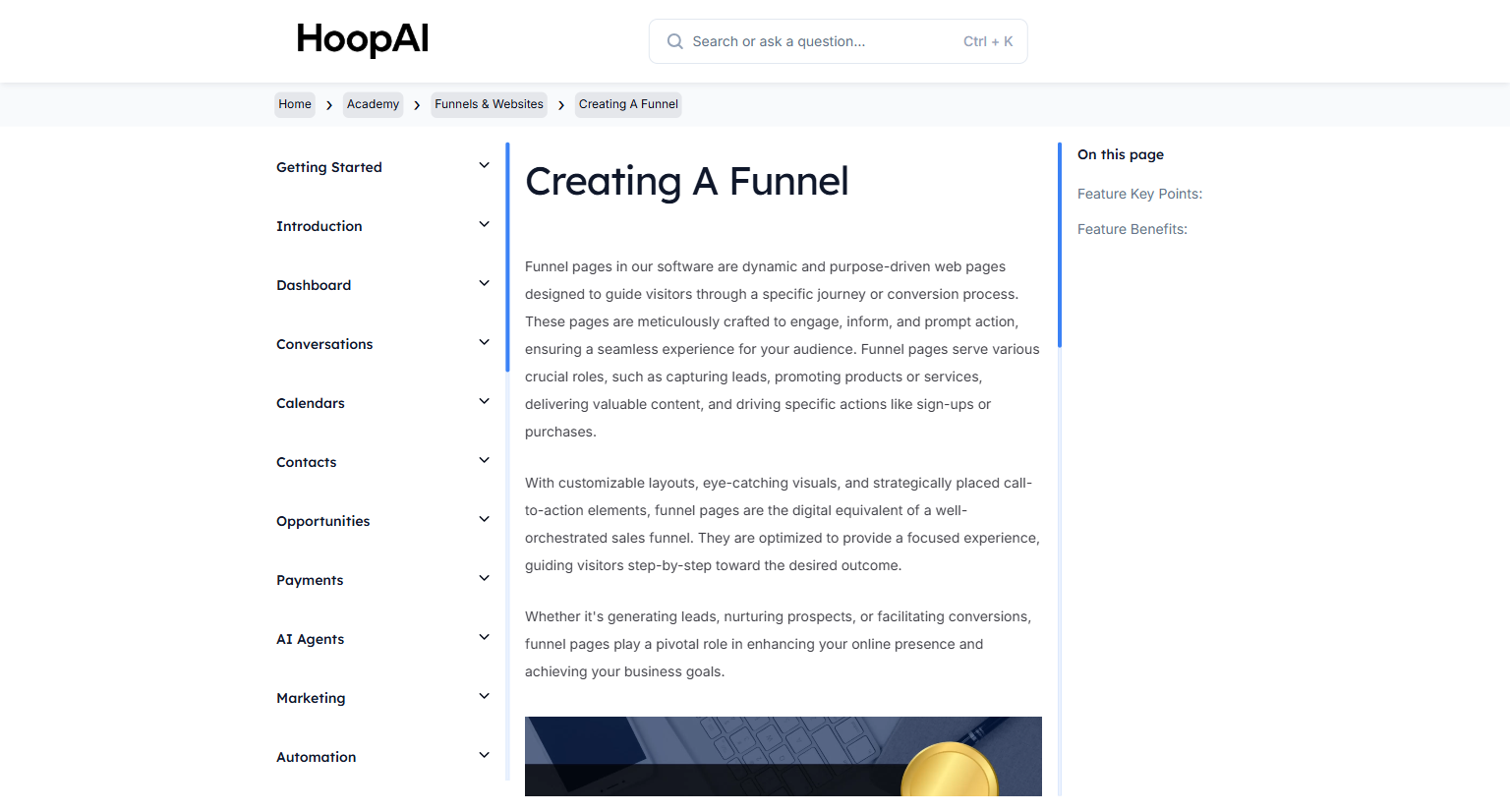
<Frame caption="The Creating a Funnel lesson in the HoopAI Academy Funnels and Websites section">
  <img src="https://mintcdn.com/hoopai-84ec0cdc/gyU98wGhFXcTdqFf/images/academy-funnels-creating.png?fit=max&auto=format&n=gyU98wGhFXcTdqFf&q=85&s=28d21ce2a08059b0dc7abc6e718f221f" alt="Creating a funnel article" width="1536" height="826" data-path="images/academy-funnels-creating.png" />
</Frame>

## Why this matters

The difference between a website and a funnel is focus. A website gives visitors options — they can explore, leave, get distracted, and come back later. A funnel removes every distraction and presents one clear action. Visitors who reach a well-built funnel either convert or they leave — there is no browsing. This focus is what makes funnels consistently outperform general websites for lead capture and sales.

Common funnel types include:

* Lead capture pages (opt-in form + thank-you page)
* Sales pages with order forms
* Webinar registration pages
* Free offer delivery pages

## How to create a funnel

<Steps>
  <Step title="Navigate to Funnels">
    Go to **Sites** > **Funnels** and click **New Funnel**.

    <Frame caption="The Funnels section under Sites in the HoopAI Platform">
      <img src="https://mintcdn.com/hoopai-84ec0cdc/gyU98wGhFXcTdqFf/images/academy-funnels-creating.png?fit=max&auto=format&n=gyU98wGhFXcTdqFf&q=85&s=28d21ce2a08059b0dc7abc6e718f221f" alt="Funnels section navigation" width="1536" height="826" data-path="images/academy-funnels-creating.png" />
    </Frame>
  </Step>

  <Step title="Name your funnel">
    Give the funnel a clear internal name — for example, "Free Guide Opt-In" or "Discovery Call Funnel." This name is for internal organization only. Visitors never see it.
  </Step>

  <Step title="Add funnel steps">
    Each funnel consists of one or more steps (pages). Click **Add Step** to add your first page. Common step types:

    * **Opt-in Page:** Captures contact details via a form
    * **Sales Page:** Presents your offer with a call to action
    * **Order Form:** Collects payment information
    * **Thank You Page:** Confirms the action and delivers next steps

    <Frame caption="Adding steps to build a multi-page conversion funnel">
      <img src="https://mintcdn.com/hoopai-84ec0cdc/gyU98wGhFXcTdqFf/images/academy-onboarding-webchat-widget.png?fit=max&auto=format&n=gyU98wGhFXcTdqFf&q=85&s=66e9548553a7c885294aae986c271a46" alt="Funnel step builder interface" width="1536" height="826" data-path="images/academy-onboarding-webchat-widget.png" />
    </Frame>
  </Step>

  <Step title="Design each page">
    Click a step to open the page builder. Use drag-and-drop to add and arrange elements:

    * **Sections and columns** — define the layout structure
    * **Text and headline blocks** — your copy
    * **Images and videos** — visual content from your media library
    * **Forms** — lead capture or order forms
    * **Buttons** — calls to action that advance visitors to the next step

    <Tip>
      Keep funnel pages focused on a single action. Remove the navigation menu, hide unrelated links, and make the call-to-action button the most visually prominent element on the page.
    </Tip>
  </Step>

  <Step title="Connect pages together">
    For each page, configure what happens after the visitor completes the action. Under the step settings, set the **Next Step** or redirect URL to move the visitor forward in the funnel.
  </Step>

  <Step title="Configure form automation">
    If your funnel includes a form, connect it to a workflow. When a visitor submits the form, the workflow can instantly:

    * Add a tag
    * Send a confirmation email or SMS
    * Enroll the contact in a nurture sequence
    * Notify a team member
  </Step>

  <Step title="Set your domain">
    Under **Settings**, assign your funnel to a domain or subdomain — for example, `offers.yourdomain.com`. See the [Add a Domain or Subdomain](/academy/onboarding/add-a-domain-or-subdomain) guide if your domain is not yet connected.

    <Frame caption="Assigning a domain to your funnel in the funnel settings">
      <img src="https://mintlify.s3.us-west-1.amazonaws.com/hoopai-84ec0cdc/images/academy-onboarding-add-domain.png" alt="Funnel domain settings" />
    </Frame>
  </Step>

  <Step title="Publish and share">
    Toggle the funnel to **Published**. Share the URL of your first funnel step — in emails, social posts, ads, or wherever you drive traffic.
  </Step>
</Steps>

## Key points

<AccordionGroup>
  <Accordion title="Funnel vs. website — which should I use?">
    Use a funnel when you want visitors to follow a specific path toward one goal — sign up, buy, or book. Use a website when you want visitors to browse multiple pages freely — homepage, about, services, contact. Both use the same builder and can share a domain.
  </Accordion>

  <Accordion title="Drag-and-drop builder overview">
    The builder uses a section-based layout. Each section contains rows and columns, and columns contain individual elements — text, image, button, form, etc. Drag elements from the left panel onto the canvas, then click to configure each element's settings.
  </Accordion>

  <Accordion title="Mobile responsiveness">
    All pages built in the funnel builder are mobile-responsive by default. Use the mobile preview toggle in the builder to check and adjust how your page looks on smaller screens.
  </Accordion>

  <Accordion title="A/B testing">
    You can create variant pages within a funnel step to run A/B tests. The platform splits traffic between variants so you can identify which version converts better over time.
  </Accordion>

  <Accordion title="Tracking and analytics">
    Each funnel step tracks visits, opt-ins, and conversion rate. View stats in the funnel dashboard to identify which steps are performing well and where visitors are dropping off.
  </Accordion>
</AccordionGroup>

## Key benefits

<AccordionGroup>
  <Accordion title="Focused conversions">
    Remove distractions — funnels keep visitors on a single path toward your goal.
  </Accordion>

  <Accordion title="No coding required">
    The drag-and-drop builder makes page creation accessible to anyone.
  </Accordion>

  <Accordion title="Connected automation">
    Form submissions trigger workflows automatically, so follow-up is instant and hands-free.
  </Accordion>

  <Accordion title="Mobile-ready">
    Every page is responsive — visitors on any device get a great experience.
  </Accordion>

  <Accordion title="Data-driven optimization">
    Step-by-step analytics show exactly where visitors convert or drop off.
  </Accordion>
</AccordionGroup>