> ## Documentation Index
> Fetch the complete documentation index at: https://help.hoopai.com/llms.txt
> Use this file to discover all available pages before exploring further.

# Send an email blast to your contact list

> Learn how to send a bulk email campaign to your entire contact list, a smart list, or specific contacts — with full tracking and no ad spend required.

export const CourseTracker = ({courseId, lessonId, videoId}) => {
  const [progress, setProgress] = useState({});
  const [expanded, setExpanded] = useState(false);
  useEffect(() => {
    setProgress(loadProgress());
    document.body.setAttribute("data-academy", "true");
    return () => document.body.removeAttribute("data-academy");
  }, []);
  const course = COURSES[courseId];
  if (!course) return null;
  const lessons = course.lessons;
  const currentIndex = lessons.findIndex(l => l.id === lessonId);
  const completedCount = lessons.filter(l => !!progress[courseId + "/" + l.id]).length;
  const percent = lessons.length > 0 ? Math.round(completedCount / lessons.length * 100) : 0;
  const isCurrentDone = !!progress[courseId + "/" + lessonId];
  const prev = currentIndex > 0 ? lessons[currentIndex - 1] : null;
  const next = currentIndex < lessons.length - 1 ? lessons[currentIndex + 1] : null;
  const totalDuration = formatTotalDuration(lessons);
  const handleToggle = () => {
    const key = courseId + "/" + lessonId;
    const updated = {
      ...progress
    };
    if (updated[key]) {
      delete updated[key];
    } else {
      updated[key] = Date.now();
    }
    setProgress(updated);
    persistProgress(updated);
  };
  const lessonPath = lesson => "/academy/" + course.dir + "/" + lesson.id;
  const videoEmbed = videoId ? <div style={{
    position: "relative",
    width: "100%",
    paddingBottom: "56.25%",
    borderRadius: "var(--ds-radius-lg)",
    overflow: "hidden",
    marginBottom: "24px",
    background: "#000"
  }}>
      <iframe src={"https://www.youtube-nocookie.com/embed/" + videoId + "?rel=0"} title="Lesson video" allow="accelerometer; autoplay; clipboard-write; encrypted-media; gyroscope; picture-in-picture" allowFullScreen style={{
    position: "absolute",
    top: 0,
    left: 0,
    width: "100%",
    height: "100%",
    border: "none"
  }} />
    </div> : null;
  const lessonList = lessons.map(lesson => {
    const isActive = lesson.id === lessonId;
    const isDone = !!progress[courseId + "/" + lesson.id];
    const itemStyle = {
      display: "flex",
      alignItems: "center",
      gap: "8px",
      padding: "10px 16px",
      borderTop: "1px solid var(--academy-border-subtle, #f3f4f6)",
      background: isActive ? "var(--academy-active-bg, #f9fafb)" : "transparent",
      textDecoration: "none",
      cursor: isActive ? "default" : "pointer",
      color: "inherit",
      transition: "background 0.15s"
    };
    const titleStyle = {
      flex: 1,
      fontSize: "13px",
      fontWeight: isActive ? 600 : 400,
      color: isActive ? "var(--academy-text, #111827)" : "var(--academy-text-secondary, #6b7280)",
      overflow: "hidden",
      textOverflow: "ellipsis",
      whiteSpace: "nowrap",
      lineHeight: "1.4"
    };
    const durationStyle = {
      fontSize: "12px",
      color: "var(--academy-text-muted, #9ca3af)",
      whiteSpace: "nowrap"
    };
    const inner = <>
        {isDone ? <CheckCircle /> : <VideoIcon />}
        <span style={titleStyle}>{lesson.title}</span>
        <span style={durationStyle}>{lesson.duration}</span>
      </>;
    if (isActive) {
      return <div key={lesson.id} style={itemStyle}>
          {inner}
        </div>;
    }
    return <a key={lesson.id} href={lessonPath(lesson)} style={itemStyle}>
        {inner}
      </a>;
  });
  return <div className="not-prose" id="academy-course-tracker">
      {videoEmbed}
      <div className="academy-tracker" style={{
    fontFamily: "Inter, -apple-system, BlinkMacSystemFont, sans-serif",
    borderRadius: "var(--ds-radius-lg)",
    border: "1px solid var(--academy-border, #e5e7eb)",
    background: "var(--academy-bg, #ffffff)",
    overflow: "hidden",
    marginBottom: "24px"
  }}>
        {}
        <div style={{
    padding: "16px 16px 0"
  }}>
          <h3 style={{
    margin: 0,
    fontSize: "16px",
    fontWeight: 600,
    lineHeight: "1.4",
    color: "var(--academy-text, #111827)"
  }}>
            {course.title}
          </h3>
          <div style={{
    display: "flex",
    gap: "12px",
    marginTop: "8px"
  }}>
            <span style={{
    display: "flex",
    alignItems: "center",
    gap: "5px",
    fontSize: "12px",
    color: "var(--academy-text-secondary, #6b7280)",
    padding: "3px 8px 3px 6px",
    borderRadius: "var(--ds-radius-sm)",
    border: "1px solid var(--academy-border, #e5e7eb)"
  }}>
              <BookIcon /> {lessons.length} lessons
            </span>
            <span style={{
    display: "flex",
    alignItems: "center",
    gap: "5px",
    fontSize: "12px",
    color: "var(--academy-text-secondary, #6b7280)",
    padding: "3px 8px 3px 6px",
    borderRadius: "var(--ds-radius-sm)",
    border: "1px solid var(--academy-border, #e5e7eb)"
  }}>
              <ClockIcon /> Approx. {totalDuration}
            </span>
          </div>
        </div>

        {}
        <div style={{
    padding: "14px 16px 16px"
  }}>
          <div style={{
    display: "flex",
    justifyContent: "space-between",
    fontSize: "12px",
    color: "var(--academy-text-secondary, #6b7280)"
  }}>
            <span>Your progress</span>
            <span style={{
    fontWeight: 500,
    color: "var(--academy-text, #111827)"
  }}>
              {percent}%
            </span>
          </div>
          <div style={{
    height: "6px",
    borderRadius: "var(--ds-radius-full)",
    background: "var(--academy-track, #f3f4f6)",
    marginTop: "8px",
    overflow: "hidden"
  }}>
            <div style={{
    height: "100%",
    borderRadius: "var(--ds-radius-full)",
    background: "var(--academy-progress, #3b82f6)",
    transition: "width 0.5s cubic-bezier(0.4, 0, 0.2, 1)",
    width: percent + "%"
  }} />
          </div>
        </div>

        {}
        <div className="academy-lessons-desktop">{lessonList}</div>

        {}
        <div className="academy-lessons-mobile">
          <button onClick={() => setExpanded(!expanded)} aria-expanded={expanded} style={{
    display: "flex",
    alignItems: "center",
    justifyContent: "space-between",
    padding: "12px 16px",
    cursor: "pointer",
    borderTop: "1px solid var(--academy-border-subtle, #f3f4f6)",
    background: "transparent",
    border: "none",
    borderTopStyle: "solid",
    borderTopWidth: "1px",
    borderTopColor: "var(--academy-border-subtle, #f3f4f6)",
    width: "100%",
    textAlign: "left",
    color: "var(--academy-text-secondary, #6b7280)",
    fontSize: "13px",
    fontWeight: 500,
    fontFamily: "inherit"
  }}>
            <span>
              {expanded ? "Hide lessons" : "Show all " + lessons.length + " lessons"}
            </span>
            <ChevronDown open={expanded} />
          </button>
          {expanded && lessonList}
        </div>

        {}
        <div style={{
    display: "flex",
    alignItems: "center",
    justifyContent: "space-between",
    borderTop: "1px solid var(--academy-border, #e5e7eb)",
    padding: "10px 16px"
  }}>
          {prev ? <a href={lessonPath(prev)} style={{
    fontSize: "13px",
    color: "var(--academy-text-secondary, #6b7280)",
    textDecoration: "none",
    display: "flex",
    alignItems: "center",
    gap: "4px"
  }}>
              ‹ Previous
            </a> : <div />}
          <button onClick={handleToggle} style={{
    fontSize: "13px",
    fontWeight: 500,
    cursor: "pointer",
    padding: "6px 14px",
    borderRadius: "var(--ds-radius-md)",
    border: isCurrentDone ? "1px solid var(--academy-border, #e5e7eb)" : "none",
    background: isCurrentDone ? "var(--academy-bg, #ffffff)" : "var(--academy-btn-bg, #111827)",
    color: isCurrentDone ? "var(--academy-complete, #10b981)" : "var(--academy-btn-text, #ffffff)",
    display: "flex",
    alignItems: "center",
    gap: "6px",
    transition: "all 0.2s",
    lineHeight: "1.4",
    fontFamily: "inherit"
  }}>
            {isCurrentDone ? <>
                <CheckCircle /> Completed
              </> : "Mark as completed"}
          </button>
          {next ? <a href={lessonPath(next)} style={{
    fontSize: "13px",
    color: "var(--academy-text-secondary, #6b7280)",
    textDecoration: "none",
    display: "flex",
    alignItems: "center",
    gap: "4px"
  }}>
              Next ›
            </a> : <div />}
        </div>
      </div>
    </div>;
};

<CourseTracker courseId="email-messaging" lessonId="send-an-email-blast-to-your-contact-list" />

Email blasts are a powerful marketing tool for reaching your entire audience with a single send. Use them to promote offers, share updates, announce events, or nurture leads — all without any advertising spend. The HoopAI Platform gives you full control over recipient selection, scheduling, and performance tracking.

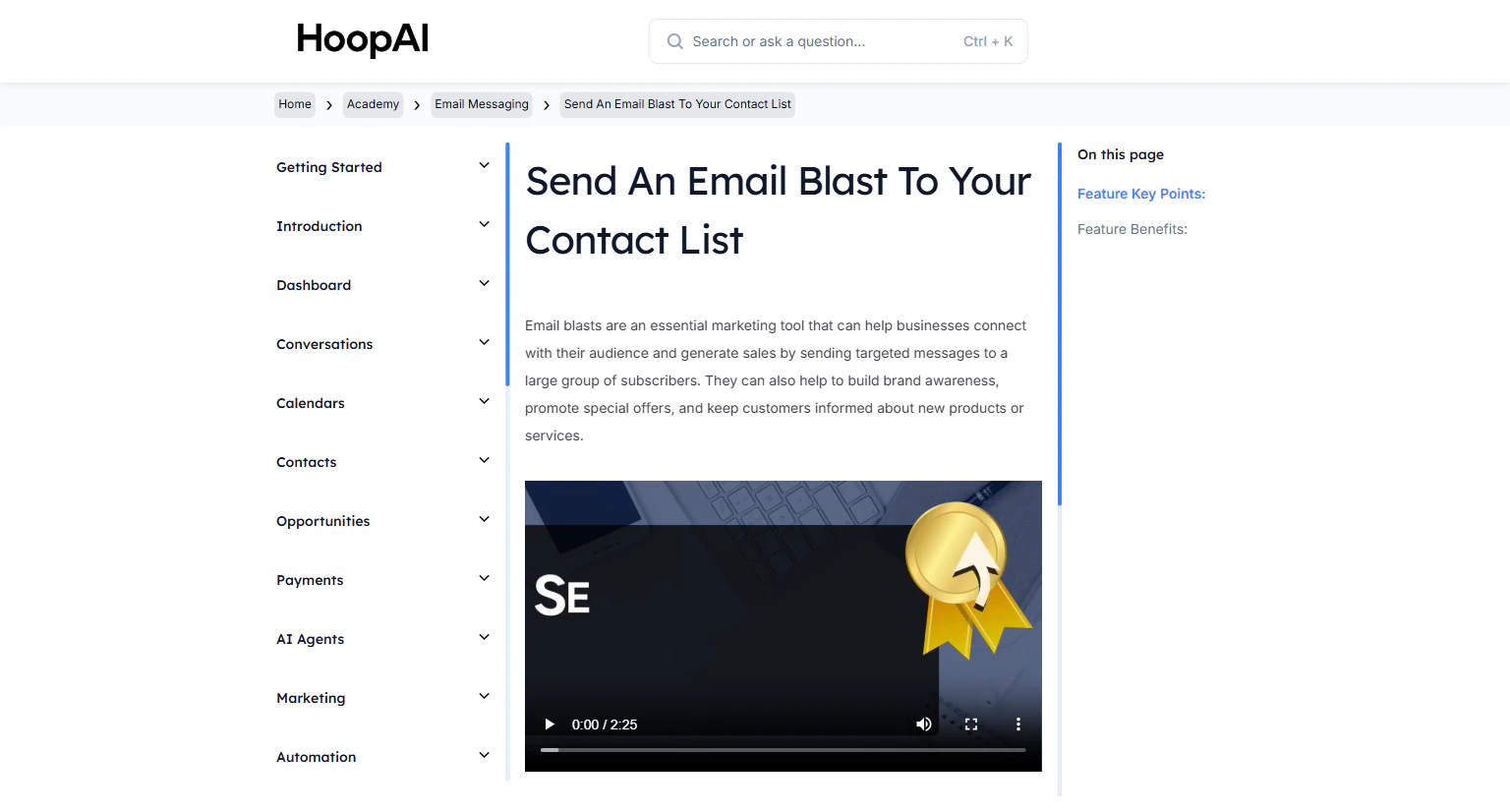
<Frame caption="The Send an Email Blast lesson in the HoopAI Academy">
  <img src="https://mintcdn.com/hoopai-84ec0cdc/gyU98wGhFXcTdqFf/images/academy-email-blast.png?fit=max&auto=format&n=gyU98wGhFXcTdqFf&q=85&s=dc2697390856b15ce7e4f80c20f922df" alt="Send an email blast to your contact list" width="1536" height="826" data-path="images/academy-email-blast.png" />
</Frame>

## Why this matters

Every email blast you send is a direct line to your audience with no algorithm, no ad spend, and no gatekeeping. Email marketing consistently generates the highest ROI of any digital marketing channel. Businesses that email their list regularly build a warm audience that buys when they send.

## How to send an email blast

<Steps>
  <Step title="Navigate to Email Campaigns">
    Go to **Marketing** > **Email** > **Campaigns**, or use **Bulk Actions** from the **Contacts** section. Click **New Campaign** or **New Email Blast**.

    <Frame caption="The Email Campaigns section in the HoopAI Platform">
      <img src="https://mintcdn.com/hoopai-84ec0cdc/gyU98wGhFXcTdqFf/images/academy-email-blast.png?fit=max&auto=format&n=gyU98wGhFXcTdqFf&q=85&s=dc2697390856b15ce7e4f80c20f922df" alt="Email campaigns navigation" width="1536" height="826" data-path="images/academy-email-blast.png" />
    </Frame>
  </Step>

  <Step title="Name your campaign">
    Give your campaign a descriptive internal name so you can identify it in your reporting later.
  </Step>

  <Step title="Choose your recipients">
    Select who will receive the email:

    * Your **entire contact list**
    * A specific **Smart List** (a filtered segment of contacts)
    * **Individually selected** contacts

    <Frame caption="Selecting recipients for your email blast — full list, smart list, or individuals">
      <img src="https://mintcdn.com/hoopai-84ec0cdc/gyU98wGhFXcTdqFf/images/academy-onboarding-import-contacts.png?fit=max&auto=format&n=gyU98wGhFXcTdqFf&q=85&s=02abfd10adb996867d3c6e9fb874b771" alt="Email recipient selection" width="1536" height="826" data-path="images/academy-onboarding-import-contacts.png" />
    </Frame>
  </Step>

  <Step title="Design your email">
    Use the email builder to create your message. You can:

    * Start from a blank template or choose a pre-built template
    * Add images, text, buttons, and links
    * Use **custom fields** like `{{contact.first_name}}` to personalize content for each recipient
    * Include **trigger links** for click tracking and workflow automation

    <Tip>
      Personalizing your subject line with `{{contact.first_name}}` can increase open rates by 20–50%. Keep subject lines under 50 characters and lead with the value — not your business name.
    </Tip>
  </Step>

  <Step title="Set the from name and email">
    Ensure your **From Name** and **From Email** match your dedicated sending domain for best deliverability. Never send from a free email provider like Gmail or Yahoo — this will hurt your delivery rates.
  </Step>

  <Step title="Choose your send timing">
    Select your delivery method:

    * **Send now:** Delivers immediately to all selected recipients
    * **Schedule:** Pick a specific date and time for delivery
    * **Drip send:** Send in batches (e.g., 200 emails every hour) to manage volume and avoid spam filters

    <Frame caption="Send timing options — immediate, scheduled, or drip delivery">
      <img src="https://mintcdn.com/hoopai-84ec0cdc/gyU98wGhFXcTdqFf/images/academy-email-cc-bcc.png?fit=max&auto=format&n=gyU98wGhFXcTdqFf&q=85&s=8745ae04a64cea6b9408446867b607a0" alt="Email send timing options" width="1536" height="826" data-path="images/academy-email-cc-bcc.png" />
    </Frame>
  </Step>

  <Step title="Review and send">
    Preview your email, confirm the recipient count, and click **Send** or **Schedule** to launch.
  </Step>

  <Step title="Track performance">
    After sending, view campaign statistics from the campaign dashboard:

    * **Open rate:** Percentage of recipients who opened the email
    * **Click-through rate:** Percentage who clicked a link
    * **Unsubscribes:** Contacts who opted out
    * **Complaint rate:** Spam reports received

    Contact replies flow into your **Conversations** inbox automatically.

    <Frame caption="Email campaign performance statistics in the HoopAI Platform">
      <img src="https://mintcdn.com/hoopai-84ec0cdc/gyU98wGhFXcTdqFf/images/academy-quick-start-conversations.png?fit=max&auto=format&n=gyU98wGhFXcTdqFf&q=85&s=b35ece2a2ead2ac8c92820a62c044b70" alt="Email campaign statistics" width="1536" height="826" data-path="images/academy-quick-start-conversations.png" />
    </Frame>
  </Step>
</Steps>

## Key points

<AccordionGroup>
  <Accordion title="Using custom fields for personalization">
    Personalizing email subject lines and body content with merge tags significantly increases open and click rates. At minimum, use `{{contact.first_name}}` in your subject line or greeting for every campaign.
  </Accordion>

  <Accordion title="Drip sending for large lists">
    When sending to large contact lists, drip sending prevents triggering spam filters by spreading delivery over time. This maintains better deliverability and protects your sender reputation.
  </Accordion>

  <Accordion title="Trigger links in email blasts">
    A trigger link tracks which contacts clicked specific links in your email. You can also use trigger link clicks to automatically enroll those contacts into a follow-up workflow.
  </Accordion>

  <Accordion title="Tracking unsubscribes and complaints">
    Monitor your unsubscribe and complaint rates after every send. A complaint rate above 0.1% signals list quality or messaging issues. The platform handles unsubscribe requests automatically to keep you compliant.
  </Accordion>
</AccordionGroup>

## Key benefits

<AccordionGroup>
  <Accordion title="High ROI">
    Email campaigns generate consistent revenue without requiring any ad spend.
  </Accordion>

  <Accordion title="Easy engagement">
    Reach your entire contact list in minutes with just a few clicks.
  </Accordion>

  <Accordion title="Detailed analytics">
    Track open rates, click-through rates, unsubscribes, and complaint rates for every campaign.
  </Accordion>

  <Accordion title="Integrated replies">
    Contact replies appear directly in Conversations for easy response management.
  </Accordion>

  <Accordion title="Advanced automation">
    Combine trigger links with workflows to create automated follow-up sequences based on engagement.
  </Accordion>
</AccordionGroup>