> ## Documentation Index
> Fetch the complete documentation index at: https://help.hoopai.com/llms.txt
> Use this file to discover all available pages before exploring further.

# Sync integrations

> Connect Google Calendar, Outlook, and Zoom to HoopAI so availability stays accurate, double-bookings are prevented, and video links auto-generate for appointments.

export const CourseTracker = ({courseId, lessonId, videoId}) => {
  const [progress, setProgress] = useState({});
  const [expanded, setExpanded] = useState(false);
  useEffect(() => {
    setProgress(loadProgress());
    document.body.setAttribute("data-academy", "true");
    return () => document.body.removeAttribute("data-academy");
  }, []);
  const course = COURSES[courseId];
  if (!course) return null;
  const lessons = course.lessons;
  const currentIndex = lessons.findIndex(l => l.id === lessonId);
  const completedCount = lessons.filter(l => !!progress[courseId + "/" + l.id]).length;
  const percent = lessons.length > 0 ? Math.round(completedCount / lessons.length * 100) : 0;
  const isCurrentDone = !!progress[courseId + "/" + lessonId];
  const prev = currentIndex > 0 ? lessons[currentIndex - 1] : null;
  const next = currentIndex < lessons.length - 1 ? lessons[currentIndex + 1] : null;
  const totalDuration = formatTotalDuration(lessons);
  const handleToggle = () => {
    const key = courseId + "/" + lessonId;
    const updated = {
      ...progress
    };
    if (updated[key]) {
      delete updated[key];
    } else {
      updated[key] = Date.now();
    }
    setProgress(updated);
    persistProgress(updated);
  };
  const lessonPath = lesson => "/academy/" + course.dir + "/" + lesson.id;
  const videoEmbed = videoId ? <div style={{
    position: "relative",
    width: "100%",
    paddingBottom: "56.25%",
    borderRadius: "var(--ds-radius-lg)",
    overflow: "hidden",
    marginBottom: "24px",
    background: "#000"
  }}>
      <iframe src={"https://www.youtube-nocookie.com/embed/" + videoId + "?rel=0"} title="Lesson video" allow="accelerometer; autoplay; clipboard-write; encrypted-media; gyroscope; picture-in-picture" allowFullScreen style={{
    position: "absolute",
    top: 0,
    left: 0,
    width: "100%",
    height: "100%",
    border: "none"
  }} />
    </div> : null;
  const lessonList = lessons.map(lesson => {
    const isActive = lesson.id === lessonId;
    const isDone = !!progress[courseId + "/" + lesson.id];
    const itemStyle = {
      display: "flex",
      alignItems: "center",
      gap: "8px",
      padding: "10px 16px",
      borderTop: "1px solid var(--academy-border-subtle, #f3f4f6)",
      background: isActive ? "var(--academy-active-bg, #f9fafb)" : "transparent",
      textDecoration: "none",
      cursor: isActive ? "default" : "pointer",
      color: "inherit",
      transition: "background 0.15s"
    };
    const titleStyle = {
      flex: 1,
      fontSize: "13px",
      fontWeight: isActive ? 600 : 400,
      color: isActive ? "var(--academy-text, #111827)" : "var(--academy-text-secondary, #6b7280)",
      overflow: "hidden",
      textOverflow: "ellipsis",
      whiteSpace: "nowrap",
      lineHeight: "1.4"
    };
    const durationStyle = {
      fontSize: "12px",
      color: "var(--academy-text-muted, #9ca3af)",
      whiteSpace: "nowrap"
    };
    const inner = <>
        {isDone ? <CheckCircle /> : <VideoIcon />}
        <span style={titleStyle}>{lesson.title}</span>
        <span style={durationStyle}>{lesson.duration}</span>
      </>;
    if (isActive) {
      return <div key={lesson.id} style={itemStyle}>
          {inner}
        </div>;
    }
    return <a key={lesson.id} href={lessonPath(lesson)} style={itemStyle}>
        {inner}
      </a>;
  });
  return <div className="not-prose" id="academy-course-tracker">
      {videoEmbed}
      <div className="academy-tracker" style={{
    fontFamily: "Inter, -apple-system, BlinkMacSystemFont, sans-serif",
    borderRadius: "var(--ds-radius-lg)",
    border: "1px solid var(--academy-border, #e5e7eb)",
    background: "var(--academy-bg, #ffffff)",
    overflow: "hidden",
    marginBottom: "24px"
  }}>
        {}
        <div style={{
    padding: "16px 16px 0"
  }}>
          <h3 style={{
    margin: 0,
    fontSize: "16px",
    fontWeight: 600,
    lineHeight: "1.4",
    color: "var(--academy-text, #111827)"
  }}>
            {course.title}
          </h3>
          <div style={{
    display: "flex",
    gap: "12px",
    marginTop: "8px"
  }}>
            <span style={{
    display: "flex",
    alignItems: "center",
    gap: "5px",
    fontSize: "12px",
    color: "var(--academy-text-secondary, #6b7280)",
    padding: "3px 8px 3px 6px",
    borderRadius: "var(--ds-radius-sm)",
    border: "1px solid var(--academy-border, #e5e7eb)"
  }}>
              <BookIcon /> {lessons.length} lessons
            </span>
            <span style={{
    display: "flex",
    alignItems: "center",
    gap: "5px",
    fontSize: "12px",
    color: "var(--academy-text-secondary, #6b7280)",
    padding: "3px 8px 3px 6px",
    borderRadius: "var(--ds-radius-sm)",
    border: "1px solid var(--academy-border, #e5e7eb)"
  }}>
              <ClockIcon /> Approx. {totalDuration}
            </span>
          </div>
        </div>

        {}
        <div style={{
    padding: "14px 16px 16px"
  }}>
          <div style={{
    display: "flex",
    justifyContent: "space-between",
    fontSize: "12px",
    color: "var(--academy-text-secondary, #6b7280)"
  }}>
            <span>Your progress</span>
            <span style={{
    fontWeight: 500,
    color: "var(--academy-text, #111827)"
  }}>
              {percent}%
            </span>
          </div>
          <div style={{
    height: "6px",
    borderRadius: "var(--ds-radius-full)",
    background: "var(--academy-track, #f3f4f6)",
    marginTop: "8px",
    overflow: "hidden"
  }}>
            <div style={{
    height: "100%",
    borderRadius: "var(--ds-radius-full)",
    background: "var(--academy-progress, #3b82f6)",
    transition: "width 0.5s cubic-bezier(0.4, 0, 0.2, 1)",
    width: percent + "%"
  }} />
          </div>
        </div>

        {}
        <div className="academy-lessons-desktop">{lessonList}</div>

        {}
        <div className="academy-lessons-mobile">
          <button onClick={() => setExpanded(!expanded)} aria-expanded={expanded} style={{
    display: "flex",
    alignItems: "center",
    justifyContent: "space-between",
    padding: "12px 16px",
    cursor: "pointer",
    borderTop: "1px solid var(--academy-border-subtle, #f3f4f6)",
    background: "transparent",
    border: "none",
    borderTopStyle: "solid",
    borderTopWidth: "1px",
    borderTopColor: "var(--academy-border-subtle, #f3f4f6)",
    width: "100%",
    textAlign: "left",
    color: "var(--academy-text-secondary, #6b7280)",
    fontSize: "13px",
    fontWeight: 500,
    fontFamily: "inherit"
  }}>
            <span>
              {expanded ? "Hide lessons" : "Show all " + lessons.length + " lessons"}
            </span>
            <ChevronDown open={expanded} />
          </button>
          {expanded && lessonList}
        </div>

        {}
        <div style={{
    display: "flex",
    alignItems: "center",
    justifyContent: "space-between",
    borderTop: "1px solid var(--academy-border, #e5e7eb)",
    padding: "10px 16px"
  }}>
          {prev ? <a href={lessonPath(prev)} style={{
    fontSize: "13px",
    color: "var(--academy-text-secondary, #6b7280)",
    textDecoration: "none",
    display: "flex",
    alignItems: "center",
    gap: "4px"
  }}>
              ‹ Previous
            </a> : <div />}
          <button onClick={handleToggle} style={{
    fontSize: "13px",
    fontWeight: 500,
    cursor: "pointer",
    padding: "6px 14px",
    borderRadius: "var(--ds-radius-md)",
    border: isCurrentDone ? "1px solid var(--academy-border, #e5e7eb)" : "none",
    background: isCurrentDone ? "var(--academy-bg, #ffffff)" : "var(--academy-btn-bg, #111827)",
    color: isCurrentDone ? "var(--academy-complete, #10b981)" : "var(--academy-btn-text, #ffffff)",
    display: "flex",
    alignItems: "center",
    gap: "6px",
    transition: "all 0.2s",
    lineHeight: "1.4",
    fontFamily: "inherit"
  }}>
            {isCurrentDone ? <>
                <CheckCircle /> Completed
              </> : "Mark as completed"}
          </button>
          {next ? <a href={lessonPath(next)} style={{
    fontSize: "13px",
    color: "var(--academy-text-secondary, #6b7280)",
    textDecoration: "none",
    display: "flex",
    alignItems: "center",
    gap: "4px"
  }}>
              Next ›
            </a> : <div />}
        </div>
      </div>
    </div>;
};

<CourseTracker courseId="calendars" lessonId="sync-integrations" />

When your HoopAI calendar is connected to your external calendar — Google, Outlook, or Zoom — it checks your real availability in real time before allowing any booking. Contacts see only the time slots that are actually open, Zoom links are created automatically for each appointment, and everything stays in sync without any manual effort.

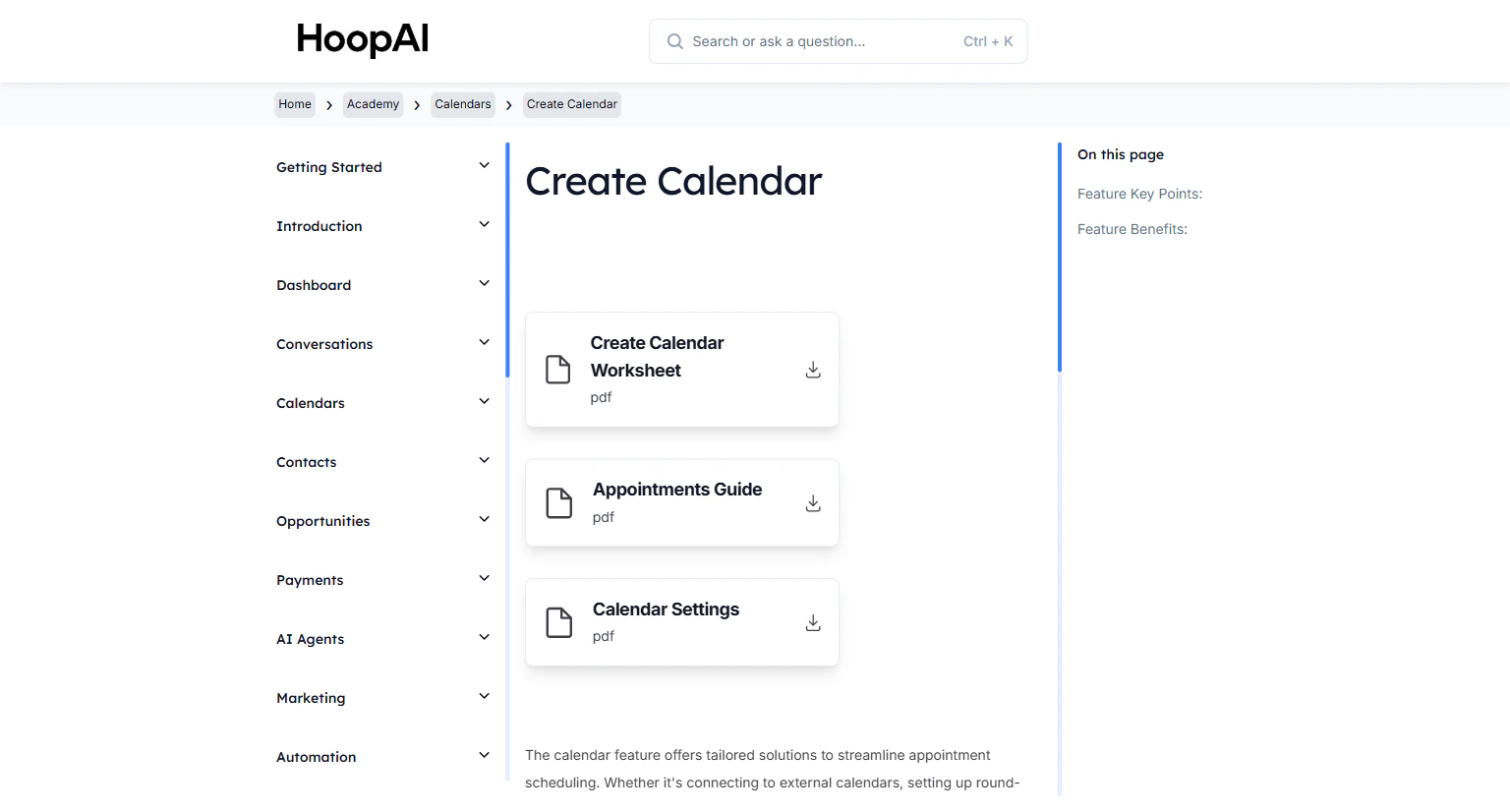
<Frame caption="The Sync Integrations lesson in the HoopAI Academy Calendars section">
  <img src="https://mintcdn.com/hoopai-84ec0cdc/gyU98wGhFXcTdqFf/images/academy-calendars-create.png?fit=max&auto=format&n=gyU98wGhFXcTdqFf&q=85&s=5be7ef7b0f6b19bf1fea5441430fb3ed" alt="Calendar sync integrations article" width="1536" height="826" data-path="images/academy-calendars-create.png" />
</Frame>

## Why this matters

A calendar with no integration is flying blind. It shows time slots based only on the working hours you set — not what is actually on your Google or Outlook calendar. The result: contacts can book you for 2 PM Tuesday when you already have a dentist appointment, a team call, or a personal commitment on your real calendar. The sync integration solves this completely by checking both calendars before confirming any booking.

## How to connect your calendar integrations

<Steps>
  <Step title="Open your calendar settings">
    Go to **Calendars** > **Calendar Settings** in the left sidebar. Click on the calendar you want to configure, then navigate to the **Integrations** tab or **Connections** section within the calendar settings.

    <Frame caption="The Calendar Settings page showing the integrations tab for connecting external calendars">
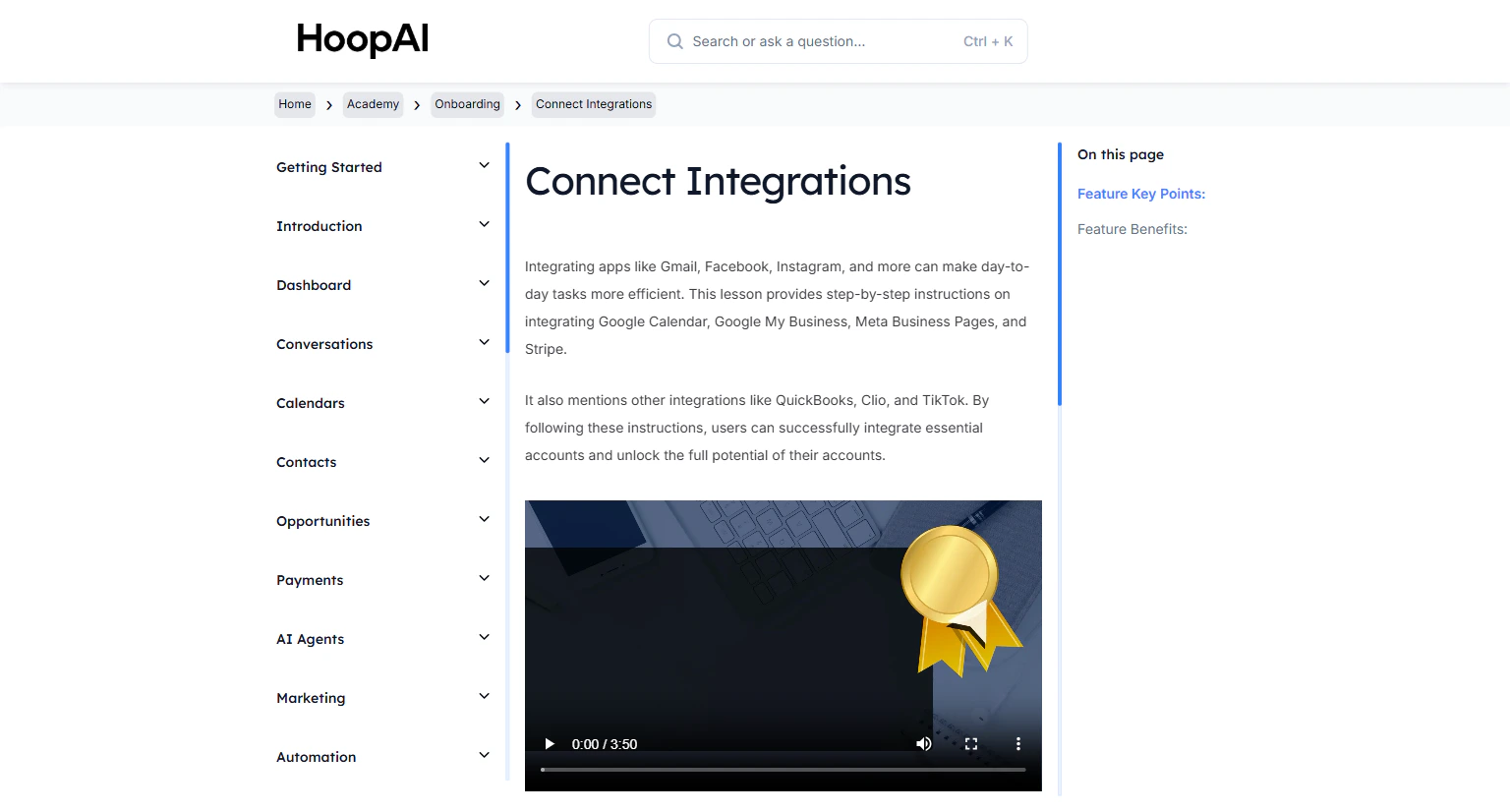
      <img src="https://mintcdn.com/hoopai-84ec0cdc/gyU98wGhFXcTdqFf/images/academy-onboarding-connect-integrations.png?fit=max&auto=format&n=gyU98wGhFXcTdqFf&q=85&s=438d94999ada2e8819af2eb0ee159b50" alt="Calendar settings integrations tab" width="1536" height="826" data-path="images/academy-onboarding-connect-integrations.png" />
    </Frame>
  </Step>

  <Step title="Connect Google Calendar">
    Click **Connect Google Calendar** and authenticate with the Google account that owns the calendar you want to sync. Once connected, select which Google Calendar to use for availability checking — this is usually your primary calendar or work calendar.

    <Tip>
      Use the same Google account your team members use day-to-day. If you connect a secondary or shared calendar, it may not reflect your true personal availability.
    </Tip>
  </Step>

  <Step title="Connect Outlook Calendar">
    If your team uses Microsoft 365 or Outlook, click **Connect Outlook Calendar** and sign in with your Microsoft account. The platform syncs with Outlook calendars the same way it does with Google — checking availability before any booking is confirmed.

    <Frame caption="Connecting Google or Outlook calendars to sync real-time availability into the HoopAI Platform">
      <img src="https://mintcdn.com/hoopai-84ec0cdc/gyU98wGhFXcTdqFf/images/academy-onboarding-connect-integrations.png?fit=max&auto=format&n=gyU98wGhFXcTdqFf&q=85&s=438d94999ada2e8819af2eb0ee159b50" alt="Google and Outlook calendar connection settings" width="1536" height="826" data-path="images/academy-onboarding-connect-integrations.png" />
    </Frame>
  </Step>

  <Step title="Configure conflict calendars">
    The **conflict calendar** setting defines which external calendars the platform checks for busy times — without actually writing bookings to them. This lets you block availability based on personal commitments on a separate calendar while keeping your HoopAI appointments on your main work calendar.

    * **Main calendar:** Where HoopAI writes confirmed appointment events
    * **Conflict calendars:** External calendars checked for busy blocks — HoopAI reads these but does not write to them

    Example: Your main calendar is your work Google Calendar, and your conflict calendar is your personal Google Calendar. HoopAI checks both when showing available slots.
  </Step>

  <Step title="Connect Zoom for automatic video links">
    Under the **Video Conferencing** section of your calendar settings, click **Connect Zoom**. Authenticate with your Zoom account. Once connected, every new appointment confirmation automatically generates a unique Zoom meeting link — no manual link creation required.

    <Frame caption="Connecting Zoom to auto-generate unique meeting links for every confirmed appointment">
      <img src="https://mintcdn.com/hoopai-84ec0cdc/gyU98wGhFXcTdqFf/images/academy-onboarding-connect-integrations.png?fit=max&auto=format&n=gyU98wGhFXcTdqFf&q=85&s=438d94999ada2e8819af2eb0ee159b50" alt="Zoom integration settings in calendar" width="1536" height="826" data-path="images/academy-onboarding-connect-integrations.png" />
    </Frame>

    <Note>
      The Zoom link is included automatically in appointment confirmation emails and reminders via the custom value `{{appointment.zoom_link}}`. Make sure your confirmation templates reference this value.
    </Note>
  </Step>

  <Step title="Set your main calendar for bookings">
    Under **Main Calendar**, select the specific calendar where new HoopAI appointments will be created as events. This is the calendar that will appear on your synced external calendar app — keeping your HoopAI schedule visible alongside your other commitments.
  </Step>

  <Step title="Admin-level configuration for team members">
    If you manage a team, go to **Settings** > **Users** > select a team member > **Calendar** tab. Admins can configure the Google, Outlook, and Zoom connections for each user — ensuring everyone on the team has their integration set up correctly before the calendar goes live.

    <Frame caption="Admin user settings showing the calendar integration tab for team-wide configuration">
      <img src="https://mintcdn.com/hoopai-84ec0cdc/gyU98wGhFXcTdqFf/images/academy-calendars-create.png?fit=max&auto=format&n=gyU98wGhFXcTdqFf&q=85&s=5be7ef7b0f6b19bf1fea5441430fb3ed" alt="Admin calendar integration settings for team users" width="1536" height="826" data-path="images/academy-calendars-create.png" />
    </Frame>
  </Step>
</Steps>

## Key points

<AccordionGroup>
  <Accordion title="What does syncing actually prevent?">
    Without integration, the calendar only knows about HoopAI appointments. With integration, it also sees your Google or Outlook events — meetings, blocked time, personal appointments — and hides those time slots from contacts. Double-bookings become impossible because the platform checks all your calendars before showing a slot as available.
  </Accordion>

  <Accordion title="Conflict calendars vs. main calendar">
    The main calendar is where new appointments land. Conflict calendars are checked for existing events to block availability — they do not receive any new events. You can designate multiple conflict calendars, for example a work calendar and a personal calendar, and the platform checks all of them simultaneously.
  </Accordion>

  <Accordion title="How Zoom links are generated">
    When Zoom is connected, each confirmed appointment automatically triggers a unique Zoom meeting creation via the Zoom API. The link is stored in the appointment record and accessible via the `{{appointment.zoom_link}}` custom value in workflow messages and email templates. Each appointment gets its own unique link — links are not reused.
  </Accordion>

  <Accordion title="Does the sync work in real time?">
    Yes. When a contact opens your booking page, the platform checks your connected Google or Outlook calendar at that moment to determine which slots to show. If someone adds a meeting to your Google Calendar 5 minutes ago, that time slot will already be blocked when the next person opens your booking link.
  </Accordion>
</AccordionGroup>

## Key benefits

<AccordionGroup>
  <Accordion title="Zero double-bookings">
    The platform checks all connected calendars in real time before displaying any available slot.
  </Accordion>

  <Accordion title="Automatic Zoom links">
    Every confirmed appointment gets its own unique video meeting link — no manual creation.
  </Accordion>

  <Accordion title="Cross-platform sync">
    Works with Google Calendar and Microsoft Outlook, covering the two most common business calendar platforms.
  </Accordion>

  <Accordion title="Flexible conflict calendar setup">
    Block personal calendar time without mixing personal events into your booking calendar.
  </Accordion>

  <Accordion title="Admin control">
    Administrators can configure integrations for all team members from a central settings panel.
  </Accordion>
</AccordionGroup>