> ## Documentation Index
> Fetch the complete documentation index at: https://help.hoopai.com/llms.txt
> Use this file to discover all available pages before exploring further.

# Configure your appointment automation

> Build workflows that automatically confirm bookings, send reminders before appointments, and follow up afterward — so every client receives the right message at the right time without any manual effort.

export const CourseTracker = ({courseId, lessonId, videoId}) => {
  const [progress, setProgress] = useState({});
  const [expanded, setExpanded] = useState(false);
  useEffect(() => {
    setProgress(loadProgress());
    document.body.setAttribute("data-academy", "true");
    return () => document.body.removeAttribute("data-academy");
  }, []);
  const course = COURSES[courseId];
  if (!course) return null;
  const lessons = course.lessons;
  const currentIndex = lessons.findIndex(l => l.id === lessonId);
  const completedCount = lessons.filter(l => !!progress[courseId + "/" + l.id]).length;
  const percent = lessons.length > 0 ? Math.round(completedCount / lessons.length * 100) : 0;
  const isCurrentDone = !!progress[courseId + "/" + lessonId];
  const prev = currentIndex > 0 ? lessons[currentIndex - 1] : null;
  const next = currentIndex < lessons.length - 1 ? lessons[currentIndex + 1] : null;
  const totalDuration = formatTotalDuration(lessons);
  const handleToggle = () => {
    const key = courseId + "/" + lessonId;
    const updated = {
      ...progress
    };
    if (updated[key]) {
      delete updated[key];
    } else {
      updated[key] = Date.now();
    }
    setProgress(updated);
    persistProgress(updated);
  };
  const lessonPath = lesson => "/academy/" + course.dir + "/" + lesson.id;
  const videoEmbed = videoId ? <div style={{
    position: "relative",
    width: "100%",
    paddingBottom: "56.25%",
    borderRadius: "var(--ds-radius-lg)",
    overflow: "hidden",
    marginBottom: "24px",
    background: "#000"
  }}>
      <iframe src={"https://www.youtube-nocookie.com/embed/" + videoId + "?rel=0"} title="Lesson video" allow="accelerometer; autoplay; clipboard-write; encrypted-media; gyroscope; picture-in-picture" allowFullScreen style={{
    position: "absolute",
    top: 0,
    left: 0,
    width: "100%",
    height: "100%",
    border: "none"
  }} />
    </div> : null;
  const lessonList = lessons.map(lesson => {
    const isActive = lesson.id === lessonId;
    const isDone = !!progress[courseId + "/" + lesson.id];
    const itemStyle = {
      display: "flex",
      alignItems: "center",
      gap: "8px",
      padding: "10px 16px",
      borderTop: "1px solid var(--academy-border-subtle, #f3f4f6)",
      background: isActive ? "var(--academy-active-bg, #f9fafb)" : "transparent",
      textDecoration: "none",
      cursor: isActive ? "default" : "pointer",
      color: "inherit",
      transition: "background 0.15s"
    };
    const titleStyle = {
      flex: 1,
      fontSize: "13px",
      fontWeight: isActive ? 600 : 400,
      color: isActive ? "var(--academy-text, #111827)" : "var(--academy-text-secondary, #6b7280)",
      overflow: "hidden",
      textOverflow: "ellipsis",
      whiteSpace: "nowrap",
      lineHeight: "1.4"
    };
    const durationStyle = {
      fontSize: "12px",
      color: "var(--academy-text-muted, #9ca3af)",
      whiteSpace: "nowrap"
    };
    const inner = <>
        {isDone ? <CheckCircle /> : <VideoIcon />}
        <span style={titleStyle}>{lesson.title}</span>
        <span style={durationStyle}>{lesson.duration}</span>
      </>;
    if (isActive) {
      return <div key={lesson.id} style={itemStyle}>
          {inner}
        </div>;
    }
    return <a key={lesson.id} href={lessonPath(lesson)} style={itemStyle}>
        {inner}
      </a>;
  });
  return <div className="not-prose" id="academy-course-tracker">
      {videoEmbed}
      <div className="academy-tracker" style={{
    fontFamily: "Inter, -apple-system, BlinkMacSystemFont, sans-serif",
    borderRadius: "var(--ds-radius-lg)",
    border: "1px solid var(--academy-border, #e5e7eb)",
    background: "var(--academy-bg, #ffffff)",
    overflow: "hidden",
    marginBottom: "24px"
  }}>
        {}
        <div style={{
    padding: "16px 16px 0"
  }}>
          <h3 style={{
    margin: 0,
    fontSize: "16px",
    fontWeight: 600,
    lineHeight: "1.4",
    color: "var(--academy-text, #111827)"
  }}>
            {course.title}
          </h3>
          <div style={{
    display: "flex",
    gap: "12px",
    marginTop: "8px"
  }}>
            <span style={{
    display: "flex",
    alignItems: "center",
    gap: "5px",
    fontSize: "12px",
    color: "var(--academy-text-secondary, #6b7280)",
    padding: "3px 8px 3px 6px",
    borderRadius: "var(--ds-radius-sm)",
    border: "1px solid var(--academy-border, #e5e7eb)"
  }}>
              <BookIcon /> {lessons.length} lessons
            </span>
            <span style={{
    display: "flex",
    alignItems: "center",
    gap: "5px",
    fontSize: "12px",
    color: "var(--academy-text-secondary, #6b7280)",
    padding: "3px 8px 3px 6px",
    borderRadius: "var(--ds-radius-sm)",
    border: "1px solid var(--academy-border, #e5e7eb)"
  }}>
              <ClockIcon /> Approx. {totalDuration}
            </span>
          </div>
        </div>

        {}
        <div style={{
    padding: "14px 16px 16px"
  }}>
          <div style={{
    display: "flex",
    justifyContent: "space-between",
    fontSize: "12px",
    color: "var(--academy-text-secondary, #6b7280)"
  }}>
            <span>Your progress</span>
            <span style={{
    fontWeight: 500,
    color: "var(--academy-text, #111827)"
  }}>
              {percent}%
            </span>
          </div>
          <div style={{
    height: "6px",
    borderRadius: "var(--ds-radius-full)",
    background: "var(--academy-track, #f3f4f6)",
    marginTop: "8px",
    overflow: "hidden"
  }}>
            <div style={{
    height: "100%",
    borderRadius: "var(--ds-radius-full)",
    background: "var(--academy-progress, #3b82f6)",
    transition: "width 0.5s cubic-bezier(0.4, 0, 0.2, 1)",
    width: percent + "%"
  }} />
          </div>
        </div>

        {}
        <div className="academy-lessons-desktop">{lessonList}</div>

        {}
        <div className="academy-lessons-mobile">
          <button onClick={() => setExpanded(!expanded)} aria-expanded={expanded} style={{
    display: "flex",
    alignItems: "center",
    justifyContent: "space-between",
    padding: "12px 16px",
    cursor: "pointer",
    borderTop: "1px solid var(--academy-border-subtle, #f3f4f6)",
    background: "transparent",
    border: "none",
    borderTopStyle: "solid",
    borderTopWidth: "1px",
    borderTopColor: "var(--academy-border-subtle, #f3f4f6)",
    width: "100%",
    textAlign: "left",
    color: "var(--academy-text-secondary, #6b7280)",
    fontSize: "13px",
    fontWeight: 500,
    fontFamily: "inherit"
  }}>
            <span>
              {expanded ? "Hide lessons" : "Show all " + lessons.length + " lessons"}
            </span>
            <ChevronDown open={expanded} />
          </button>
          {expanded && lessonList}
        </div>

        {}
        <div style={{
    display: "flex",
    alignItems: "center",
    justifyContent: "space-between",
    borderTop: "1px solid var(--academy-border, #e5e7eb)",
    padding: "10px 16px"
  }}>
          {prev ? <a href={lessonPath(prev)} style={{
    fontSize: "13px",
    color: "var(--academy-text-secondary, #6b7280)",
    textDecoration: "none",
    display: "flex",
    alignItems: "center",
    gap: "4px"
  }}>
              ‹ Previous
            </a> : <div />}
          <button onClick={handleToggle} style={{
    fontSize: "13px",
    fontWeight: 500,
    cursor: "pointer",
    padding: "6px 14px",
    borderRadius: "var(--ds-radius-md)",
    border: isCurrentDone ? "1px solid var(--academy-border, #e5e7eb)" : "none",
    background: isCurrentDone ? "var(--academy-bg, #ffffff)" : "var(--academy-btn-bg, #111827)",
    color: isCurrentDone ? "var(--academy-complete, #10b981)" : "var(--academy-btn-text, #ffffff)",
    display: "flex",
    alignItems: "center",
    gap: "6px",
    transition: "all 0.2s",
    lineHeight: "1.4",
    fontFamily: "inherit"
  }}>
            {isCurrentDone ? <>
                <CheckCircle /> Completed
              </> : "Mark as completed"}
          </button>
          {next ? <a href={lessonPath(next)} style={{
    fontSize: "13px",
    color: "var(--academy-text-secondary, #6b7280)",
    textDecoration: "none",
    display: "flex",
    alignItems: "center",
    gap: "4px"
  }}>
              Next ›
            </a> : <div />}
        </div>
      </div>
    </div>;
};

<CourseTracker courseId="calendars" lessonId="configure-your-appointment-automation" />

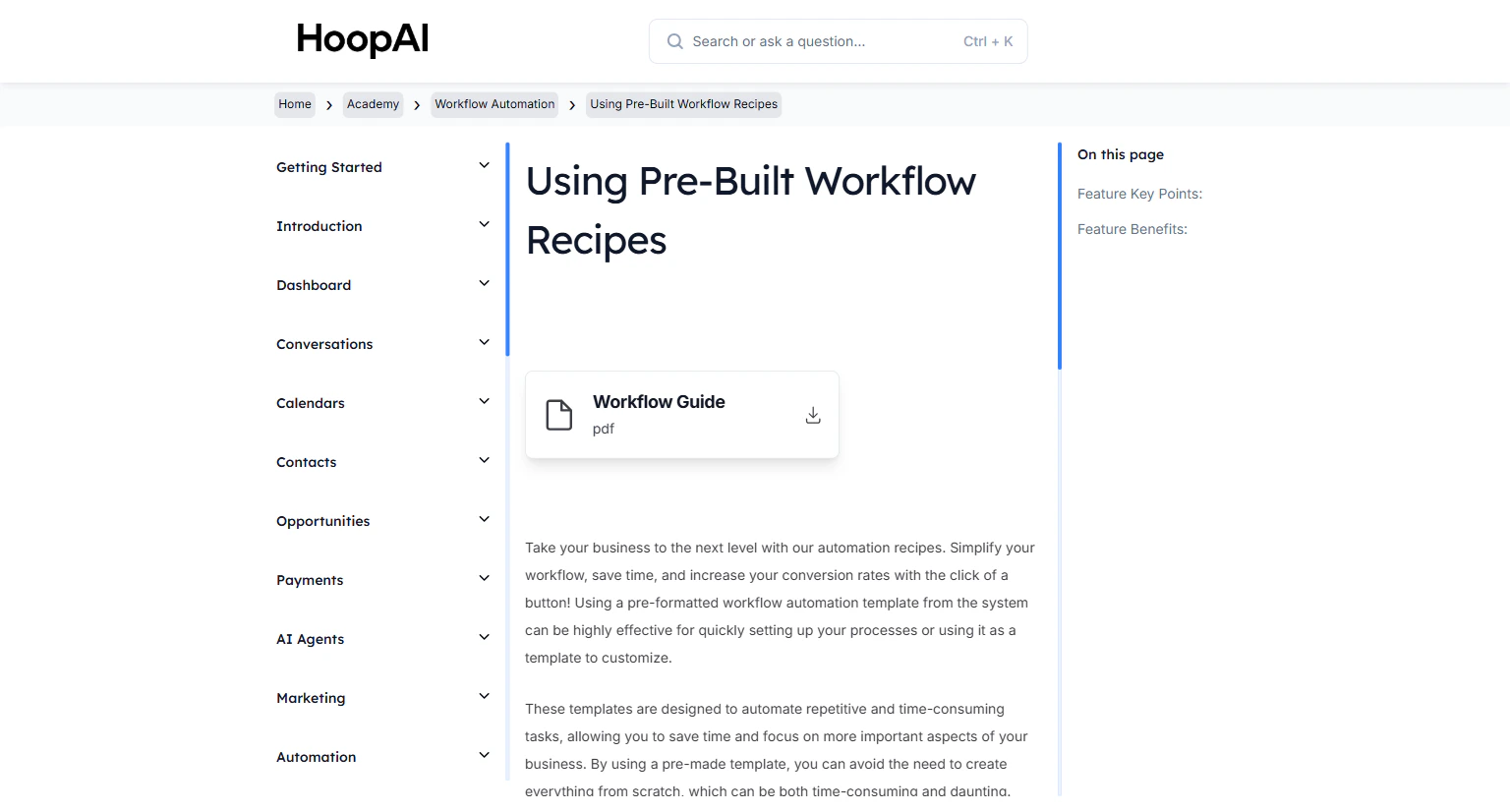
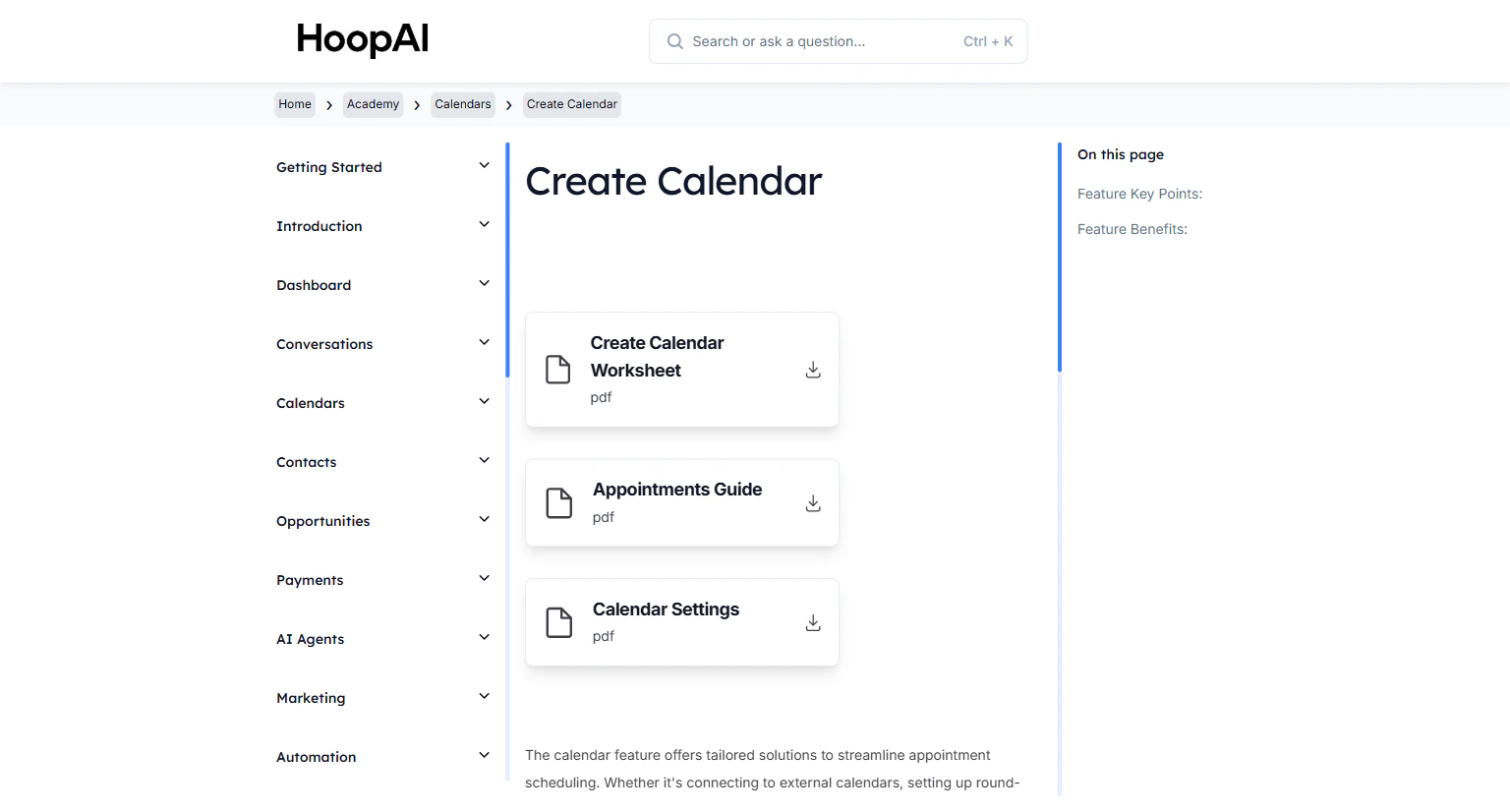
Once a contact books an appointment, the work of keeping them engaged and prepared should be automatic. The HoopAI Platform lets you build workflows triggered by appointment events — booking confirmed, appointment starting, appointment completed — and chain together messages, reminders, tags, and pipeline updates that fire precisely when they should.

<Frame caption="The Configure Your Appointment Automation lesson in the HoopAI Academy Calendars section">
  <img src="https://mintcdn.com/hoopai-84ec0cdc/gyU98wGhFXcTdqFf/images/academy-calendars-create.png?fit=max&auto=format&n=gyU98wGhFXcTdqFf&q=85&s=5be7ef7b0f6b19bf1fea5441430fb3ed" alt="Configure appointment automation article" width="1536" height="826" data-path="images/academy-calendars-create.png" />
</Frame>

## Why this matters

Without automation, no-shows happen. Contacts book an appointment, forget about it, and miss it — because nobody sent a reminder. Research consistently shows that a single reminder message sent 24 hours before an appointment reduces no-shows by 25-40%. Two reminders — 24 hours and 1 hour before — reduce them further. Setting this up once inside a workflow means it runs automatically for every appointment, forever, with no staff action required.

## How to configure appointment automation

<Steps>
  <Step title="Create a new workflow">
    Go to **Automation** > **Workflows** and click **Create Workflow**. Choose **Start from Scratch** to build a custom appointment flow, or look for an appointment-related pre-built recipe to use as a starting point.

    <Frame caption="Creating a new workflow in the HoopAI Automation builder to handle appointment events">
      <img src="https://mintcdn.com/hoopai-84ec0cdc/gyU98wGhFXcTdqFf/images/academy-workflow-triggers.png?fit=max&auto=format&n=gyU98wGhFXcTdqFf&q=85&s=0aa03e5a41598c8044d00b6cb03b7b27" alt="New workflow creation for appointments" width="1536" height="826" data-path="images/academy-workflow-triggers.png" />
    </Frame>
  </Step>

  <Step title="Set your trigger — appointment status">
    Click **Add Trigger** and select **Appointment Status**. This trigger fires whenever an appointment changes status — for example, when a contact books a new appointment and the status becomes Confirmed.

    Configure the trigger filters:

    * **Calendar:** Select the specific calendar this workflow applies to — or leave blank to apply to all calendars
    * **Status:** Select **Confirmed** to trigger on new bookings, **Cancelled** to trigger on cancellations, or **No Show** to trigger when appointments are missed

    <Tip>
      Build separate workflows for Confirmed, Cancelled, and No Show status changes. A Confirmed workflow sends confirmation and reminders. A Cancelled workflow acknowledges the cancellation and offers a rebook link. A No Show workflow follows up and offers a second chance to book.
    </Tip>
  </Step>

  <Step title="Send an immediate confirmation message">
    Add a **Send Email** or **Send SMS** action as the first step in your workflow. This fires the moment the appointment is confirmed — before any reminder timing is needed.

    Example confirmation SMS:

    > "Hi \{\{contact.first\_name}}, your appointment is confirmed for \{\{appointment.start\_time}}. Add it to your calendar: \{\{appointment.ics\_link}}. Reply STOP to opt out."

    Example confirmation email:

    * Subject: "Your appointment is confirmed — \{\{appointment.start\_time}}"
    * Body: Include appointment date, time, location or Zoom link, and what to prepare

    <Frame caption="Adding an immediate Send SMS action as the first step in the appointment confirmation workflow">
      <img src="https://mintcdn.com/hoopai-84ec0cdc/gyU98wGhFXcTdqFf/images/academy-workflow-recipes.png?fit=max&auto=format&n=gyU98wGhFXcTdqFf&q=85&s=82127a8fe14c91ea981ab7dbb7c56771" alt="Appointment confirmation SMS action in workflow builder" width="1536" height="826" data-path="images/academy-workflow-recipes.png" />
    </Frame>
  </Step>

  <Step title="Add a wait step for the 24-hour reminder">
    Add a **Wait** action after the confirmation message. Configure the wait to hold until **24 hours before the appointment start time**. The platform supports appointment-relative wait steps — you do not need to calculate the exact delay manually.

    After the wait, add a **Send SMS** or **Send Email** action with the 24-hour reminder message:

    > "Reminder: Your appointment with `{{user.first_name}}` is tomorrow at `{{appointment.start_time}}`. Location: `{{appointment.location}}`. Questions? Reply to this message."
  </Step>

  <Step title="Add a wait step for the 1-hour reminder">
    Add another **Wait** action, this time set to hold until **1 hour before the appointment start time**. Follow it with a second reminder message — shorter and more direct:

    > "Your appointment starts in 1 hour. Join here: `{{appointment.zoom_link}}`"

    <Frame caption="Configuring wait steps relative to appointment start time for precise 24-hour and 1-hour reminder delivery">
      <img src="https://mintcdn.com/hoopai-84ec0cdc/gyU98wGhFXcTdqFf/images/academy-workflow-triggers.png?fit=max&auto=format&n=gyU98wGhFXcTdqFf&q=85&s=0aa03e5a41598c8044d00b6cb03b7b27" alt="Wait step configured for appointment-relative timing" width="1536" height="826" data-path="images/academy-workflow-triggers.png" />
    </Frame>
  </Step>

  <Step title="Add post-appointment follow-up actions">
    After the appointment end time, use another appointment-relative wait step — for example, **2 hours after appointment end** — then add follow-up actions:

    * **Send a review request:** Ask the contact to leave a Google review
    * **Send a follow-up email:** Summary of what was discussed and next steps
    * **Update the pipeline:** Move the contact to the next stage in your sales pipeline
    * **Add a tag:** Mark the contact as "Appointment Completed" for segmentation

    <Frame caption="Post-appointment follow-up actions including review request, pipeline update, and contact tagging">
      <img src="https://mintcdn.com/hoopai-84ec0cdc/gyU98wGhFXcTdqFf/images/academy-workflow-recipes.png?fit=max&auto=format&n=gyU98wGhFXcTdqFf&q=85&s=82127a8fe14c91ea981ab7dbb7c56771" alt="Post-appointment workflow actions" width="1536" height="826" data-path="images/academy-workflow-recipes.png" />
    </Frame>
  </Step>

  <Step title="Test the workflow with a real booking">
    Before going live, create a test contact and book a test appointment on the calendar. Confirm that:

    * The confirmation message fires immediately after booking
    * The workflow is in active status
    * The wait steps are configured to the correct appointment-relative times

    Check the **Workflow History** tab to see the contact's progress through the workflow and verify each action is executing as expected.
  </Step>
</Steps>

## Key points

<AccordionGroup>
  <Accordion title="Appointment-relative wait steps">
    Standard wait steps hold for a fixed duration — for example, wait 30 minutes then send. Appointment-relative wait steps hold until a specific time relative to the appointment — for example, wait until 1 hour before the appointment start, or wait until 2 hours after the appointment end. Use appointment-relative waits for reminders and follow-ups so the timing is always correct regardless of when the appointment was booked.
  </Accordion>

  <Accordion title="Custom values for appointment data">
    Workflow messages can include dynamic appointment data using custom values:

    * `{{appointment.start_time}}` — the appointment date and time
    * `{{appointment.end_time}}` — the appointment end time
    * `{{appointment.location}}` — the location or Zoom link
    * `{{appointment.zoom_link}}` — the auto-generated Zoom meeting link (requires Zoom integration)
    * `{{appointment.ics_link}}` — a link to add the appointment to any calendar app
    * `{{user.first_name}}` — the team member's first name (for who they are meeting with)
  </Accordion>

  <Accordion title="Handling cancellations and no-shows">
    Build separate workflows for cancellations and no-shows. A cancellation workflow should acknowledge the cancellation, offer a rebook link, and optionally remove the contact from the reminder sequence. A no-show workflow should send a follow-up message within a few hours of the missed appointment offering to reschedule — no-show contacts who receive a quick rebook message convert at a significantly higher rate than those who hear nothing.
  </Accordion>

  <Accordion title="Filtering by calendar or appointment type">
    If you have multiple calendars — a discovery call calendar, a client onboarding calendar, a group class calendar — you can build separate workflows for each one. Use the **Calendar** filter on the Appointment Status trigger to restrict each workflow to the relevant calendar. This lets you send different confirmation messages and reminders for different appointment types.
  </Accordion>
</AccordionGroup>

## Key benefits

<AccordionGroup>
  <Accordion title="Automatic no-show reduction">
    24-hour and 1-hour reminder messages reduce missed appointments without any staff effort.
  </Accordion>

  <Accordion title="Immediate confirmations">
    Every booking triggers an instant confirmation the moment it is made — building confidence and professionalism.
  </Accordion>

  <Accordion title="Precise timing">
    Appointment-relative wait steps ensure messages arrive at exactly the right moment relative to the appointment time.
  </Accordion>

  <Accordion title="Post-appointment pipeline management">
    Automatically move contacts through your pipeline and request reviews after appointments complete.
  </Accordion>

  <Accordion title="Personalized messaging">
    Custom values pull appointment details, contact names, and Zoom links directly into every message.
  </Accordion>
</AccordionGroup>